

If you’ve ever wondered, “Why is my email queued?”, you’re definitely not alone. Experiencing emails stuck in the queue instead of being sent immediately can be both frustrating and confusing.
Typically, this issue arises because your email application, such as Gmail, is temporarily unable to send your message. Common causes include connectivity issues, app or device glitches, or even configuration problems. By understanding why your email is queued, you take the first step toward resolving the problem and ensuring your important messages reach their recipients on time.
And one great way to keep your inbox organized and under control is by preventing emails from landing in your spam folder — and for that, you can use our free Cleanfox platform.
Understanding Queued Emails
What Does “Queued” Mean?
The term “queued email” refers to an email that has been composed and is currently waiting in your outbox or on the mail server, but has not yet been sent to its recipient. Think of it as a message waiting in line, temporarily stored until the email system can successfully send it out. If you’d like to understand more about how this process works, check out our detailed guide on what an email outbox is and how it affects message delivery.
This queuing process allows your email client or server to handle delivery attempts when conditions such as network connectivity or server availability improve. Queued emails can remain waiting from a few seconds to several minutes, depending on the underlying cause.
Common Reasons for Emails Being Queued
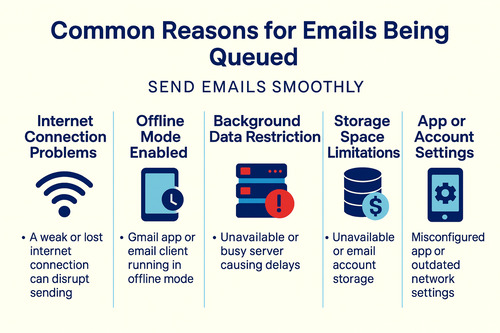
There are many possible reasons why emails may end up queued instead of being sent immediately. Some of the most common causes include:
- Internet Connection Problems: A weak or lost internet connection on your device or app can prevent emails from sending, placing them in the queue until connectivity is restored.
- Offline Mode Enabled: If your Gmail app or other email client is running in offline mode, emails you send are queued locally until you reconnect.
- Background Data Restrictions: On some devices, background data may be restricted for the Gmail app or email clients, which stops queued emails from sending automatically.
- Server Issues or High Traffic: Your email provider’s server or the recipient’s server may be temporarily unavailable or handling large volumes of messages, causing delays.
- Storage Space Limitations: If your device or email account is running low on storage, sending may be disrupted.
- App or Account Settings: Misconfigured network settings, outdated Gmail app versions, or incorrect account credentials can make emails wait in the queue.
- Email Size and Attachments: Large files or exceeding the size limit for outgoing emails can cause messages to be queued.
Understanding these common reasons helps you identify the root cause of your queued emails and take steps to resolve the issue effectively. Similar sync and delivery problems can also make your Gmail messages disappear or fail to show up — learn how to fix missing Gmail emails here.
Potential Causes for Queued Emails
Network Issues
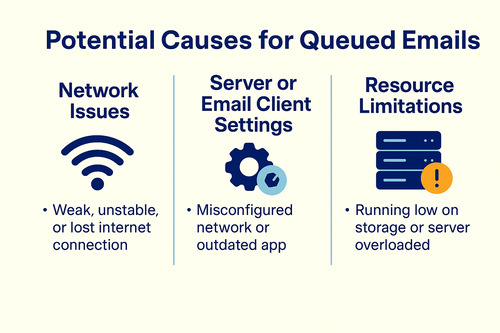
One of the most common reasons your emails get queued is due to network issues. A weak, unstable, or lost internet connection can prevent your device or app from sending emails successfully.
This might happen if you have poor Wi-Fi, cellular network problems, or if your device is accidentally set to airplane or offline mode. Additionally, interruptions in your modem or router can cause delays, leading to emails being stuck in the outbox or Gmail app queue until the connection is restored.
Server or Email Client Settings
Incorrect email client or server settings can impact how emails are sent and result in them being queued. For instance, an outdated Gmail app, misconfigured SMTP settings, or incorrect account credentials could delay message transmission. Furthermore, server limitations such as throttling or restrictions on sending a large volume of messages to a single destination can also contribute to queued emails.
If you use Outlook, maintaining a structured inbox can also help reduce sending delays — here’s how to organize your Outlook emails effectively.
Some email marketing platforms and services implement frequency rules or limits that queue emails to prevent spam-like behavior.
Resource Limitations
Resource constraints on your device or server can also lead to email sending issues. For example, low storage space can stop Gmail from sending queued emails.
Similarly, if the email server is overloaded due to high CPU or memory usage or is experiencing a backlog from handling many simultaneous connections, delays can occur. Large attachments might further increase sending time, causing the messages to queue longer. Ensuring your device and server have sufficient resources is essential to avoid stuck emails in your Gmail account or other email clients.
How to Fix and Prevent Queued Emails

Say goodbye to spam, clutter, and chaos.
Our smart email cleaner filters out junk, organizes your inbox, and helps you focus on what really matters.
✅ Block spam automatically
✅ Organize emails by priority
✅ Keep your inbox clean
✅ Clean old emails you don’t read
📱 Available on the App Store and Google Play.


Immediate Solutions
If you find your emails stuck in the queue, there are quick steps you can take to get them moving again. First, check your internet connection to ensure you’re online and have stable connectivity.
Next, open your Gmail app or email client and confirm that it is not in offline mode. For Gmail specifically, toggling the sync feature off and on again can reset the sending process. Clearing the app cache via your device settings can also solve temporary glitches that block email sending.
Lastly, restart your device—it’s simple but often effective for clearing minor network or app errors.
Long-Term Fixes
Update your Gmail app or email client to the latest version to prevent queued email issues and improve reliability. Review your email account settings carefully, ensuring that SMTP and server configurations are correct.
Regularly free up storage space on your device and in your email account because lack of space can contribute to sending delays. Avoid sending very large attachments over email; instead, upload them to cloud storage and share links. Keep background data enabled for your Gmail app and disable VPNs or proxies that may interfere with your connection to email servers.
Finally, signing out and back in to your account can help refresh your credentials and sync settings.
Preventive Measures
Prevention is the best cure for queued emails. Always monitor your internet connection quality before sending important messages. Avoid using offline mode unless needed, and allow Gmail to use background data in your settings so it can send emails automatically.
If you use email marketing platforms, space out mass emails to stay within sending limits and avoid triggering queuing by servers. Regularly clear browser cache if you access Gmail via web to prevent stored errors from causing sync problems. Additionally, backing up your email drafts and copies of important messages will save you time in case you need to resend emails manually.
Your security settings can also affect how smoothly your email sends messages. Make sure your antivirus or spam filters aren’t blocking outgoing mail. For more practical tips, check out these email security best practices to protect your inbox and prevent future sending issues.
Following these preventive steps can help you avoid the frustration of emails getting stuck in your outbox or Gmail queue.
Conclusion
To sum up, queued emails often occur due to network disruptions, server or app settings issues, or resource limitations. Fix issues quickly by checking your internet, updating email settings, and freeing up storage to restore normal sending.
For long-term success, keep your Gmail app updated, manage email sizes effectively, and enable background data to prevent queuing. Taking these preventive actions ensures your emails send smoothly, maintaining the reliability of your communication. Maintaining good email hygiene habits also helps prevent queuing issues caused by cluttered inboxes and storage limits.
Don’t let queued emails slow you down. Stay proactive to keep your account running smoothly and ensure timely delivery.
FAQ
Why are my emails getting stuck in the queue and not sending immediately?
Syncing delays, connection issues, large attachments, or server errors can stop your emails from sending. Check your sync, internet, and attachment size, then resend any stuck emails to fix the issue.
Restarting the client can also help.
What are the quick fixes I can try to resolve emails stuck in the queue?
To fix emails stuck in the queue, first ensure you have a strong internet connection and disable Gmail’s offline mode. Check if you’ve hit daily sending limits or if large attachments are causing delays. Manually sync or refresh your email client (e.g., use the “Send/Receive” feature in Outlook).
You can also try breaking large campaigns into smaller batches and compressing attachments. Don’t forget to back up your email content before retrying.
How can I check and adjust my SMTP server settings to prevent email queuing?
To prevent email queuing, verify your SMTP settings by ensuring correct port usage (commonly 587 or 465 with SSL/TLS). Make sure your firewall allows SMTP traffic and set appropriate retry intervals for failed deliveries. Additionally, monitor and automate queue processing, prioritize messages, segment email streams, and update your server software regularly to optimize performance.
What steps can I take to improve email deliverability and avoid queued emails in the future?
To enhance email deliverability and avoid queued emails, implement domain authentication protocols such as SPF, DKIM, and DMARC. Regularly clean and segment your mailing list, use double opt-in to maintain list hygiene, and send emails consistently. Focus on crafting relevant and personalized content, warm up new IPs gradually, and monitor deliverability metrics continuously.
