


If you’ve ever clicked the archive button on an email and then wondered, “Where are my archived emails?” you’re not alone. Archived emails are messages you’ve intentionally removed from your inbox to declutter it without deleting them permanently. Instead of disappearing forever, these emails are safely stored in a special archive folder or view, depending on your email platform. Learning how to find archived emails doesn’t require digging through deleted items or spam folders. Instead, it usually means looking in a designated place where archived messages live, accessible whenever you need them.
Whether you’re using Gmail, Outlook, or another email service, knowing exactly where archived emails go and how to find them will help you stay organized and easily retrieve any important message you’ve set aside.
And if you don’t want to receive unwanted emails or spam cluttering your inbox, you can use our Cleanfox platform — 100% free.
Finding Archived Emails in Gmail
Using ‘All Mail’ Label
To find archived emails in Gmail, the primary place to look is the All Mail folder. Archived emails are simply messages that have been removed from your inbox label but are still stored in your account.
This means they don’t appear in the inbox but can be found by clicking on “More” in the menu on the left side of your Gmail interface, then selecting All Mail. This folder contains all emails, including archived, sent, and inbox messages. The archived emails appear without the inbox label, making it easy to distinguish them from your regular inbox messages.
Step.1 👇
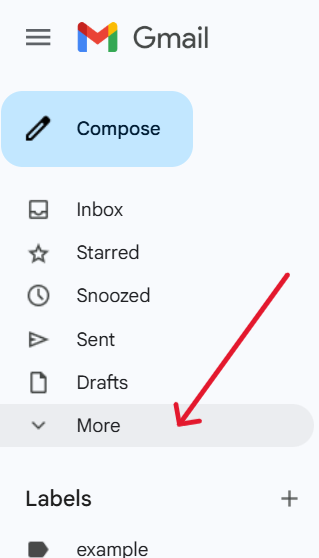
Step.2 👇
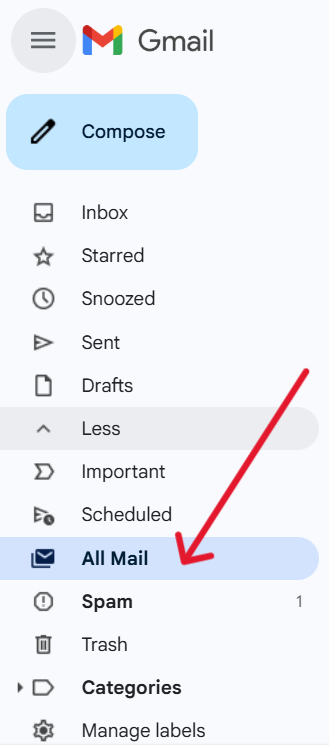
This method works whether you open Gmail on a computer through a web browser or on the Gmail app by scrolling down to the “All Mail” label in the menu.
Using the Search Bar
If you want to quickly locate a specific archived email, the Gmail search bar at the top of the page is an extremely helpful tool. Since archived emails lack the inbox label, you can use advanced search operators to find emails not in the inbox.
For example, typing -in:inbox into the search bar will filter out inbox messages and show emails that are archived or in other folders. You can combine this with keywords related to the email’s content, sender, or date to narrow down your search.
Step.1 👇
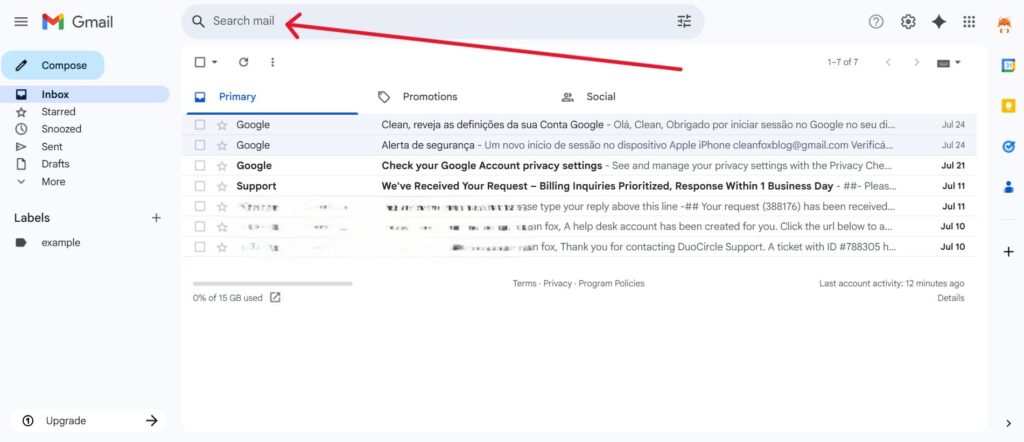
Step.2 👇
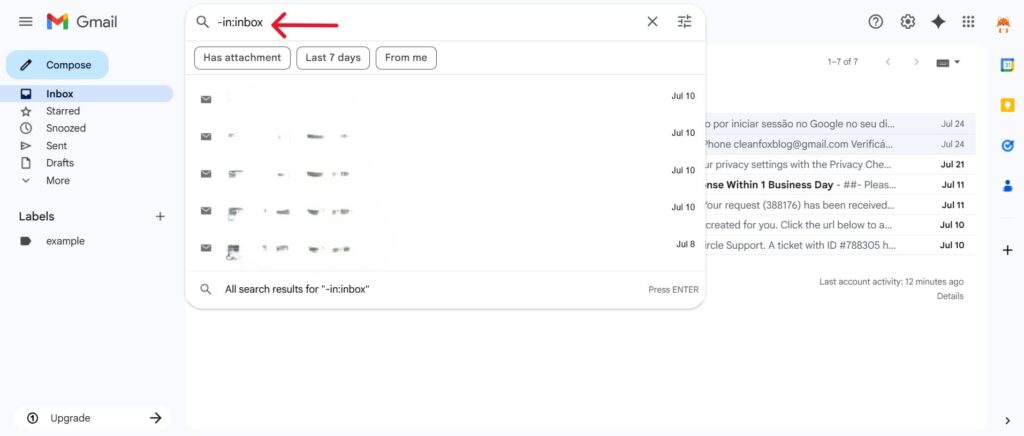
Some users also use the operator in:archive to list emails that have been archived specifically. This search functionality is available both on the Gmail web browser interface and within the Gmail app, making it convenient to find archived emails quickly from your computer or mobile device.
Finding Archived Emails in Outlook
Using the Navigation Pane
To find archived emails in Outlook, start by navigating to the Navigation Pane. The Archive folder is usually located there and serves as the storage for all emails you’ve archived.
Here’s how to access it:
- Open Outlook on your computer.
- Ensure the folder list is visible by going to View > Folder Pane > Normal.
- Once the folder list is displayed, click on the Archive folder to view all your archived emails.
Step.1 👇
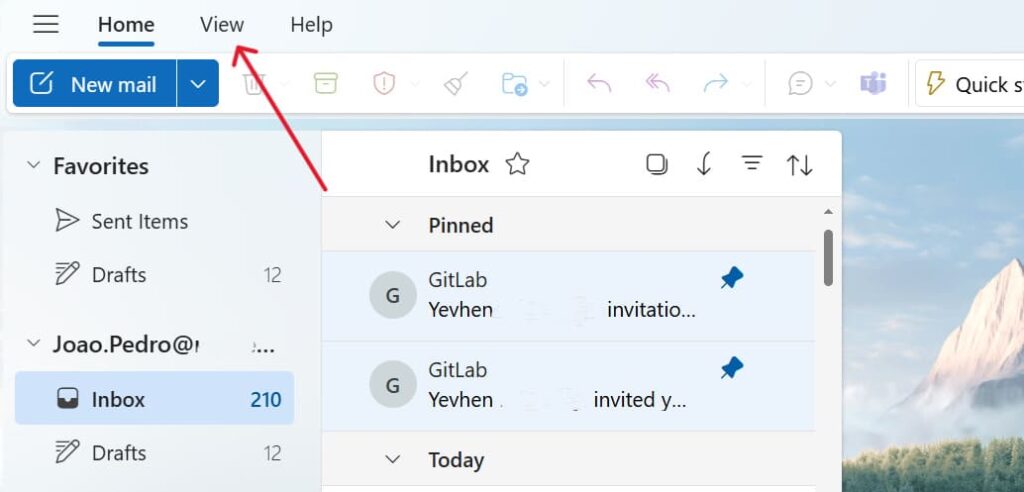
Step. 2 👇
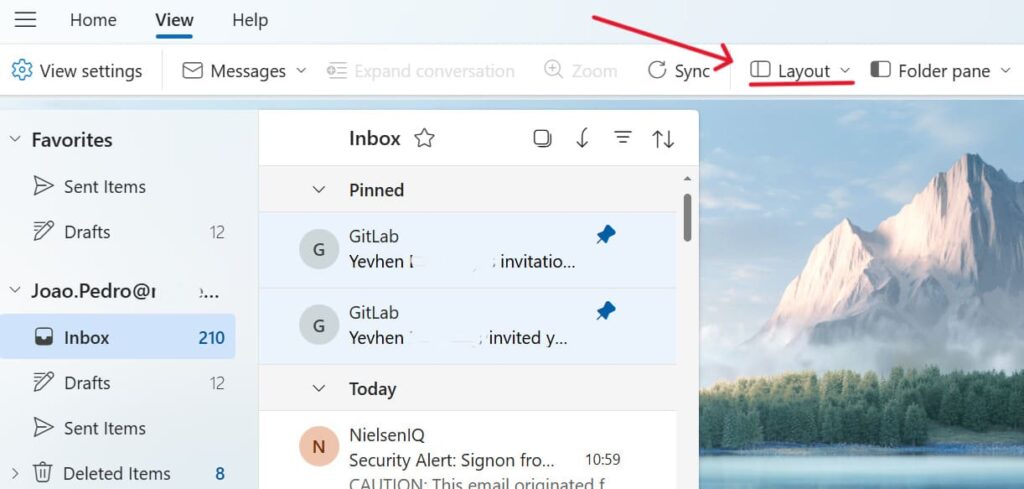
This approach works seamlessly whether you’re using Outlook for Windows, Mac, or newer versions like Outlook 365. The Archive folder is a convenient repository for messages you want to retain but don’t need cluttering your inbox.
Web Version
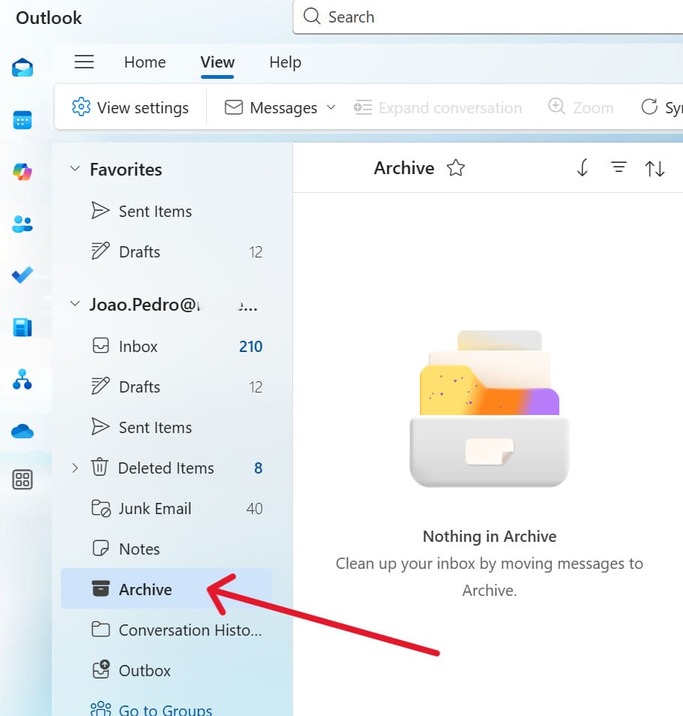
Using the Search Feature
Outlook’s powerful search feature allows you to quickly locate specific archived emails. To use this feature:
- First, select the Archive folder in the Navigation Pane.
- Then, use the Search bar located at the top of the Outlook window to type in keywords related to the email you’re trying to find.
- Outlook will search within the selected folder (in this case, the Archive folder) to retrieve the email you need.
This method is an efficient way to find specific archived emails without the need to manually scroll through your entire list of messages.
Finding Archived Emails on Other Email Platforms

Say goodbye to spam, clutter, and chaos.
Our smart email cleaner filters out junk, organizes your inbox, and helps you focus on what really matters.
✅ Block spam automatically
✅ Organize emails by priority
✅ Keep your inbox clean
✅ Clean old emails you don’t read
📱 Available on the App Store and Google Play.


Yahoo and Other Providers
If you use Yahoo Mail, archived emails are stored in a dedicated Archive folder that you can find easily in the sidebar menu. Unlike Gmail or Outlook, the archive button moves emails directly from your inbox into this folder, effectively removing them from the inbox but keeping them safe indefinitely.
To view archived emails, simply open the Archive folder, which is usually located near your inbox and other default folders. You can browse or search for emails there, and if you want to move an archived email back to the inbox, just select it and click the “Move to Inbox” option.
This system is similar to other providers that maintain a separate archive folder or label. As a result, you’ll often find archived emails in a clearly named folder rather than hidden within folders like “All Mail.”
Email Apps on Mobile Devices
When using email apps on mobile devices, accessing your archived emails varies slightly depending on the app, but the process is generally intuitive. Most popular email apps, including Gmail, Outlook, and Yahoo Mail, have an Archive folder or label accessible from the app’s main menu or navigation drawer. For example, on the Gmail app, you can find archived messages under “All Mail,” while Outlook’s app shows an “Archive” folder alongside your inbox and other folders.
Use the app’s built-in search feature—usually located at the top of the screen—to locate archived emails by typing keywords, senders, or other details. Since mobile apps sometimes streamline the interface, you may need to tap “More” or swipe through folders to reveal archived messages. Once you’re familiar with the app, finding archived emails can be just as fast as on a computer.
Conclusion
Remember, archived emails are not deleted—they’re stored securely in a dedicated folder or label that varies depending on your email platform. Whether you use Gmail’s “All Mail” view, Outlook’s Archive folder, or a specialized folder in other providers like Yahoo, knowing where to find these messages makes managing your inbox much easier. If you’re a Gmail user and notice that some emails seem to have disappeared, you may want to learn how to fix missing Gmail messages.
Use search features to quickly locate archived emails when needed. To stay organized, make it a habit to archive regularly and familiarize yourself with the tools available in your email system.
Start exploring your archive today to keep your inbox clutter-free without losing important messages.
FAQ
How can I access my archived emails in Gmail?
To access archived emails in Gmail, open Gmail and click “More” in the left menu. Then, select “All Mail” to view all emails, including archived ones. Alternatively, you can use the search bar and type “in:archive” or relevant keywords to locate specific archived messages. If you want to move an archived email back to your inbox, open the email and click “Move to Inbox.”
What is the difference between deleting and archiving an email?
Deleting an email removes it from your inbox and sends it to the Trash, where it is permanently deleted after 30 days. This action helps free up storage space. On the other hand, archiving an email removes it from your inbox but keeps it in “All Mail,” preserving it for future retrieval without freeing storage space. To dive deeper into the difference between archiving and deleting emails, check out our full guide.
How do I move an archived email back to my inbox?
To move an archived email back to your inbox in Gmail, open Gmail on your computer and navigate to “More”, then select “All Mail.” Locate the archived email, check its box, and click “Move to Inbox” at the top. This restores the inbox label and visibly returns the email to your inbox.
Where can I find the Archive folder on my iPhone Mail app?
On your iPhone Mail app, open the Mailboxes screen by tapping the back arrow until you reach it. Then, tap the email account name to expand its folders. The Archive folder will be listed there.
You can tap it to view archived emails. To make it more accessible, tap Edit in Mailboxes and add Archive to your favorites.
And this was our article on how to find archived emails. Check our blog for more tips on improving your email productivity.
