

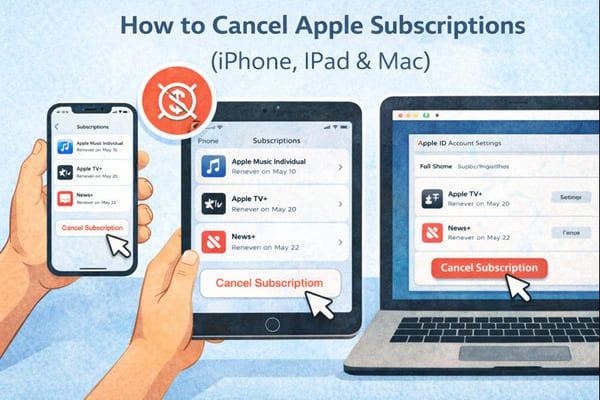
Are you looking to cancel Apple subscriptions on your iPhone, iPad, or Mac? You’ve come to the right place! This step-by-step guide will help you easily find and cancel subscriptions, whether they’re billed through your Apple account via the App Store or elsewhere. Save yourself from unwanted charges for services you no longer use.
Let’s face it—those subscriptions can pile up quickly, creating digital clutter, especially after free trials or downloading apps that seemed ideal at the time. Tired of seeing “subscription billed” notifications from Apple? Or perhaps you want to review your purchase history and access your subscriptions to cancel? No worries, we’ve got you covered.
Whether you’re using an iPhone, iPad, or Mac, simply open Settings or access the App Store to manage your subscriptions. Follow our guide to cancel subscriptions, change or add plans, and handle any issues with Apple Support. Master it in just minutes!
And if you want to keep your inbox clean and free from spam and unwanted emails, Cleanfox can help.
Canceling Subscriptions on iPhone and iPad
Cancel on iPhone
Reader, let’s dive right into your iPhone — it’s the quickest way to cancel subscriptions using the built-in Settings app. Start by opening Settings and tap your name at the top, then select Subscriptions to see your active ones listed.
Spot the one you want to ditch? Tap it, scroll to the bottom, and hit Cancel Subscription — then confirm when prompted.
You’ll see an expiry date pop up, meaning you can still use it until the subscription’s billed period ends. After that, it’ll stop renewing across all devices linked to your Apple account.
If it’s not showing up, head to the App Store, tap your profile, go to Subscriptions under Media & Purchases, and tap Manage to find and cancel from there.
Cancel on iPad
Good news, reader—iPad users follow almost the exact same path as iPhone users. Simply open Settings, tap your name, hit Subscriptions, select the app or service, scroll down, and tap Cancel Subscription followed by Confirm.
No button? Check the App Store on your iPad: open it, tap your profile icon, choose Subscriptions, then Manage to cancel any subscriptions billed through your Apple account.
Canceling Subscriptions on a Mac
Switching to your Mac? No sweat—start by heading to the App Store app. Click your name in the bottom-left corner and ensure you’re signed into the correct Apple account.
Next, click Account Settings at the top. In the Manage section, hit Manage next to Subscriptions. If you have multiple subscriptions, click Edit, select the one you want to cancel, and tap Cancel Subscription. Confirm your choice, and you’re done! Your access will last until the current billing cycle ends.
If you’re using macOS Ventura or later, you can also use System Settings. Click your name or Apple ID, navigate to Media & Purchases, locate Subscriptions, and click Manage to cancel directly in the App Store interface.
Feeling stuck? You can contact Apple Support for help managing or canceling subscriptions, especially if you’re unable to access your account or subscription details.
Additional Tips and Troubleshooting

Say goodbye to spam, clutter, and chaos.
Our smart email cleaner filters out junk, organizes your inbox, and helps you focus on what really matters.
✅ Block spam automatically
✅ Organize emails by priority
✅ Keep your inbox clean
✅ Clean old emails you don’t read
📱 Available on the App Store and Google Play.


If You Can’t Find the Subscription
Sometimes subscriptions can be tricky to locate. Check your purchase history in the App Store by tapping your profile and reviewing recent charges to identify active subscriptions.
If it’s still missing, it could be associated with a different Apple account or a Family Sharing member’s Apple ID. Try signing in with that account via Account Settings, or explore Media & Purchases in System Settings on your Mac. Look for charges labeled as “apple.com/bill” to uncover subscriptions billed through Apple.
If You Want to Cancel a Third-Party Subscription
For subscriptions not billed through Apple—such as those purchased directly through a website or another platform—open the service’s app or website. Navigate to the account or billing settings and look for cancellation options there. Apple does not manage these subscriptions.
If the subscription is billed through Apple but managed by the service provider, you may need to contact the app developer or Apple Support for assistance. For family plans, ensure you’re signed in with the correct Apple ID before attempting to cancel.
Conclusion
Dear reader, you’ve got this! To cancel Apple subscriptions, simply open the Settings or App Store on your iPhone, iPad, or Mac. Tap on your Apple account, then select Cancel Subscription before the next billing cycle begins. Don’t forget to review your subscriptions regularly to avoid unwanted charges. For third-party services, manage them directly through their websites. If you’re stuck, contact Apple Support for assistance.
Take action now to avoid unwanted charges—remember to cancel at least 24 hours in advance to ensure the subscription does not renew.
Make it a habit to review your subscriptions regularly, make changes, or add only what you truly need. Reclaim control of your finances today!
FAQ
What happens after I cancel an Apple subscription on my iPhone, iPad, or Mac?
After canceling an Apple subscription on your iPhone, iPad, or Mac, you will retain access until the end of the current billing cycle. Once the cycle ends, access is terminated. Please note that Apple does not automatically issue refunds unless you are eligible under specific circumstances.
How can I cancel an Apple subscription if I can’t find it in my Settings or App Store?
If you can’t locate the subscription in your Settings or App Store, check your billing statements for charges labeled “apple.com/bill.” You can also sign in to your Apple account on a Mac and review subscriptions via the App Store under Account Settings. If you’re still having trouble, contact Apple Support directly.
Does deleting an app cancel its subscription, and what about free trials?
No, deleting an app does not cancel its subscription. You must manually cancel it by going to Settings > [Your Name] > Subscriptions on iOS devices.
Additionally, free trials require explicit cancellation before the trial period ends to avoid charges.
Can I cancel an Apple subscription immediately before the billing period ends?
No, canceling an Apple subscription prevents renewal but still allows access until the current billing period ends. The service does not terminate immediately.