

Want to learn how to sign out of your Google account quickly and securely? Whether you’re using a computer, phone, or tablet, this step-by-step guide will show you how to log out of your Google account while keeping your Gmail, Google Drive, and other apps safe.
Have you ever finished using a shared device and realized you’re still signed into Google? Or maybe you’re switching profiles on your phone, tablet, or Android device and need to remove account access fast.
No problem! Protecting your privacy is essential, and simply signing out can prevent unauthorized access to your personal data. We’ll show you easy methods, from tapping your profile picture at the top-right corner to managing sessions remotely—no tech skills needed. For more on setting healthy tech limits, check out our Digital Boundaries guide.
By the end, you’ll confidently manage your Google account on any computer, iPhone, Android, or Gmail app. Let’s dive in and make signing out simple and effective!
And if you want to keep your Google inbox clean and free from spam, download our Cleanfox app for free.
Signing Out on a Desktop or Laptop
Video Tutorial ⬇️
Accessing the Account Menu
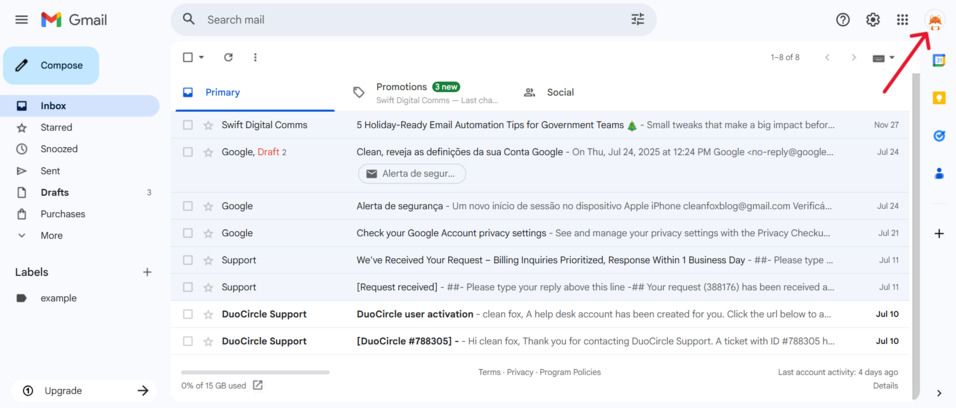
To start, open your web browser on your computer and navigate to any Google service such as Gmail or the main Google homepage. Look for your profile picture located in the top-right corner of the screen—it’s your entry point for managing accounts.
Hover over or click your profile picture to display the dropdown menu. This menu is particularly useful for managing sessions when multiple profiles are signed in to Google.
Step-by-Step Sign Out Process
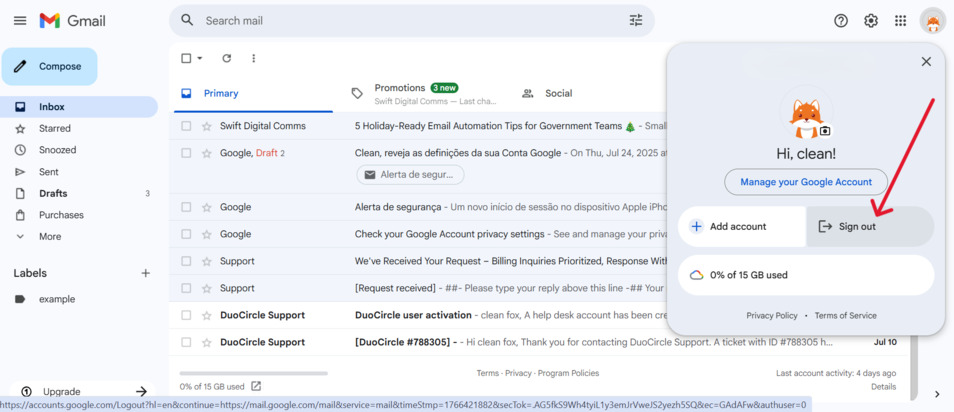
Begin by clicking your profile picture to open the dropdown menu. From there, scroll to the bottom and select Sign out. If you have multiple accounts logged in, opt for Sign out of all accounts to ensure a complete logout.
Follow any confirmation prompts, and just like that, you’ll be logged out across all Google apps on that browser session, including services like Google Drive. If you wish to remove the account entirely from Chrome, access the settings by clicking the three dots, select your profile icon, and choose Sign out of Chrome.
Signing Out on Mobile Devices

Say goodbye to spam, clutter, and chaos.
Our smart email cleaner filters out junk, organizes your inbox, and helps you focus on what really matters.
✅ Block spam automatically
✅ Organize emails by priority
✅ Keep your inbox clean
✅ Clean old emails you don’t read
📱 Available on the App Store and Google Play.


Android Devices
On your Android phone, signing out works differently than on a computer. Android does not offer a traditional “sign out” option at the system level. Instead, you can either remove the Google account from your device entirely or sign out of individual apps like Chrome.
To remove an account completely, tap your phone’s Settings, then navigate to Passwords & accounts (or Manage accounts on some devices). Tap the Google account you wish to remove, then tap Remove account and confirm—this will delete all associated emails, contacts, and settings from that device, but not delete your Google account itself.
If you’d prefer to stay signed into Google on your device but want to log out of Chrome only, open the Chrome app, tap the three dots menu, select Settings, tap your name, and choose Sign out.
iOS Devices
For iPhone users, the process differs slightly from Android. Open your Gmail app, tap your profile picture in the top left corner, then tap your account email address. Tap Manage your Google Account, and access the Security section.
From there, locate the Your devices area, find the device you want to sign out from, and tap Sign out to remotely disconnect that iPhone from your Google account. Depending on your iOS version, you can also remove the account directly from your iPhone’s system settings by locating your Google account and selecting Remove account to delete it from the device.
Signing Out of Multiple Sessions Remotely
Using the Google Security Page
Sometimes, you may not have physical access to a device to sign out. For example, you might have used a shared computer at a library or left yourself signed into Google on a borrowed phone. The good news? You can sign out remotely from anywhere.
To do this, open your web browser and visit myaccount.google.com on any device you currently have access to. From there, click on Security in the left-hand sidebar. Look for the Your devices section and select Manage all devices.
You’ll see a list of all devices and sessions where you’re signed into Google. This includes everything from your Android phone to computers or iPhones you might have forgotten about. Simply locate the unwanted device or session, click it, and select Sign out to disconnect it from your Google account.
For web sessions specifically, you can also access Gmail directly. Scroll to the very bottom of your inbox and click Details next to the account activity notice. From there, select Sign out of all other web sessions to log out of every browser session at once. Keep in mind that this only affects browser-based sessions and does not sign you out of Google apps on phones or tablets.
Considerations for Account Security
Here’s what you need to know: when you remotely sign out, you’re not permanently removing your account from the device. You’re simply ending the current session. The device may still remember your login details unless the account is manually removed from that device.
If you’ve lost a device or suspect it has been stolen, remote sign-out can be a lifesaver. For added peace of mind, consider changing your Google account password afterward. Be aware that you may need to re-enter your password and complete two-factor authentication on trusted devices once sessions are ended.
Conclusion
Logging out of your Google account is a simple but important step in protecting your privacy and security. Whether you’re signing out on a computer, a phone, or managing multiple sessions remotely, you now have the tools to stay in control.
Make it a habit to sign out of shared or unused devices, remove unnecessary account access, and regularly review your security settings. By taking these small but effective steps, you help ensure your Gmail, Google Drive, and personal data remain safe from unauthorized access. Start today to enjoy peace of mind and enhanced online security.
FAQ
What are the different ways to sign out of Google across various devices, and which method applies to my specific device?
To sign out across devices, visit your Google Account > Security > Manage all devices, then select a device and click Sign out. On Android, accounts must be removed from the device via system settings. On iOS and web browsers, sessions can be ended remotely using the same Security settings.
Why does my Gmail account automatically sign me out, and how can I prevent this from happening?
Gmail may sign you out due to inactivity, browser issues, corrupted cookies, suspicious activity detection, or network problems. Keeping your browser updated, enabling cookies, and regularly reviewing your security activity can help reduce unexpected sign-outs.
How can I remotely sign out of my Google Account from a lost, stolen, or unused device?
Go to myaccount.google.com, select Security, then Manage all devices. Choose the device you want to disconnect and click Sign out.
If I have multiple Google accounts signed in, can I sign out of just one account instead of all of them?
On desktop browsers, Google signs out all accounts at once. To manage individual sessions, use the Manage all devices option in your Google Account security settings.
And this was our article on how to sign out to google account. If you want to learn more, check out our blog.
