

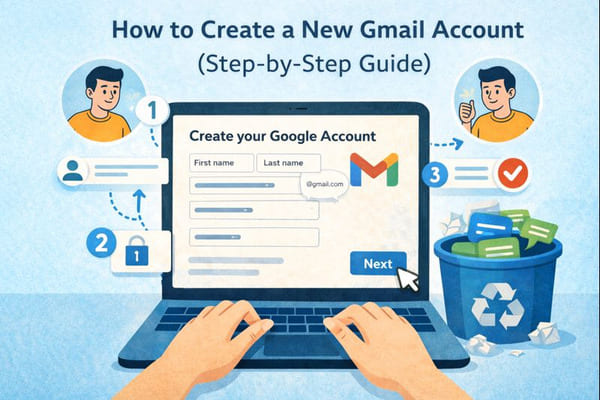
Want to create a new Gmail account quickly and easily? This step-by-step guide walks you through the process of setting up your free Gmail account on any device. In just minutes, you’ll be ready to start sending emails, managing messages, and accessing Google apps like Drive and Meet.
Whether you’re signing up for personal use, work, or even a Google Workspace setup, this guide covers the Gmail basics. You’ll learn everything from choosing your unique email address to verifying your details. No need for technical expertise—simply follow the steps, and your Gmail account will be ready to reply, forward, search, and organize your inbox like a pro.
And if you want to keep your new Gmail account clean and free from spam from day one, you can use the Cleanfox platform.
Let’s dive in and get you connected!
Step 1: Navigating to Account Creation
Accessing the Google Account Creation Page
Ready to get started, reader? Open your browser and go directly to the Gmail sign-in page at accounts.google.com. This is your gateway to all things Google, including the option to create a Gmail account. Look for the prominent “Create account” button, typically located in the top area or main menu.
Click on the button, and if prompted, select “For my personal use” (or “For work or business” if you’re considering Google Workspace for advanced user and group features later).

From here, you’ll be directed to the sign-up form. Pro tip: If you’re using a mobile device, open the Gmail app from your apps menu or Google apps. Tap your profile icon, select “Add another account,” and then click “Create account.” This method might even let you skip unnecessary steps and proceed straight to the setup.
You’ll have the option to select a suggested Gmail address or create a unique one. No need for an existing email address unless you prefer using one.
Understanding the Requirements for Creating an Account
Before proceeding, let’s go over what you’ll need to ensure a smooth setup process. Gather your first and last name, birthdate (you generally need to be at least 13 years old, though this can vary by country—make sure the information is accurate to avoid issues), gender, a strong password (at least 8 characters, including letters and numbers), and an active phone number for verification. In some cases, you may see an option to skip phone verification depending on your region, device, and account history.
Google may also suggest adding recovery options like a backup email or phone number, and you’ll need to agree to their privacy policy. Don’t worry if you’re switching between devices; this process works seamlessly across various Gmail-compatible devices, enabling you to access Google apps, perform searches, or even clear search history once your account is set up.
Got everything ready? Great—you’re all set, no advanced preparation required!

Say goodbye to spam, clutter, and chaos.
Our smart email cleaner filters out junk, organizes your inbox, and helps you focus on what really matters.
✅ Block spam automatically
✅ Organize emails by priority
✅ Keep your inbox clean
✅ Clean old emails you don’t read
📱 Available on the App Store and Google Play.


Step 2: Entering Your Details
Inputting Personal Information
Now that you’re on the account creation page, it’s time to fill in your personal information. Start by entering your first and last name exactly as you’d like them to appear when you send emails or interact with others through Google services. This display name will show up in your messages and is how your contacts will recognize you.
Be honest here—you can always edit this later in your account’s Gmail settings if needed.

Next, input your date of birth. Google requires you to be at least 13 years old (or older in some countries) to create an account, so make sure to enter your real birthdate. Avoid entering incorrect information, as it may cause issues later.
Finally, select your gender from the dropdown menu (this step may be optional, depending on your region and account settings). This information helps Google personalize your experience and keep your account secure.
Choosing a Suitable Email Address
Here’s where the magic happens—picking your unique email address. Google will often suggest several Gmail addresses for you, usually based on your name. You can accept one of these suggestions, which is quick and hassle-free.
If you’d prefer something more personal or creative, you can create your own Gmail address by typing a custom username in the field. Keep in mind that your chosen username must be unique and not already in use. If it’s taken, you’ll see an error message. To work around this, try adding numbers, underscores, or dots. For instance, if “john.smith@gmail.com” is unavailable, you could try “john.smith.2025@gmail.com” or similar variations.
If you don’t want to create a brand-new Gmail address, you can link an existing email address instead. Just select the appropriate option and enter your current email address to connect it to your new Google account.
Setting a Secure Password
Password security is no joke, so take this step seriously. Google requires a password that is at least 8 characters long. A mix of letters and numbers is required, and adding symbols is recommended for extra security. Choose something memorable yet complex—avoid predictable options like birthdays, pet names, or common words that hackers might guess.
For example, a strong password could look like “BlueSky#2025Jazz” instead of something simpler and easier to guess.
Once you’ve created your secure password, re-enter it in the confirmation field to ensure there are no typos. This double-check saves you from the frustration of discovering errors later. After both passwords match, click “Next” to move on to the verification stage and continue setting up your new Gmail account.
Step 3: Finalizing Your Account Setup
Verifying Your Phone Number
Once you’ve entered your details, Google will prompt you to verify your phone number. This step ensures you’re a real person and adds an extra layer of security to your account. Select your country from the dropdown menu, input your mobile number (exclude the leading zero if applicable), and click Next to receive a 6-digit verification code via SMS or voice call.
Check your messages or calls for the code—it typically arrives within seconds. Enter the code into the provided field (each code is unique, so don’t copy examples). If you encounter issues like “This phone number cannot be used for verification” or if the number has been used too frequently, try using a different number from a friend or family member. Google enforces limits to reduce spam.
In some cases, you may be able to skip this step initially. However, it’s wise to add your phone number later through your Google account settings to enable recovery options.
Agreeing to Privacy and Terms
Once your code is verified, you’ll be presented with Google’s privacy policy and terms of service. Take a moment to review how your data will be handled. Then, check the box to agree—this step is mandatory to proceed and outlines details about email storage and Google apps usage across their services.
At this stage, consider adding backup options like a secondary email address or phone number if prompted. These are essential for account recovery in case of forgotten passwords or suspicious activity. Once you’ve agreed, click “I Agree” to continue setting up your account.
Completing the Setup Process
You’re nearly done! After accepting the terms, Google may display a welcome screen with optional features such as uploading a profile photo or taking an introductory tour. You can skip these or customize them later through the main content area. Click Next or the final confirmation button, and your account will be activated, granting you immediate access to Gmail, YouTube, and other Google services.
To test your new account, sign in at gmail.com, enter your credentials, and explore the interface. Check out the apps main menu for access to Google apps, use search Google or search Google apps to find what you need, and manage your searches by using close search or clear search options. Once you’re comfortable, start sending your first reply or forward to experience your fully functional account!
Conclusion
Congratulations, reader—you’ve just successfully created your Gmail account and joined millions worldwide using Google’s reliable email service! Remember these key takeaways: choose a strong password with at least 8 characters mixing letters and numbers, verify your phone number for added account security, and don’t forget to accept Google’s terms and privacy policy.
Your new inbox is now ready for sending emails, organizing messages, and accessing all Google apps effortlessly. Begin exploring features such as labels, filters, block emails on Gmail web and mobile, and forwarding options to tailor your experience to your needs. If you ever need another account, simply follow these same steps or use the “Add another account” feature—it’s that simple.
Welcome to Gmail!
FAQ
How do I create a new Gmail account if I already have one?
To create a new Gmail account, follow these steps:
Go to gmail.com and sign out of your current account.
Click on Create account and select For myself.
Enter your name, choose a unique username and password.
Provide your phone number if prompted (optional).
Review and agree to Google’s terms and conditions to complete the process.
What should I do if my desired Gmail username is already taken?
If your preferred Gmail username is unavailable, consider these tips:
Try variations by adding numbers, letters, or your birth year (e.g., johnsmith2023).
Use alternative formats like firstname.lastname.housenumber@gmail.com.
Keep in mind that Google does not recycle usernames, so you will need to come up with a unique one. If you encounter technical issues, clear your browser cache or try creating the account on a different device.
Can I create a Gmail account without a phone number?
Yes, it is possible to create a Gmail account without providing a phone number. During the signup process, when prompted for a phone number, simply select “Skip” (if you see the option).
You will still need to provide your name, birthdate, and gender to proceed. You can always add a phone number later for enhanced security or account recovery purposes.
What is the minimum age requirement to create a Gmail account?
The minimum age to create a Gmail account is 13 years old in most countries, though this can vary by region. For children under 13, parents or guardians can create supervised accounts through Google Family Link.
This was our complete guide on how to create a new Gmail account. Explore our blog for more email and productivity tips.