

Turning off 2-Step Verification in Gmail might seem like a quick way to simplify your sign-in process, but it requires careful attention to ensure your account remains secure. If you’ve decided to remove this extra layer of security from your Google account, whether on your iPhone, another device, or the app, this guide will walk you through the exact steps to safely disable 2-Step Verification. You’ll learn how to manage your Google account’s verification settings, understand important email security best practices, and prepare your account for continued protection even after turning off step verification.
Whether you use Gmail daily or manage multiple Google apps, following this process will help you confidently control your account’s access without compromising your privacy or password safety.
And if you want to keep your Gmail inbox clean and free of spam, you can use the Cleanfox platform for free — it helps you stay protected while keeping unwanted emails out.
Understanding the Implications of Disabling 2-Step Verification
Risks Associated with Turning Off 2-Step Verification
Disabling 2-Step Verification (2SV) in your Google account can greatly diminish the security measures protecting your Gmail, Google apps, and other linked services. Without this additional verification layer, anyone who guesses or obtains your password can more easily access your account, putting your personal information and privacy at risk. In more serious cases, attackers can completely hijack your mailbox — a scenario known as email account takeover, where knowing how to detect and recover fast is essential.
This includes unauthorized access to your emails, contacts, sensitive documents, and connected devices. Google requires you to reauthenticate before disabling 2SV, because this action removes one of the most effective defenses against account hijacking and unauthorized access.
Alternative Security Measures
If you decide to turn off 2-Step Verification, it is essential to implement other robust security measures. The most critical step is using a strong, unique password that isn’t reused across multiple accounts. Reusing passwords across platforms makes it much easier for attackers to perform credential harvesting and steal your logins across multiple accounts.
Google’s Password Manager can assist you in generating and securely storing such passwords, reducing vulnerabilities associated with password reuse. Additionally, make sure to regularly review and update your account recovery options, such as your recovery email and phone number, to ensure they are current.
Monitoring your account activity and addressing any suspicious sign-in attempts immediately will further help maintain security after disabling 2SV. For enhanced protection, consider using passkeys or regularly reviewing and removing unnecessary third-party app access.
Step-by-Step Guide to Disabling 2-Step Verification
Navigate to Your Google Account Security Settings
To safely turn off 2-Step Verification, begin by signing into your Google account. You can do this through the Gmail app, Google app, or directly via a web browser by visiting myaccount.google.com.
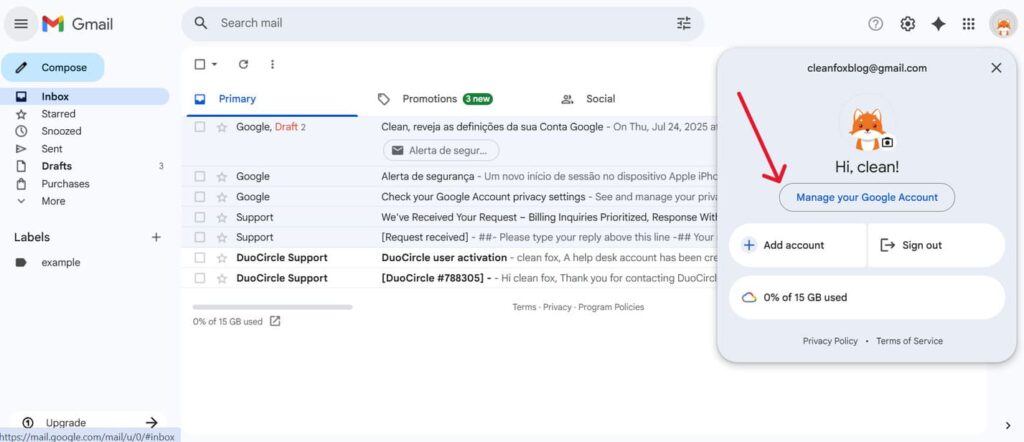
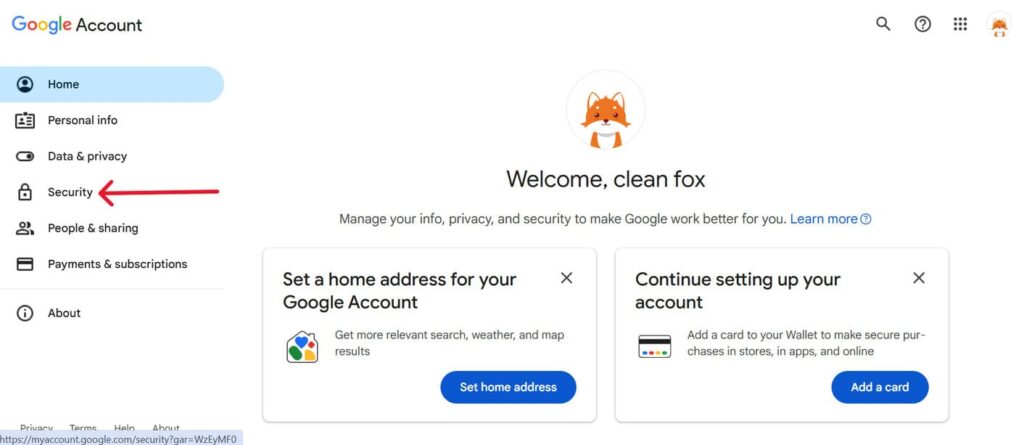
Once logged in, locate the Manage your Google Account option by tapping your profile picture or account icon. Then, go to the Security section in the menu. This section contains all the essential settings related to signing in and protecting your Google account, including the 2-Step Verification settings.
Step. 1 👇
Step. 2 👇
Turning Off 2-Step Verification
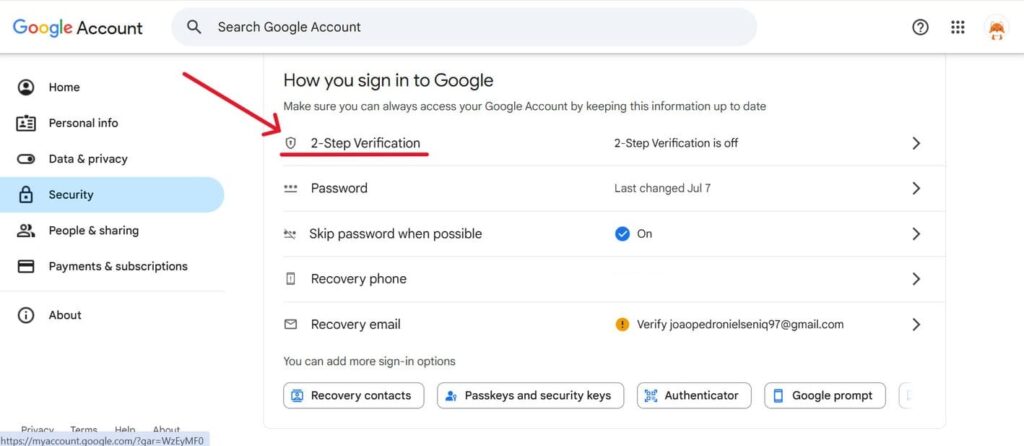
Inside the Security tab, scroll down to the Signing in to Google section and click on 2-Step Verification. Google may ask you to verify your password or sign in again to confirm your identity. After completing this step, you will see the option to Turn off 2-Step Verification.
Click the button and confirm your choice when prompted to disable it. Once deactivated, your Google account—including Gmail and other Google services—will no longer require an additional verification code during sign-in. It’s important to note that you should revoke any app passwords you’ve created for devices or apps that depend on 2-Step Verification to prevent login issues in the future.
Post-Disable Actions to Maintain Account Security

Say goodbye to spam, clutter, and chaos.
Our smart email cleaner filters out junk, organizes your inbox, and helps you focus on what really matters.
✅ Block spam automatically
✅ Organize emails by priority
✅ Keep your inbox clean
✅ Clean old emails you don’t read
📱 Available on the App Store and Google Play.


Monitor Account Activity Regularly
After disabling 2-Step Verification, it’s important to monitor your Google account activity closely to identify any unauthorized access promptly. Google offers tools to review recent sign-ins and security events.
These details can be found under the Security section of your account settings on the Google app or website. Regular monitoring helps you detect suspicious login attempts, especially since your account no longer has the added layer of verification. If you notice any unfamiliar devices or locations, change your password immediately and update your account’s security settings to prevent potential threats.
Update Recovery Options
When 2-Step Verification is disabled, maintaining reliable recovery options becomes even more important. Ensure your recovery phone number and recovery email address are up-to-date and accessible, as these are essential for reclaiming your account in case of lost access or forgotten passwords. You can update these recovery options in your account’s Security & sign-in settings via your device or a browser.
Adding or verifying recovery contacts significantly improves your chances of recovering your account smoothly in the event of security issues. Google uses these contacts to send alerts and notifications for account recovery and suspicious activity, providing an effective safety net after disabling 2-Step Verification.
Conclusion
Disabling 2-Step Verification in your Gmail account can simplify the sign-in process, but it also increases security risks. It’s important to carefully weigh the convenience against the potential for unauthorized access.
After turning off 2-Step Verification, make sure to strengthen your account by setting a unique password, updating recovery options, and regularly monitoring account activity. Additionally, review and remove unnecessary third-party app access to better protect your personal data.
Remember, your Google account serves as the gateway to your digital life. Take proactive measures to manage your security effectively. Adopting a zero-trust email security approach that assumes every login and message could be risky can further strengthen your Gmail protection. Stay vigilant, keep your settings updated, and consider re-enabling 2-Step Verification if your security needs evolve over time.
And if you want even more protection, consider how an email safeguard cloud solution can add a powerful extra layer of security on top of your Gmail account.
FAQ
How do I safely turn off 2-Step Verification in Gmail without risking unauthorized access?
To safely turn off 2-Step Verification in Gmail, go to your Google Account, select Security, then 2-Step Verification, and follow the prompts to disable it. Make sure your password is strong and unique, and delete any backup codes. Consider reactivating 2-Step Verification soon to ensure better security.
What should I do with backup codes after disabling 2-Step Verification in Gmail?
After disabling 2-Step Verification, your backup codes become automatically invalidated. If you had them stored offline, you can safely delete them, as they no longer provide access to your account. Keeping these outdated codes offers no security benefit once 2SV has been turned off.
Can turning off 2-Step Verification affect my account security or cause lockouts?
Yes, turning off 2-Step Verification significantly reduces your account security. Your account becomes password-only, making it more vulnerable to phishing attacks and unauthorized access. Additionally, you may lose access to features that require higher security levels.
However, disabling 2FA itself doesn’t cause lockouts; it removes protection against breaches.
Is it recommended to disable 2-Step Verification temporarily for certain devices or tasks?
Disabling 2-Step Verification temporarily is not recommended, as it increases vulnerability to attacks. Even for specific devices or tasks, the risk of unauthorized access rises significantly. Instead, use exceptions or alternative secure methods if possible.
Always re-enable 2FA as soon as possible to maintain account security.