

If you’re wondering how to free up space in Gmail, you’re not alone. Many users hit their storage limit and find themselves unable to send or receive emails.
Gmail shares its storage space with Google Drive and Google Photos, so when your account is full, it affects more than just your inbox. The good news is that there are simple steps you can take to quickly reclaim space and get back to using your account smoothly.
Whether you need to delete old emails, empty your trash, or clean up large files, this guide will show you how to free up space in Gmail fast and keep your Google account running efficiently.
And one of the fastest ways to free up space in Gmail is by using Cleanfox — our smart cleaning tool that helps you quickly remove unwanted emails, newsletters, and large messages that take up valuable storage.
Utilizing Gmail’s Built-in Tools for Storage Management
Google has equipped your Gmail account with powerful built-in tools designed to help you reclaim storage space without needing third-party solutions. The most effective resource at your disposal is Google One Storage Manager, which provides a centralized hub to manage your entire Google account storage across Gmail, Google Drive, and Google Photos.
Instead of jumping between different services, you can identify problem areas and take action all in one place. Let’s explore the specific strategies you can use with these tools to start freeing up space immediately.
Identify and Remove Large Attachments
One of the biggest culprits behind a full Gmail account is emails with large attachments. Over time, you accumulate messages containing photos, videos, files, and documents that consume far more storage than regular text emails.
The good news is that Google One Storage Manager specifically highlights emails with large attachments, making it easy for you to find and delete them.
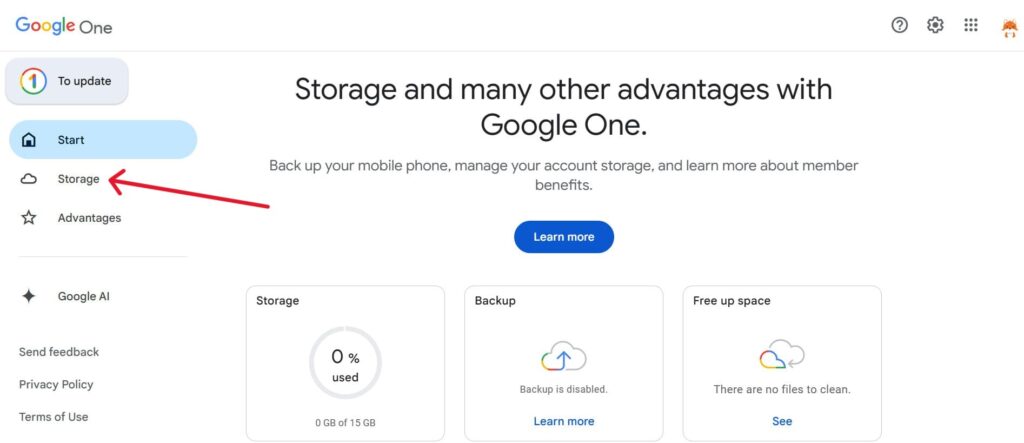
To tackle this issue, open Google One and navigate to the Storage section. Click on “Free up account storage,” and you’ll see a suggested items category that includes emails with large attachments. When you review these messages, you can decide which ones are worth keeping and which ones you can safely remove.
For attachments you want to preserve, consider downloading and saving them to your computer before deleting the email. This way, you’re keeping your storage space clean while maintaining access to important files.
Once you’ve selected the emails you want to delete, simply click the trash icon and confirm the deletion. This single action can often free up a significant amount of space in your Gmail account.
Step. 1 👇
Step. 2 👇

Step. 3 👇

Step. 4 👇
Clean Up Spam and Trash Folders
Your spam folder and trash folder are often forgotten storage drains that you can eliminate with just a few clicks. Many users don’t realize that deleted emails and files still count toward your storage limit until they’re permanently removed.
Gmail keeps deleted items in your trash for 30 days before they’re automatically wiped, but you don’t have to wait—you can empty trash manually right now to reclaim that space immediately.

Say goodbye to spam, clutter, and chaos.
Our smart email cleaner filters out junk, organizes your inbox, and helps you focus on what really matters.
✅ Block spam automatically
✅ Organize emails by priority
✅ Keep your inbox clean
✅ Clean old emails you don’t read
📱 Available on the App Store and Google Play.


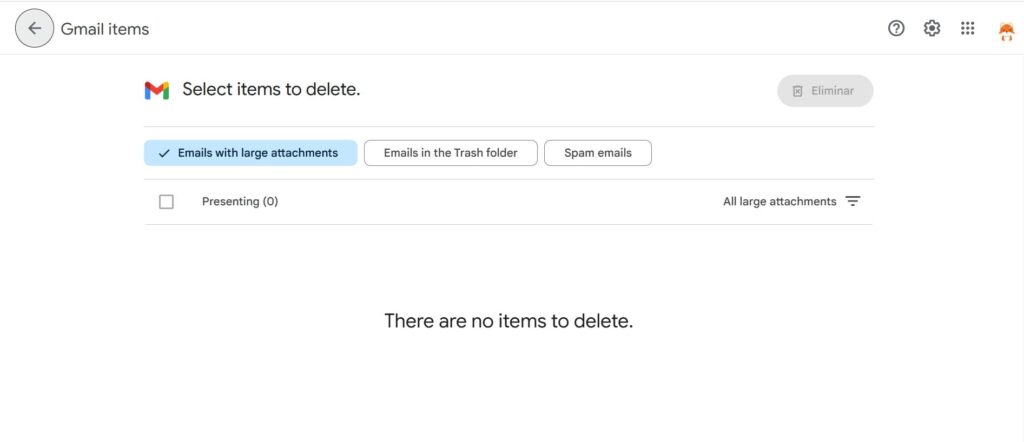
Using Google One Storage Manager, you’ll find a dedicated section showing emails in your bin (trash folder) and spam emails that are taking up valuable storage space. Google’s Storage Manager conveniently groups these items together so you can review them all at once. Simply select the spam emails and trash items you want to remove permanently, click the trash can icon, and confirm that deleted files can’t be recovered.
Then click “Permanently delete” to finalize the action. This straightforward process instantly frees up storage space and gets your Gmail account back on track.
By regularly clearing these folders, you’ll prevent unnecessary accumulation and maintain a lean, efficient email storage space.
Strategies for Long-Term Maintenance
Once you have quickly freed up space in your Gmail account, it’s important to develop habits that maintain your storage efficiently over time. Without regular upkeep, your Gmail storage, along with Google Drive and Google Photos, can fill up again—leading to the same frustration and limitations.
Implementing ongoing strategies will help you stay ahead of storage limits and keep your Google account running smoothly.
Archive Instead of Delete
While deleting unwanted emails is an effective way to free up space, archiving is a valuable alternative to keep your inbox clutter-free without losing important messages. Archived emails are removed from your main inbox view but remain searchable and accessible in your Gmail account without taking up additional storage beyond their original size.
Archiving helps you maintain organization by hiding emails you don’t need frequent access to while preserving them for future reference. This strategy is especially useful if you wish to keep emails for record-keeping or compliance but want to avoid unnecessary clutter.
Pair archiving with periodic storage reviews, so you focus deletes on genuinely outdated or space-consuming emails, such as those with large attachments that no longer serve a purpose.
Advanced Techniques and Third-Party Tools
Once you’ve mastered the basics of freeing up space in Gmail, it’s time to explore more advanced methods and tools that can help you clean up your account even faster. These techniques are especially useful if you have years of accumulated emails, large attachments, or simply want a more automated approach to managing your storage space.
Using Search Operators to Find Old and Unnecessary Emails
Gmail’s search bar is a powerful ally when it comes to finding old and unnecessary emails. By using search operators, you can quickly locate messages that are taking up valuable storage space.
For example, typing older_than:1y will show all emails older than one year, while size:5M will reveal emails with attachments larger than 5MB. You can combine these operators—like older_than:2y size:5M—to pinpoint the biggest space-hogs in your inbox.
Other useful operators include has:attachment to find all emails with attachments, from:sender@example.com to search for emails from a specific person, and before:2020/01/01 to find emails sent before a certain date. These advanced searches allow you to target exactly the emails you want to delete or archive, making your cleanup process much more efficient.
Once you’ve found the emails, you can select them all and move them to trash or archive them with just a few clicks.
Consider Third-Party Email Cleanup Tools such as Cleanfox
If you’re looking for an even faster and more automated way to clean up your Gmail account, third-party email cleanup tools can be a game-changer. Apps like Cleanfox and Unroll.me offer features that help you bulk-delete, archive, or unsubscribe from unwanted emails in just a few clicks. These tools often provide visual dashboards that show you which emails are taking up the most space, which senders are cluttering your inbox, and which emails you haven’t opened in years.
Many of these tools also offer smart filters and automation rules, so you can set up recurring cleanups or automatically archive emails from certain senders. While Google’s built-in tools are great for basic maintenance, third-party apps can save you hours of manual work and help you maintain a clean, organized inbox over the long term. Just be sure to choose reputable tools and review their privacy policies before granting access to your account.
Conclusion
Freeing up space in Gmail is essential for keeping your Google account running smoothly. By regularly deleting large attachments, cleaning out spam and trash, and using Google One Storage Manager, you can quickly reclaim storage space.
Don’t forget to archive important emails instead of deleting them, and consider advanced search operators or third-party tools for a deeper cleanup. Maintaining your storage with these simple habits ensures you’ll avoid hitting your limit and enjoy a clutter-free inbox. Take action today—your Google account will thank you!
FAQ
How can I quickly identify which emails are taking up the most space in my Gmail account?
To swiftly locate emails consuming the most space in your Gmail account, use Gmail’s search bar with the operator larger:10M. This will help you find emails that are over 10MB. You can adjust the size value based on your needs (e.g., larger:5M).
Additionally, you can refine your search by using has:attachment larger:10M to focus on emails with large attachments. Alternatively, access Google One Storage Manager to view and delete large emails directly in Gmail’s section.
What steps should I take after deleting emails to ensure that the storage space is actually freed up in Gmail?
Once you’ve deleted emails, head to the Trash folder in Gmail and click “Empty Trash now” to permanently remove them. Don’t forget to clear the Spam folder as well.
Keep in mind that storage space is shared across Gmail, Google Drive, and Google Photos. To free up space completely, check and manage files in those services too. Only after emptying Trash and Spam will the storage space be freed up.
Are there ways to free up Gmail storage without deleting important emails and attachments?
If you want to free up Gmail storage without losing important emails, utilize Google’s Storage Manager. It allows you to identify and remove large attachments, spam emails, and trash items. You can also manage storage in Google Drive and Google Photos, as these share space with Gmail.
Sort files in Drive by size and delete those you no longer need. Remember to backup your important emails before starting the cleanup process.
How can I manage my Gmail storage alongside Google Drive and Google Photos to optimize overall space?
To optimize storage across Gmail, Google Drive, and Google Photos, use Google’s unified storage management. Review and delete large files, empty trash folders in all three services, remove old backups, and clear hidden app data.
Focus on deleting duplicates and original files over high-quality photos taken before 2021. If your storage needs exceed the available space, consider upgrading to Google One for additional storage capacity.
And this was our article about how to free up space in gmail fast. If you want to know more check our Blog.
