

If you’re wondering how to attach an email in Gmail, you’ve come to the right place. Sharing an email message as an attachment is a quick and efficient way to provide the original message, including its attachments and details, without the need to forward or copy content manually. Gmail offers simple methods such as forwarding an email as an attachment, dragging and dropping emails into the compose window, or using the “Forward as attachment” option found in the three-dot menu.
The attached email is typically saved as an .eml file, which you can save step by step in Gmail and open separately. This allows your recipient to view the message exactly as it was received. Whether you’re replying with an attached email, sharing a conversation thread, or preserving the original email, Gmail makes it easy to attach emails directly from your inbox or message windows.
This step-by-step guide explains the easiest techniques to attach emails, highlights key buttons like the “three dot” menu and the “Pop out reply” button, and provides tips for sharing effectively on desktop and browser versions. With this guide, you’ll gain the confidence to manage your emails efficiently while improving communication using attached emails in Gmail.
And if you want to keep your Gmail inbox 100% free of spam, you can use the Cleanfox platform for free — it helps you block unwanted senders and keep your mailbox clean with just a few clicks.
When Might You Attach an Email?
Forwarding vs. Attaching Emails
Understanding the difference between forwarding and attaching emails in Gmail is key to effective communication. Forwarding an email sends the content within a new message and allows you to add commentary, but it doesn’t preserve the original email as a standalone file. Attaching an email, on the other hand, includes the email itself as an .eml file attachment.
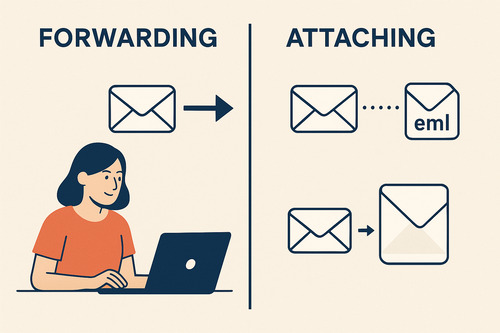
This means the recipient can open the message exactly as you received it, including all headers and attachments intact. Attaching is especially useful when you want to share the full context or keep the original formatting, while forwarding is simpler for just passing along the content with your input.
Replying with an Attached Email
There are times you might want to reply to an email and include another email as an attachment for reference. Gmail allows you to do this by opening the message window to reply, clicking the “Pop out reply” button, and then dragging the email you wish to attach into the reply window. This attached email will appear as a file named with the subject of the original message, giving your recipient the ability to open and review it independently.
Step. 1 👇
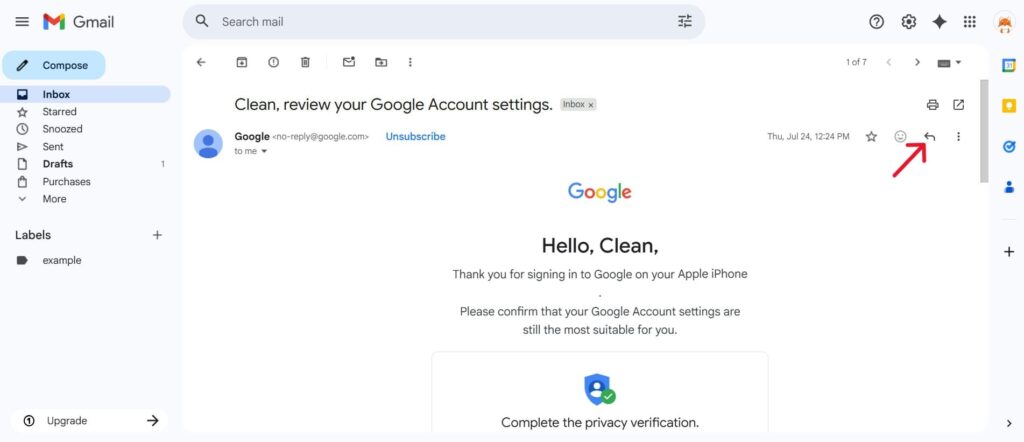
Step. 2 👇
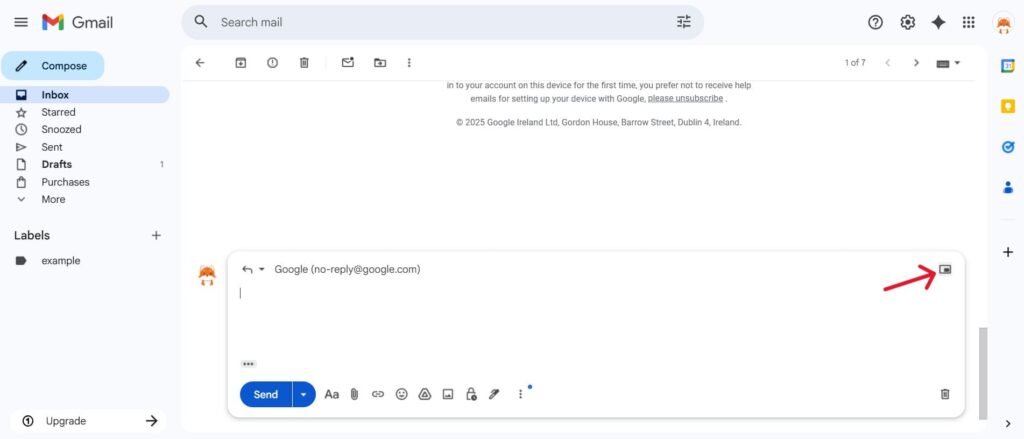
Step. 3 👇
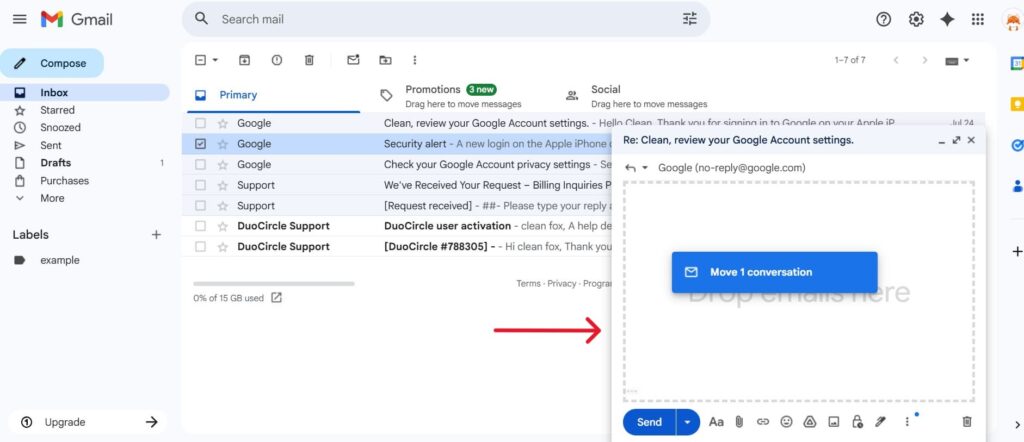
This method is ideal when responding but also needing to share related emails or files without merging threads.
Creating a New Message with an Attached Email
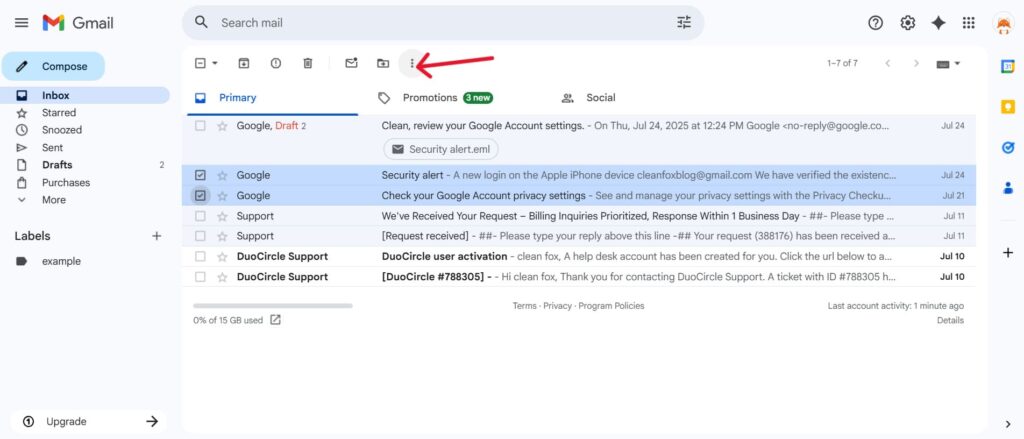
If your goal is to send an email that includes another email as an attachment but not as a reply or forward, Gmail has a straightforward option. From your inbox, select one or more emails by ticking their checkboxes, click the three-dot menu above the inbox, and choose “Forward as attachment.” Gmail will create a new email draft with the selected emails attached as .eml files. You can then add recipients, write your message, and send.
Step. 1 👇
Step. 2 👇
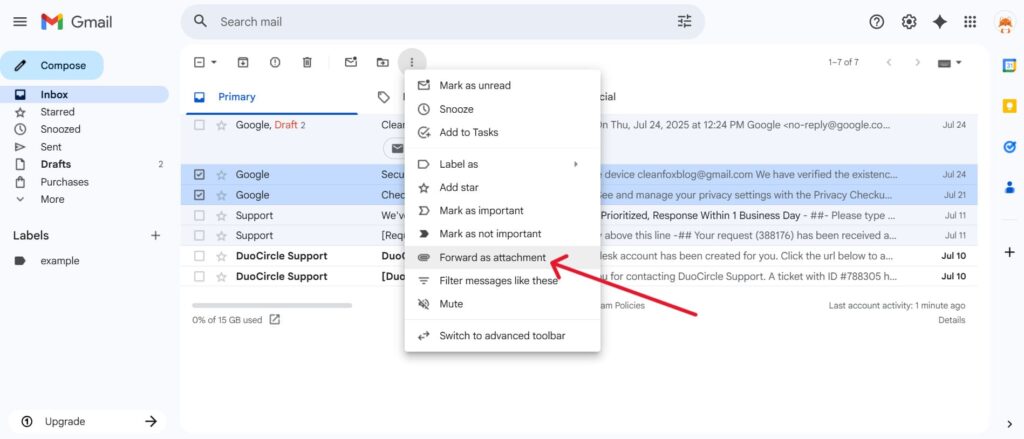
This approach is perfect when you want to share emails outside of an existing conversation or with new contacts, preserving the full original messages as attachments.
Why Consider Other Options: Streak Share

Say goodbye to spam, clutter, and chaos.
Our smart email cleaner filters out junk, organizes your inbox, and helps you focus on what really matters.
✅ Block spam automatically
✅ Organize emails by priority
✅ Keep your inbox clean
✅ Clean old emails you don’t read
📱 Available on the App Store and Google Play.


Create your own Streak Share
If attaching emails as .eml files feels cumbersome or you’re looking for a modern solution, Streak Share might be the tool you need. This feature, included in the free Streak browser extension for Gmail, lets you generate a unique, read-only link for any email thread directly from your inbox.
Getting started is simple: install the Streak extension on your Chrome browser and open Gmail on your desktop. With just one click, you can create a Streak Share link for the email conversation you wish to share.
This link can be easily pasted into collaboration tools such as Slack channels, Google Docs, or project management apps, providing a seamless and flexible way to share emails without the need for bulky attachments.
Why Use Streak Share Over Attaching an Email?
Streak Share offers several distinct advantages compared to attaching emails as files. Instead of sending large .eml attachments that recipients must open separately, Streak Share provides a clean hyperlink that offers instant access to the email thread.
Additionally, the shared email conversation updates in real time as new messages are added, eliminating the need to send updated attachments whenever the thread grows. You also retain full control over access—if the conversation becomes sensitive or you need to revoke sharing, simply toggle off the link to disable access immediately.
This dynamic and hassle-free sharing method makes Streak Share a sleek, convenient alternative that integrates seamlessly with your everyday Gmail workflow.
Conclusion
Attaching an email in Gmail is a simple yet powerful way to share original messages and attachments without losing context. Whether you drag and drop, use the three-dot menu, or forward as an attachment, Gmail ensures your communication stays clear and organized. For more on maintaining a secure inbox, explore our email security best practices. For teams, tools like Streak Share offer even more flexibility with real-time links and access control.
Keep in mind, attached emails appear as .eml files, which are easy for anyone to open. Try these methods today to streamline your workflow and make sharing emails effortless!
FAQ
How can I attach an entire email as a file in Gmail?
In Gmail, you can attach an entire email as a file by dragging and dropping it into your compose window. This action automatically converts the email into a .eml file. Alternatively, you can select the email, click the three-dot menu, and choose “Forward as attachment.”
Both methods ensure the original formatting, headers, and attachments are preserved.
What should I do if my attachment exceeds Gmail’s 25 MB size limit?
If your attachment exceeds Gmail’s 25 MB limit, you can upload the file to Google Drive and share the link in your email. Another option is to compress the file into a ZIP folder or use a third-party service like WeTransfer or Dropbox to send the file securely.
Why does the attachment option sometimes disappear when composing an email in Gmail?
The attachment option in Gmail may disappear due to outdated apps or browsers, browser cache issues, interfering extensions, firewall or proxy blocks, or Gmail settings such as filters blocking attachments. On mobile devices, UI changes—like attachment icons moving to keyboard bars—can cause confusion. If your messages are missing, check out our guide on fixing missing Gmail messages.
Refreshing Gmail or updating your apps often resolves this issue.
How can I fix issues if Gmail is not sending emails with attachments or if attachments won’t upload?
First, check your internet connection and ensure the files are under 25MB. Update your Gmail app, clear cache and data, and disable VPN or proxy settings.
Additionally, disable browser extensions, try using incognito mode, and ensure there is sufficient device storage. If the issue persists, force close the app or switch to a different browser.
