

If you’re wondering how to save your Gmail emails—whether it’s a single important message, a group of messages, or even entire threads—you’re not alone. Many of us rely on Gmail to keep track of conversations, store vital information, and manage our digital lives. But what happens when you need to save certain email messages for your records, share them with others, or safeguard them from accidental deletion?
Luckily, Google provides several ways to preserve your important emails, from forwarding to download, saving directly to Google Drive, and more. In this guide for 2026, you’ll discover clear, step-by-step instructions and insider tips to help you back up, organize, and access your Gmail account messages anytime—giving you peace of mind and control over your digital communication.
And if you’re looking for a great way to keep your Gmail free of spam and unwanted emails, you can rely on the Cleanfox platform.
Understanding Your Options for Saving Emails
When it comes to saving your Gmail emails, you have several options at your fingertips. Whether you want to keep a quick copy for reference, share important messages with others, or ensure your data is safe from accidental deletion, Gmail and Google’s ecosystem offer flexible solutions. Let’s break down the most effective ways to save your email messages, so you can choose the method that best fits your needs.
Using Gmail’s Native Features
Gmail makes it easy to save and organize your messages right from your inbox. You can use labels and folders to group related emails, making them simple to find later. If you want to keep a message handy, simply star it or add it to a custom label.
For quick reference, you can also forward important emails to yourself or to a group, or reply to them with notes for future action. If you need to save an email for offline access, you can download it as a file directly from Gmail.
And if you want to share an email or keep a backup, you can always copy the message content and paste it into a Google Doc or Google Drive folder. These native features let you manage your account mail efficiently without leaving the Gmail interface.
Exporting Emails to Computer or Cloud Storage
Sometimes, you’ll want to save your emails outside of Gmail—maybe for long-term archiving or to keep a local backup. Gmail allows you to download individual emails or entire threads as .eml files, which you can open with most email clients. For larger-scale backups, you can use Google Takeout to export all your Gmail data, including messages, attachments, and contacts.
Once exported, you can store these files on your computer or upload them to Google Drive for safekeeping. This is especially useful if you want to save Gmail messages for compliance, legal, or personal reasons.
By exporting your emails, you ensure that your important communications are preserved, even if something happens to your account mail.
Scheduling Regular Email Backups
To avoid losing valuable information, consider setting up a routine for backing up your Gmail messages. While Gmail doesn’t offer built-in automated backups, you can use third-party tools or scripts to regularly download or archive your emails.
Some users create reminders to manually export important folders or use Google Apps Script to automate the process. Regular backups help protect your data from accidental deletion, account issues, or changes in Gmail’s features. By scheduling these backups, you can rest easy knowing your email account is always protected, and your messages are always within reach.
Step-by-Step Guide to Save Individual and Multiple Emails
Now that you know your options, let’s walk through the actual steps to save your Gmail emails—whether you’re dealing with a single message or a whole batch. These methods are simple, reliable, and perfect for everyday use, so you can keep your important communications safe and organized.
Saving Individual Emails
To save a single email from your Gmail account, start by opening the message you want to keep. Once it’s open, look for the three-dot menu (sometimes called the “more” menu) at the top right of the message.
Click it, and you’ll see several options. If you want to save the email as a PDF, choose “Print” and then select “Save as PDF” in your browser’s print dialog. This creates a clean, portable copy of your message.
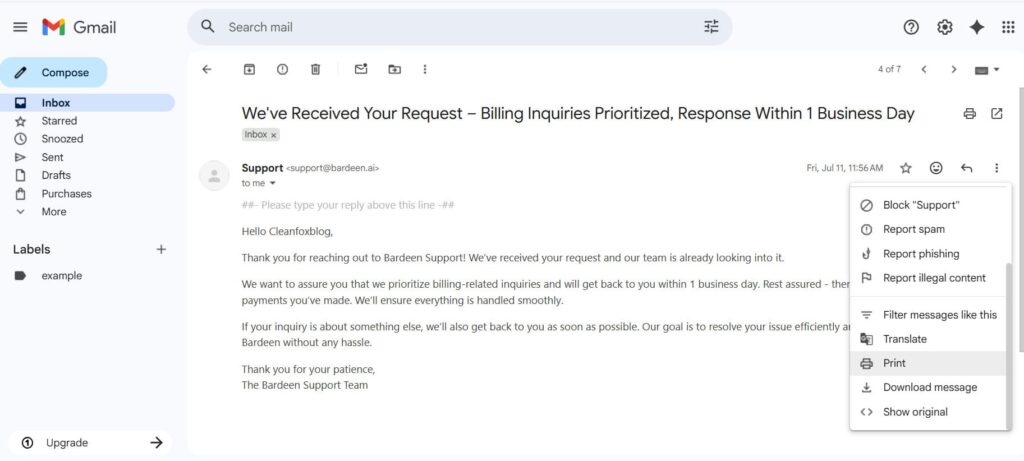
Alternatively, you can forward the email to yourself or to another account, or copy the message content and paste it into a Google Doc for easy access later. If you need to save the email for offline reference, you can also download any attachments by clicking on them and selecting “Download.”
Saving Multiple Emails
If you need to save several emails at once, Gmail makes it easy to select and act on multiple messages. In your inbox or any folder, check the box next to each email you want to save. You can also use the search bar to find specific messages by sender, subject, or keyword, then select all the results.
Once you’ve chosen your emails, click the “More” button at the top and select “Forward” to send them to another address, or “Move to” to organize them into a custom folder. For a full backup, use Google Takeout: sign in to your Google account, go to Takeout, select “Mail,” and choose which emails to export.
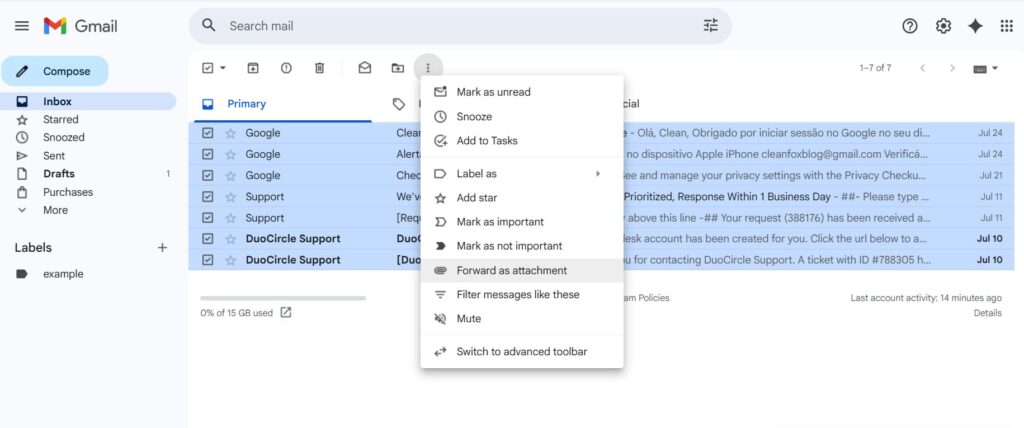
You can have the data sent to your email, Google Drive, or another cloud storage service. This way, you can save entire groups of emails, including attachments, in just a few clicks.
Advanced Tips and Tricks

Say goodbye to spam, clutter, and chaos.
Our smart email cleaner filters out junk, organizes your inbox, and helps you focus on what really matters.
✅ Block spam automatically
✅ Organize emails by priority
✅ Keep your inbox clean
✅ Clean old emails you don’t read
📱 Available on the App Store and Google Play.


Once you’ve mastered the basics of saving your Gmail emails, you can take your email management to the next level with advanced techniques. These tips will help you streamline your workflow, protect your messages, and ensure nothing important slips through the cracks—no matter how busy your inbox gets.
Using Third-Party Tools for Enhanced Email Management
While Gmail’s built-in features are powerful, third-party tools can add even more functionality to your email account. For example, Boomerang for Gmail lets you schedule messages, set follow-up reminders, and even pause your inbox when you need a break from notifications. Right Inbox is great for sending recurring emails and setting reminders, while SaneBox helps filter out noise so you can focus on what matters.
If you need to manage customer relationships directly from your inbox, Streak CRM integrates light CRM features into Gmail, and Mailtrack provides open tracking for your sent messages. Tools like Gmelius and Sortd can help you organize threads, track analytics, and turn emails into actionable tasks, making it easier to manage group messages and collaborations.
Before installing any third-party add-on, check for clear permission scopes, robust security practices, and admin controls—especially for business use. Look for trusted options in the Google Workspace Marketplace, and always review what data the app can access before you grant permissions.
Automating Email Archival
If you receive a high volume of messages, manually saving or organizing each one can be time-consuming. That’s where automation comes in.
Tools like Make (formerly Integromat) allow you to create workflows that automatically save or archive Gmail emails based on specific criteria—such as sender, subject, or label. For example, you could set up a rule to automatically save all emails from a group into a designated Google Drive folder, or forward messages with a certain keyword to another email address. These automations can run in the background, ensuring your important messages are always backed up without extra effort on your part.
You can also use Google Apps Script to create custom automation scripts tailored to your needs. While this requires some coding knowledge, it gives you complete control over how and when your Gmail messages are saved, archived, or deleted.
For those who prefer a no-code approach, many third-party tools offer simple, visual workflows for email management and archival—so you can focus on what matters most.
Conclusion
Saving your Gmail emails is essential for maintaining control, organization, and security over your communications. Whether you choose to save individual messages as PDFs, export multiple emails to your computer or Google Drive, or automate backups using third-party tools, having a reliable system ensures protection against accidental data loss.
Remember to leverage Gmail’s native features such as labels, filters, and forwarding to enhance your workflow. By taking action today and setting up simple saving or backup routines, you can ensure your important messages remain accessible and organized whenever needed.
Start managing your Gmail emails smartly and confidently today.
FAQ
What are the different methods to save Gmail emails, and which one is best for my needs?
The main methods to save Gmail emails are:
- Using Google Takeout for full exports in MBOX format.
- Exporting individual emails manually as EML or CSV.
- Configuring Gmail in MS Outlook to export to PST or CSV.
- Using third-party tools for selective, bulk exports in formats like PST, PDF, or TXT.
Google Takeout is ideal for bulk backup, while Outlook is suitable if you already use it. Third-party tools provide advanced control and format options.
The best method depends on your needs, such as whether you prefer a simple full backup, selective export, specific file formats, or automation.
How can I use Google Takeout to create a full backup of my Gmail emails, and what file formats are available?
To create a full backup of your Gmail emails using Google Takeout, follow these steps:
- Select Gmail from the list of services.
- Choose the export format: MBOX (emails), VCF (contacts), or CSV (calendar).
- Download the archive, which includes messages, attachments, and labels.
MBOX is the standard format for emails, as it preserves the structure and metadata essential for backup.
Can I save Gmail emails directly to my computer’s hard drive, and what tools can help with this process?
Yes, you can save Gmail emails directly to your computer’s hard drive using Google Takeout, which exports emails in MBOX format. Additionally, tools like Thunderbird, Outlook, or third-party software such as TrustVare Gmail Backup or Softaken Gmail Backup Tool can assist in this process. These tools offer various formats and provide easier email management.
Are there ways to automate Gmail email backups, and what are the recommended third-party tools for 2026?
Yes, you can automate Gmail email backups using third-party tools. Recommended solutions for 2026 include:
- MultCloud
- Spanning Backup for Google Workspace
- CubeBackup
- Spin.ai
- Druva inSync
These tools offer automated, secure, and reliable backup options for Gmail and Google Workspace data, making the process seamless and efficient.
