

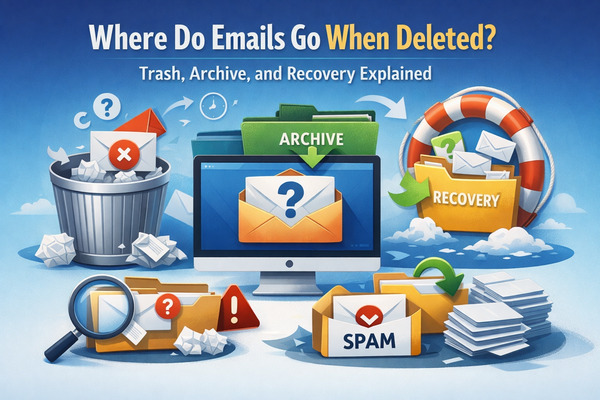
Have you ever wondered where your deleted emails actually go? When you hit delete on an email message in Outlook, it doesn’t simply vanish into thin air.
Instead, deleted emails follow a specific journey through several folders designed to protect you from accidentally losing important messages.
Understanding this process is important. Even after you delete an email, you often have multiple opportunities to recover it. The message may still be sitting in your Deleted Items folder, stored in the Recoverable Items folder, or waiting to be restored through Outlook’s recovery system.
In this guide, we’ll walk you through exactly where deleted emails go, how long they remain recoverable, and the steps you can take to find and restore any deleted messages you may need.
And if you want to clean your spam for free, you can use our Cleanfox platform.
The Immediate Destination: Trash or Bin

Say goodbye to spam, clutter, and chaos.
Our smart email cleaner filters out junk, organizes your inbox, and helps you focus on what really matters.
✅ Block spam automatically
✅ Organize emails by priority
✅ Keep your inbox clean
✅ Clean old emails you don’t read
📱 Available on the App Store and Google Play.


Function of the Trash Folder
Picture this: you select an email message in Outlook on Windows and press delete—where does it go?
It first lands in the Deleted Items folder (or the Trash folder for accounts like Gmail or Yahoo). This folder acts as your personal safety net for those “oops” moments. Instead of erasing messages immediately, it temporarily stores them, allowing you to easily recover deleted items, move them back to your inbox, or empty the folder for permanent removal.
This buffer zone—especially useful in classic Outlook—helps keep your inbox organized without the irreversible step of true deletion.
Retention Periods
However, don’t get too comfortable—items in the Deleted Items folder are not meant to stay there forever.
Outlook can be configured to automatically empty the Deleted Items folder when you exit the application, prompting you to confirm before permanently removing everything. This ensures a quick cleanup process across accounts.
For other email services, trash folders often automatically delete messages after about 30 days, as explained in our guide on how to delete old emails in Gmail automatically, although this timeframe can vary depending on your provider or specific settings.
Additionally, administrators may enforce stricter rules, such as regular purges to save server space. This serves as a reminder not to treat the trash folder as a long-term storage solution for important emails.
Archiving Emails: A Safer Alternative to Deleting
What Is Archiving?
If deleting feels too risky for emails you want to remove from your inbox but still keep, archiving offers a perfect middle ground. You can learn more about this in our guide on archive vs delete in email.
Unlike deletion, which sends messages to the Deleted Items folder, archiving moves them to a dedicated Archive folder or separate mailbox. The emails remain fully preserved, searchable, and accessible whenever you need them.
In Outlook, you can simply click the Archive button to move messages instantly, or create rules to automatically archive older emails. This helps keep your primary inbox organized while ensuring that your messages remain safe and accessible.
Benefits of Archiving
Why choose archiving instead of deleting emails?
First, archiving helps declutter your inbox, allowing you to focus on the most important messages. It can also improve performance when managing high volumes of email, especially in tools like Outlook.
Additionally, archived emails remain searchable and accessible, making it easier to retrieve important information later. This is particularly useful for maintaining records, meeting compliance requirements, or keeping messages for future reference.
By archiving instead of deleting, you maintain a clean inbox without losing valuable information.
Recovering Deleted Emails
Recovery from the Trash Folder
If you’ve just deleted an email and need it back quickly, your first stop should be the Deleted Items folder in Outlook.
Locate the message you want to restore, right-click it, select Move > Other Folder, choose the destination folder such as the Inbox, and click OK.
You can also quickly undo a deletion by pressing Ctrl + Z immediately after deleting an email.
Another option is to use Outlook’s Recover Deleted Items feature from the Folder tab, which allows you to restore multiple deleted messages at once.
What If Emails Are Permanently Deleted?
If you’ve already emptied the Deleted Items folder, don’t panic.
Outlook stores permanently deleted emails in a hidden location called the Recoverable Items folder for a limited time. In many cases, these emails remain recoverable for up to 30 days, depending on your configuration.
To access them, right-click the Deleted Items folder, select Recover Deleted Items, locate the message you want to restore, and click Restore Selected Items.
This recovery option typically works for Exchange and IMAP accounts.
However, if the retention period has expired and the email has been permanently deleted, recovery may no longer be possible without specialized data recovery tools.
Conclusion
You now have a clear understanding of the journey deleted emails take.
Whether messages are moved to the Deleted Items folder, archived for long-term storage, or placed in the Recoverable Items folder, there are several opportunities to restore them before they disappear permanently.
The key is to act quickly. In most email systems, deleted messages remain recoverable for about 30 days, depending on your email provider and settings.
To avoid losing important emails, consider creating a structured folder system, using archiving instead of deleting important messages, and familiarizing yourself with your email provider’s recovery options.
By managing your inbox carefully, you can ensure that important messages are never lost.
FAQ
What happens to deleted emails in Outlook after they leave the Deleted Items folder?
When emails are deleted from Outlook’s Deleted Items folder, they are moved to the hidden Recoverable Items folder. There, they remain recoverable for a limited time—typically between 14 and 30 days, depending on your settings—before being permanently deleted.
How long do most email services keep deleted emails in Trash?
Most email services keep deleted emails in the Trash or Deleted Items folder for about 30 days before permanently removing them. However, some systems—such as Exchange Online—may retain deleted items for 14 days by default, although administrators can extend this period.
Retention periods may vary depending on the email service provider.
Can I recover an email after permanently deleting it from Trash?
In most cases, you cannot recover an email once you permanently delete it from the Trash and the recovery period passes.
For this reason, it’s always a good idea to double-check before emptying your Trash folder.
What is the difference between deleting, archiving, and permanently removing emails?
When you delete an email, it moves to the Trash or Deleted Items folder, where it stays temporarily before the system permanently removes it.
Archiving removes the email from your inbox but keeps it stored safely and searchable for future access.
Permanently deleting an email (by emptying the Trash or using a permanent delete action) removes it completely from your account and usually cannot be reversed.
