

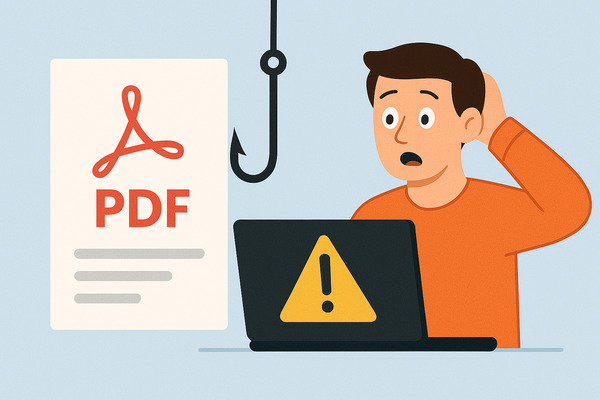
Introduction: Understanding the Danger of Phishing PDFs
Opening a phishing PDF can pose a serious threat to your digital security. These malicious files are crafted to steal sensitive data or install malware on your device without your consent. They often arrive as seemingly trustworthy email attachments containing embedded links, deceptive login forms, or hidden scripts designed to trick you into revealing personal information or enabling malware to spread.
Even if the PDF appears legitimate or is sent by a recognizable contact, cybercriminals use advanced social engineering tactics such as branding, spoofed email addresses, and carefully crafted language to bypass your defenses. These attacks can compromise your device’s security, expose personal and family data, or even lead to business email compromise. Recognizing these risks is key to protecting yourself. This article provides actionable steps to safeguard your digital security and minimize damage after inadvertently opening a phishing PDF.
And if you want to make sure your inbox stays safer in the future — with fewer suspicious emails and less clutter — you can use Cleanfox free of charge to keep your email clean and organized.
Immediate Actions After Opening a Phishing PDF
Disconnect from the Internet
As soon as you realize you have opened a phishing PDF, the very first step is to disconnect your device from the internet. This action helps to prevent any malware or spyware embedded in the PDF from communicating with cybercriminals or spreading further to other devices on your network.
Disconnecting can be done by turning off Wi-Fi, unplugging Ethernet cables, or enabling airplane mode on your iPhone or Android device. By cutting off the internet connection, you reduce the risk of sensitive data like passwords, personal information, or financial details being transmitted without your knowledge.
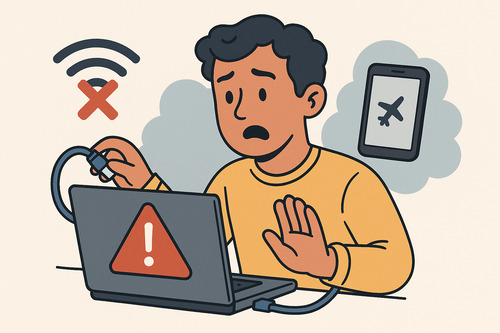
Staying offline also limits the chances of unauthorized remote access or malware spreading through your device’s internet connection.
Do Not Interact with the PDF
While disconnected, avoid clicking on any links, buttons, or prompts within the phishing PDF. Interaction might trigger malicious scripts or lead you to phishing links designed to harvest your data.
Do not enter any passwords or sensitive information if prompted inside the PDF. Even if you accidentally opened the PDF, refraining from further interaction helps contain potential damage.
Close the PDF file and do not open any attachments or related emails. If you suspect that the PDF was part of an email phishing attack, avoid responding to or forwarding the email.
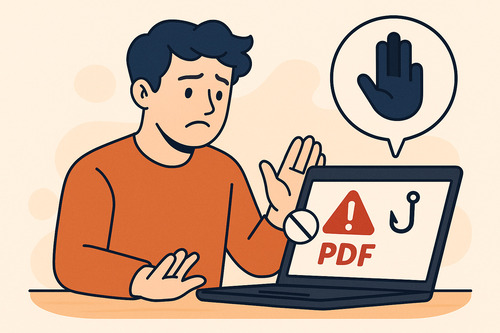
These precautions are essential because phishing PDFs often use social engineering tactics to trick users into revealing data or installing viruses and malware.
Assessing and Containing the Damage

Say goodbye to spam, clutter, and chaos.
Our smart email cleaner filters out junk, organizes your inbox, and helps you focus on what really matters.
✅ Block spam automatically
✅ Organize emails by priority
✅ Keep your inbox clean
✅ Clean old emails you don’t read
📱 Available on the App Store and Google Play.


Scan Your Device
Once your device is safely disconnected from the internet, the next critical step is to run a comprehensive antivirus scan. This helps detect and eliminate any malware or spyware that may have been installed when you opened the phishing PDF. Antivirus software works by scanning your device against a vast database of known viruses and malware, identifying suspicious files before they can cause damage to your system.
Depending on your operating system, there are several scanning options available. If you’re using Windows, you can right-click the suspected file and select “Scan with Microsoft Defender” to perform a targeted scan of that specific PDF.
For those using other antivirus programs like Avast or Avira, you can access their virus scan features and either perform a targeted scan of the malicious PDF file or run a full system scan for comprehensive protection. If your standard antivirus software doesn’t detect threats, consider using online tools like VirusTotal, which allows you to upload files for analysis without requiring any software installation.
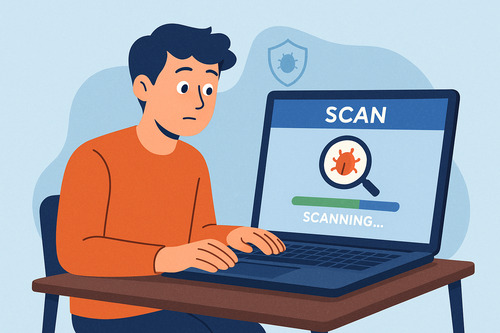
In severe cases where malware persists after initial scans, you may need to take your device to IT professionals who can perform deeper remediation. The goal is to isolate and remove any malicious code before it spreads further across your device’s systems.
Change Your Passwords
After completing your antivirus scan, it’s essential to change all your important passwords, particularly those for email, banking, and sensitive accounts. Phishing PDFs often employ social engineering tactics designed to trick you into revealing login credentials or personal data. Cybercriminals may have captured your passwords if you interacted with any forms within the malicious file.
When updating your passwords, ensure they are strong and unique for each account. Avoid patterns or information that could be easily guessed. Using a password manager can simplify this process by helping you generate, store, and manage complex passwords across all your devices. It can also identify weak passwords that need strengthening.
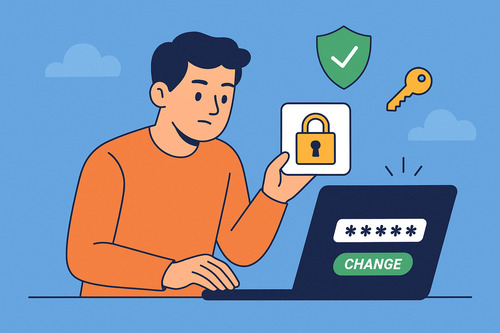
Additionally, enable multi-factor authentication (MFA) on your most critical accounts, such as email and financial services. MFA adds an extra layer of security by requiring a second form of verification beyond your password. This makes it significantly harder for cybercriminals to gain unauthorized access, even if they have stolen your credentials through the phishing attack.
Long-Term Prevention and Security Measures
Update Your Security Software
To protect yourself from future phishing scams and malicious PDF attachments, regularly updating your security software is essential. Keeping your antivirus software, operating system, and all applications updated ensures that you have the latest security patches and protections against new viruses and malware. Software updates often patch vulnerabilities that cybercriminals exploit to carry out phishing attacks or install harmful programs on your device.
Enabling automatic updates on your device is highly recommended to avoid missing critical security patches, but it’s important to periodically verify these updates have installed correctly. Always obtain updates directly from official sources such as vendor websites or reputable app stores to avoid falling victim to fake update scams or malicious downloads. Using supported and current software versions removes outdated weaknesses, significantly reducing the risk of compromise on your device and network.
Educate Yourself and Others
Phishing attacks often rely on social engineering, exploiting user trust and familiarity to coax victims into clicking malicious links or downloading harmful attachments like phishing PDFs. Therefore, ongoing cybersecurity education is a powerful defense. Familiarize yourself with common signs of phishing emails such as spelling or grammatical errors, suspicious sender addresses, and unexpected attachments.
Educate your family and coworkers about the dangers of phishing scams and best practices for email security, including how to recognize and avoid phishing email attachments or links. Using a password manager and enabling multi-factor authentication can further strengthen your defenses by protecting data even if credentials are compromised. Staying informed about the latest phishing techniques and maintaining vigilance when handling email PDFs and links continues to be one of the most effective ways to prevent falling victim to phishing attacks.
Conclusion: Enhancing Your Digital Safety
Opening a phishing PDF can expose your device and sensitive data to serious risks, but taking swift action can help minimize the damage. Always disconnect your device from the internet immediately, avoid interacting with suspicious files, and thoroughly scan for malware.
Change your passwords promptly and enable multi-factor authentication for added protection. To prevent future threats, ensure all your security software is updated and educate yourself, as well as those around you, about recognizing phishing scams. By staying vigilant and proactive with these essential steps, you can significantly strengthen your cybersecurity defenses and protect your personal and family data from malicious cyberattacks.
If you want to learn more about staying protected from evolving email threats, you can explore our additional guides — including how to spot and recognize a phishing email in 2025 and how AI phishing detection is changing modern email security.
FAQ
What immediate actions should I take right after opening a phishing PDF?
Immediately after opening a phishing PDF, do not allow scripts, and avoid clicking on any links. Disconnect your device from the internet to prevent malware communication. Run a full antivirus and antimalware scan.
Ensure you back up your important files and change passwords if any credentials were entered. Report the incident to your IT or security team without delay.
How can I scan my device for malware after opening a phishing PDF?
Disconnect your device from the internet immediately to stop the spread of malware. Back up your critical files, then perform a full antivirus scan using trusted security software.
Conduct targeted file scans for the suspicious PDF alongside a full device scan to identify infections. Follow the antivirus software’s prompts to quarantine or remove threats.
If the infection persists, consider seeking professional IT assistance. Afterward, change all your passwords to secure your accounts.
What signs indicate that a PDF file might be a phishing attempt?
Common signs of a phishing PDF include:
- Embedded malicious JavaScript that executes automatically.
- Unexpected or executable attachments.
- Broken or tampered digital signatures.
- Corrupted file structure leading to unusual behavior.
- Suspicious hyperlinks redirecting to malicious websites.
- Forms requesting sensitive information without justification.
- Poor formatting or unexpected password prompts.
When should I consider seeking professional IT help after interacting with a phishing PDF?
Seek professional IT assistance immediately if your device exhibits unusual behavior, malware is suspected, or sensitive data might be compromised. Disconnect from networks, run full malware scans, update passwords, and report the incident to your IT security team for proper containment and investigation.
And this was our article on What to Do If You Opened a Phishing PDF. If you want to know more about email security check our blog.