

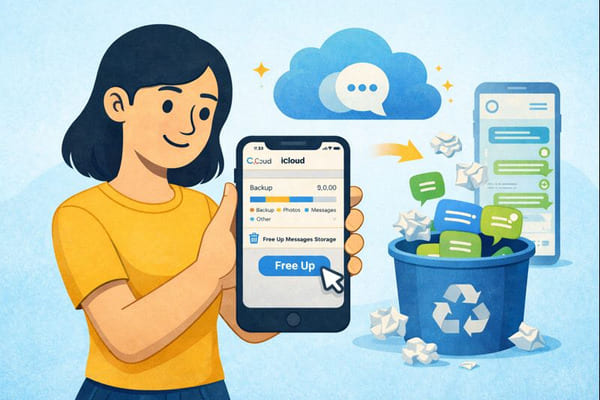
If your goal is to clean up icloud storage messages and free up space quickly, this guide provides easy-to-follow steps to help you. Learn how to remove message conversations, delete large attachments, and manage synced message backups effectively. By doing this, you can prevent your iCloud storage from filling up and ensure your device runs more smoothly.
If you’re also looking to reduce unwanted emails and spam, you can use Cleanfox to clean your inbox for free.
Understanding iCloud Storage and Messages
What Consumes Your iCloud Storage?
iCloud storage is shared across backups, iCloud Photos, iCloud Drive files, mail, and Messages. Each of these categories can quickly use up your free space, especially photos and videos, which are often the largest items.
Messages stored in iCloud can include iMessages and SMS, when Messages in iCloud is enabled, along with attachments such as photos, videos, and documents. These large attachments are a common culprit when Messages appears high in your storage breakdown.
Device backups also consume a substantial amount of space, especially when Messages in iCloud is turned off, because they can include app data, message data, and settings from multiple devices tied to your Apple ID.
Files in iCloud Drive and synced Desktop & Documents folders may silently expand your usage over time if you don’t regularly declutter your online life for good by reviewing and deleting old or duplicate files.
Benefits of Managing iCloud Messages
Clearing out old conversations and deleting large attachments from Messages can free up space once iCloud finishes syncing. This reduces the need to upgrade your iCloud plan and restores available iCloud storage for photos, backups, and files.
Managing iCloud Messages also speeds up device syncing and backups because there’s less data to transfer between your iPhone, iPad, Mac, and the cloud.
By keeping Messages lean—removing unneeded threads, turning off or adjusting Messages in iCloud, or deleting attachments—you gain digital minimalism for your inbox and encounter fewer “iCloud storage full” warnings.
Step-by-step Guide to Clean Up icloud Storage Messages
Deleting Individual Messages and Conversations
To remove single messages or entire conversations, open the Messages app on your iPhone or iPad. Swipe left on a conversation and tap Delete to remove the entire thread. Alternatively, open a conversation, press and hold a specific message, tap More, select individual messages, and then tap the trash icon to delete only those selected items.
On a Mac, open the Messages app, Control-click a conversation and choose Delete Conversation to remove it. To delete specific items, open a conversation, Command-click attachments or messages, then Control-click and choose Delete.
Managing Attachments in Messages
Large attachments like photos, videos, and documents often take up the most storage. To manage these, go to Settings > General > iPhone Storage > Messages. Browse through categories such as Photos, Videos, and Large Attachments to select and delete items in bulk.
Alternatively, within a conversation, tap the contact name at the top, scroll to the Photos/Attachments section, and tap See All. From there, you can select multiple images or files and tap Delete to remove them, freeing up iCloud storage.
If you’re using a Mac, open Messages, navigate to the Photos section within a conversation, select multiple attachments using the Command key, right-click, and choose Delete to remove them.
Setting Up Automatic Message Deletion
To prevent messages from piling up, open Settings, tap your Apple ID name, and choose iCloud > Messages to check sync settings. Then, go to Settings > Messages > Keep Messages and select 30 Days or 1 Year. This setting will automatically delete older messages and their attachments from iCloud and your devices after the selected period.
Important: When adjusting Messages in iCloud settings (e.g., turning it off or disabling and deleting), carefully follow the on-screen prompts. Choose between Disable & Download or Disable & Delete, depending on whether you want to keep copies on your device. Some users report confusion about losing local copies, so ensure your device retains the items you want to keep before confirming any changes.
Advanced Tips and Practices

Say goodbye to spam, clutter, and chaos.
Our smart email cleaner filters out junk, organizes your inbox, and helps you focus on what really matters.
✅ Block spam automatically
✅ Organize emails by priority
✅ Keep your inbox clean
✅ Clean old emails you don’t read
📱 Available on the App Store and Google Play.


Regularly Review Your Storage Usage
Make it a habit to check your iCloud storage breakdown. This helps you identify when Messages or iCloud Drive are using too much space, allowing you to act before encountering an “iCloud storage full” warning. On your iPhone, navigate to Settings > Apple ID > iCloud > Manage Storage. Alternatively, visit iCloud.com under Storage to see which categories are consuming the most space.
Regularly review the Messages section inside the storage view. Identify top conversations and large attachments that occupy space. Open these threads in the Messages app, and either delete or export attachments as needed to free up valuable iCloud storage space.
Additionally, examine iCloud Drive and Photos. Disabling Desktop & Documents sync, removing duplicate files from iCloud Drive, or cleaning up the Photos app’s Recently Deleted album are effective ways to reclaim storage. If you’re also running low on storage on your Mac, here’s how to clear disk space on Mac and free up storage fast.
These actions can indirectly reduce the pressure on Messages’ iCloud usage.
Alternatives to iCloud for Storing Messages
If you prefer not to store every message in iCloud, you can turn off Messages in iCloud to stop syncing. Choose to keep local copies on your device only, or export important messages or attachments via the Files app or Mail app. This allows you to preserve records without using cloud storage space.
For attachments you want to keep but not store in iCloud, save photos and videos from the Messages app to the Photos app or the Files app. Select the attachment, tap Share, and save it to Files. Choose a non-iCloud folder or an external storage location to remove the attachment from iCloud while keeping a copy elsewhere.
Consider using third-party backup options for long-term storage of message exports and attachments. Using macOS or third-party tools, export messages as PDFs or text files, and move them to an external drive or another cloud provider. This is a great way to free up iCloud storage while retaining searchable archives of important chats.
Conclusion
Essential points to remember: Messages and their attachments contribute to your iCloud storage usage. To free up space quickly, consider deleting conversations, large photos, and videos, as well as clearing top conversations.
Make it a habit to regularly check your iCloud Storage by navigating to Settings > Apple ID > iCloud > Manage Storage. Additionally, check iPhone Storage > Messages to identify big threads and attachments that can be deleted or exported.
Consider using automatic message deletion or disabling Messages in iCloud if you prefer storing your messages locally. Remember to back up anything important before deleting.
Act now: Review top conversations, remove large attachments, and clean up icloud storage messages today!
FAQ
How do I delete old messages and attachments from iCloud to free up space?
To delete old messages and attachments, navigate to Settings > General > iPhone Storage > Messages. Review large attachments, tap Edit, select the photos or videos you want to delete, and remove them.
This will free up iCloud space if Messages in iCloud is enabled.
Why are my Messages taking up so much iCloud storage?
Messages in iCloud stores your texts, photos, videos, and attachments. These can often occupy significantly more space than what is shown in your top conversations. To manage this, you can disable Messages in iCloud by going to Settings > [Your Name] > iCloud. Alternatively, you can delete attachments to free up storage.
Can I set Messages to auto-delete after 30 days in iCloud?
Yes, you can configure Messages to auto-delete after 30 days. Go to Settings > Messages > Message History > Keep Messages, and choose 30 Days. If Messages in iCloud is enabled, these deletions will sync across all your devices and reduce your iCloud storage usage.
What steps should I take to manage iCloud storage for Messages specifically?
To manage iCloud storage for Messages, follow these steps:
- Go to Settings > [Your Name] > iCloud > Manage Storage > Messages
- Delete top conversations or attachments
- In the Messages app, swipe left to delete old texts and attachments
- Set Keep Messages to 30 Days in Settings > Messages
That’s our guide on how to clean up iCloud Messages storage. For more email tips, check out our blog.
