

Want to know how to archive emails in Outlook? Archiving emails is a smart way to declutter your inbox, free up mailbox space, and organize important messages without permanently deleting them. Whether you’re using classic Outlook on Windows, Outlook on the web, or working with a Microsoft Exchange account, archiving can make managing email much easier.
If your Outlook inbox is overflowing with old messages—or folders like Deleted Items and Sent Items keep piling up—you’re not alone. Many users face this problem. I’ve been there too, dealing with a bloated PST file while trying to keep track of important emails.
Outlook offers two efficient ways to archive emails:
- Manual archiving, where you select emails and archive them yourself
- AutoArchive, which automatically moves older items based on rules you define
This guide walks you through both methods step by step, helping you organize your inbox while keeping your Outlook data file running smoothly.
And if you want to keep your inbox clean automatically, you can use Cleanfox for free to unsubscribe from unwanted emails and reduce inbox clutter.
Understanding Outlook Archive Options
Manual Archiving
Manual archiving gives you full control over which emails are archived and when. You can choose specific messages, entire folders, or groups of items and move them into an archive folder or export them to a PST file. This removes emails from your active mailbox while keeping them accessible on your device or backup location.
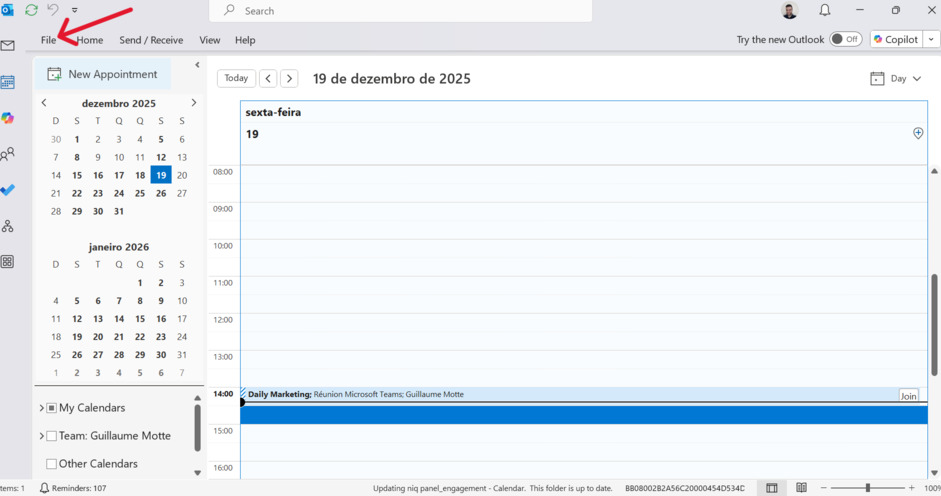
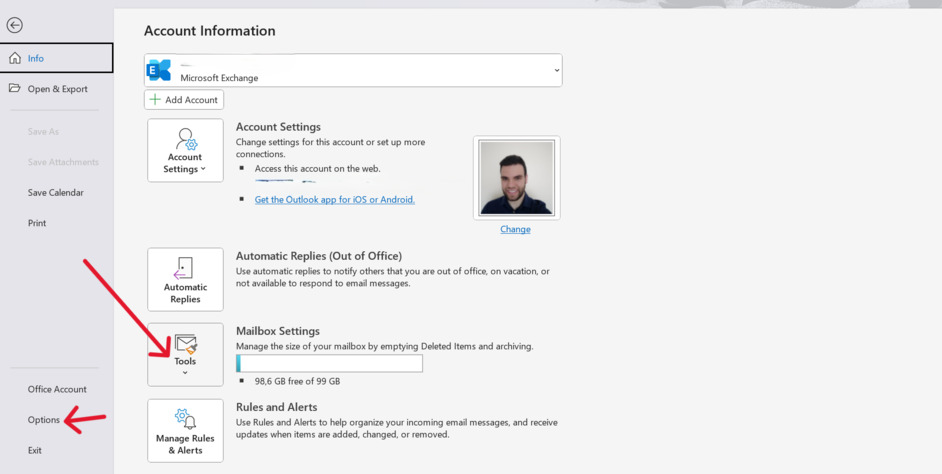
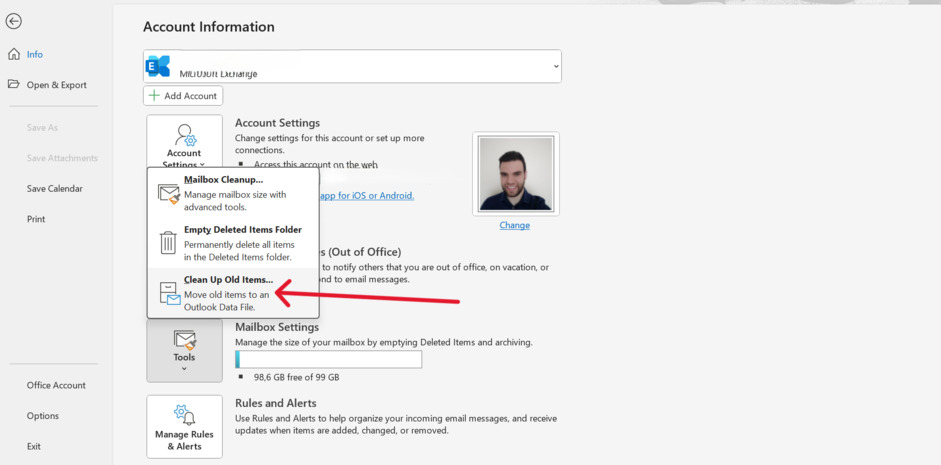
To manually archive using Outlook’s built-in tools, go to:
File → Info → Tools → Clean Up Old Items (Archive)
From here, you can:
- Archive a specific folder and its subfolders
- Choose an “Archive items older than” date
- Select a destination Outlook Data File (.pst)
Alternatively, you can select individual messages (or multiple using Shift or Ctrl) and move them directly to an Archive folder under On My Computer.
Manual archiving is especially useful if you want to free up mailbox space on an Exchange account, keep certain messages readily available, or create a portable PST file that can be stored or moved elsewhere.
If you need to share archived content with someone else, this guide shows how to send a folder by email using Outlook, Gmail, iPhone, and Android.
Step. 1 👇
Step. 2 👇
Step. 3 👇
If you’re unsure whether archiving or deleting is the better option, this comparison of archive vs delete in email explains when to use each one.
Auto-Archive
AutoArchive runs automatically on a schedule and moves (or deletes) items based on their age and folder-level settings. It’s ideal if you want Outlook to manage older emails without constant manual cleanup.
To configure AutoArchive, go to:
File → Options → Advanced → AutoArchive Settings
Here, you can:
- Set how often AutoArchive runs
- Define aging periods for emails
- Choose whether items are deleted or moved
- Specify the archive PST file location
AutoArchive applies default settings globally, but you can also customize behavior at the folder level. For example, you may want to keep calendar items longer while archiving inbox messages sooner.
Step. 1 👇
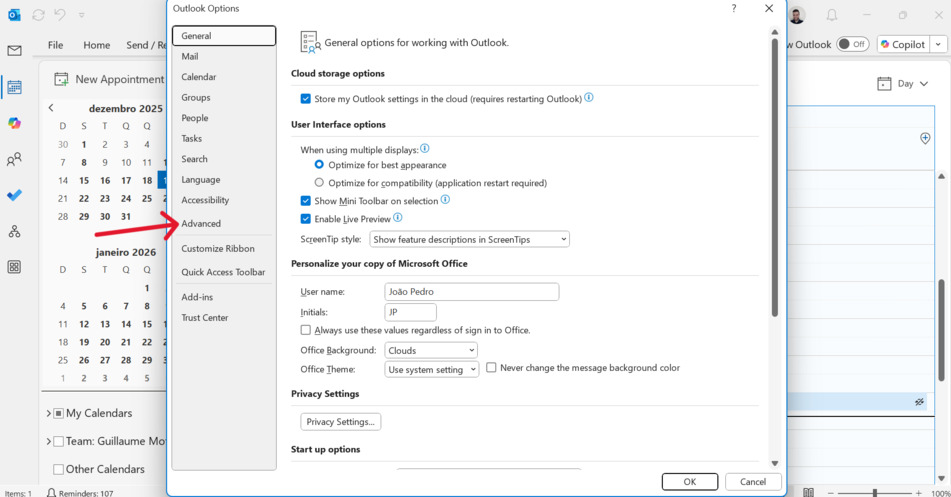
Step. 2 👇
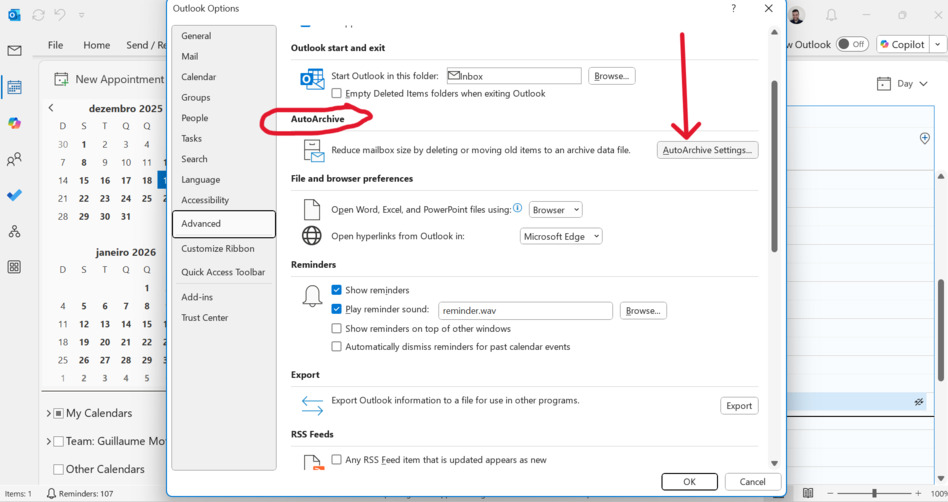
⚠️ Note: AutoArchive is available in classic Outlook. It is not supported in the new Outlook for Windows.
How to Archive Emails in Outlook Manually
Using the Archive Button
For quick inbox cleanup, the Archive button is the fastest option. Select one or more emails—or an entire conversation—then click Archive from the ribbon or message menu. Outlook instantly moves the selected items to your Archive folder.
To archive in bulk:
- Use Shift to select consecutive messages
- Use Ctrl to select individual messages
- Drag them into the Archive folder, or right-click and choose Move → Archive
This method clears your inbox while preserving messages in the archive folder or PST file you’ve configured.
Exporting Emails to a PST File
If you want a portable backup or long-term storage, you can export emails to a PST file:
- Go to File → Open & Export → Import/Export
- Select Export to a file
- Choose Outlook Data File (.pst)
- Select the folders you want to export
- Save the file to your device
This creates a PST file that can be stored externally or transferred between computers without affecting your mailbox quota.
Creating Rules to Archive Emails Automatically

Say goodbye to spam, clutter, and chaos.
Our smart email cleaner filters out junk, organizes your inbox, and helps you focus on what really matters.
✅ Block spam automatically
✅ Organize emails by priority
✅ Keep your inbox clean
✅ Clean old emails you don’t read
📱 Available on the App Store and Google Play.


If you want automation without relying on AutoArchive, Outlook rules are a powerful alternative.
To create a rule:
- Go to Home → Rules → Manage Rules & Alerts
- Create a new rule
- Set conditions (sender, subject, keywords, etc.)
- Choose Move to the Archive folder (or another folder you create)
You can apply rules immediately to existing messages using Run Rules Now, giving you flexible control over how emails are archived.
Rules can also be combined with folder-specific AutoArchive settings. Right-click a folder → Properties → AutoArchive to:
- Exclude the folder from archiving
- Set custom aging rules for that folder
When you later run the Archive tool, these settings are applied automatically.
Configuring Auto-Archive Settings in Outlook
Enabling Auto-Archive
To enable AutoArchive:
- Go to File → Options → Advanced
- Click AutoArchive Settings
- Check Run AutoArchive every N days
- Choose whether Outlook should prompt you before running
- Select whether to move items to an archive PST or delete them
Outlook typically suggests saving the archive PST file in your local Outlook Files folder. Archived emails stored there no longer count toward your Exchange mailbox quota.
To disable AutoArchive at any time, simply uncheck the option in the AutoArchive settings.
Adjusting Auto-Archive for Specific Folders
You can override global AutoArchive settings on a per-folder basis:
- Right-click a folder
- Select Properties → AutoArchive
- Choose a different aging period or select Do not archive items in this folder
This is useful if certain folders—like Sent Items or project folders—need different retention rules.
Where Archived Emails Are Stored
After archiving, emails are stored in one of the following locations:
- Archive folder in your mailbox
- Local PST file stored on your device
- Online Archive (Exchange / Microsoft 365) if enabled by your organization
If you’re unsure where your archived emails are, see our full step-by-step guide on how to find archived emails.
Conclusion
Archiving emails in Outlook is one of the most effective ways to keep your inbox organized, free up storage space, and retain important messages without clutter. Whether you archive manually, use AutoArchive, or create custom rules, Outlook offers flexible tools to fit your workflow.
Remember to review folder-level settings to avoid accidental archiving and reopen PST files if archived items appear to be missing. For more organization tips, check out our guide on how to organize emails in Outlook.
Now take action: archive old emails, enable AutoArchive, and regain control of your inbox.
FAQ
How do I enable AutoArchive in Outlook, and how is it different from the Archive button?
AutoArchive runs on a schedule and moves emails automatically based on age and folder rules. The Archive button is a manual action that immediately moves selected messages.
Where are archived emails stored?
Archived emails may be stored in an Archive folder, a local PST file, or an Online Archive (Exchange). The location depends on your Outlook version and account type.
Does archiving free up mailbox space?
Yes. Archiving moves emails out of your primary mailbox, helping reduce storage usage, especially on Exchange accounts.
Can I restore archived emails later?
Yes. Archived emails remain accessible in Outlook and can be moved back to your inbox at any time.
And that’s our guide on how to archive emails in Outlook. If you want to learn more about email management, check out our blog.