

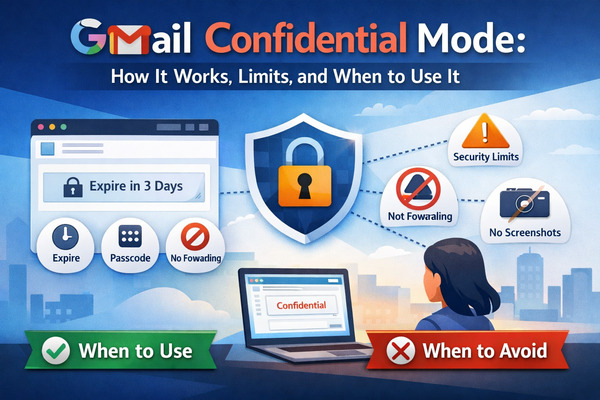
Gmail’s Confidential Mode offers an additional layer of control when sending sensitive emails and attachments. With this feature, you can set expiration dates for messages, require a passcode (including optional SMS verification), and revoke access after sending. It also disables the options to forward, copy, print, or download the email or its attachments within Gmail’s secure viewing environment.
Concerned about your emails being shared accidentally or falling into the wrong hands? As a Gmail user, you can rely on Confidential Mode to add access controls when sending sensitive information—even to recipients using third-party email clients such as Outlook. In those cases, recipients receive a secure link to view the message in a Google-hosted environment, where restrictions are enforced.
This is particularly useful for sharing sensitive documents, such as financial records or personal data, while maintaining greater control over access.
Features like SMS verification codes and view restrictions make this mode valuable. However, it is important to understand its limitations. For example, Gmail Confidential Mode is not end-to-end encrypted, and Google retains access to the content. It is also not automatically HIPAA compliant. HIPAA compliance depends on using Google Workspace with a signed Business Associate Agreement (BAA) and proper configuration.
This guide explores how it works, its limitations, and when to use it effectively.
If you also want to reduce inbox clutter and minimize the risk of phishing or unwanted emails, you can use Cleanfox to help manage and clean your inbox more effectively.
Structuring Your Message for Maximum Impact
When crafting a confidential email, think of it as building a structured and clear communication. A strong structure ensures your sensitive information is delivered clearly and professionally, especially when access controls like passcodes are enabled.
Start with a Clear Subject Line
Your subject line should be specific but not overly revealing. For example, “Action Required: Review Q4 Budget Proposal” signals importance without exposing sensitive details.
Aim for 6–8 words and use action-oriented language. For example, “Feedback Needed: Contract Draft” is more effective than vague alternatives.
Use an Appropriate Greeting and Closing
Start with a tailored greeting such as “Dear [Name],” especially for formal or sensitive communications. Conclude with a professional sign-off like “Best regards” or “Sincerely.”
Avoid overly casual greetings in high-stakes communications involving confidential information. Personalization shows professionalism and respect.
Organize the Body Methodically
Structure the body with short paragraphs (2–3 sentences maximum). Highlight key actions in bold (if appropriate) and use bullet points for clarity.
Start with your main request, provide necessary context, and outline any required next steps. Clear formatting improves readability, especially on mobile devices.
Use white space strategically to avoid overwhelming the recipient.
Choosing the Right Words and Tone
Now that your email is structured, refine your language to maintain clarity and professionalism.
Avoid Jargon and Complex Terms
Use simple and direct language. Replace words like “utilize” with “use,” and explain acronyms the first time they appear.
Clear communication is especially important when recipients cannot easily forward or download the content for reference.
Maintain a Professional and Positive Tone
Choose respectful phrasing such as “I appreciate your input” instead of critical language. Adjust the level of formality depending on your audience.
Even when addressing sensitive matters, focus on constructive language—for example, “Let’s explore this option further” rather than framing issues negatively.
Enhancing Readability with Visuals and Formatting

Say goodbye to spam, clutter, and chaos.
Our smart email cleaner filters out junk, organizes your inbox, and helps you focus on what really matters.
✅ Block spam automatically
✅ Organize emails by priority
✅ Keep your inbox clean
✅ Clean old emails you don’t read
📱 Available on the App Store and Google Play.


Thoughtful formatting improves comprehension, particularly when working within the restrictions of Confidential Mode.
Utilize Bullet Points and Numbered Lists
Break down complex ideas into bullet points or numbered steps. This is especially useful when outlining instructions or compliance-related details.
Clear formatting helps recipients quickly identify key information without relying on actions like printing or downloading.
Choose the Right Font and Size
Use clean, professional fonts such as Arial or other standard sans-serif fonts at 12–14pt. Avoid decorative fonts that reduce readability.
Always test your email on mobile devices to ensure clarity across screen sizes.
Include Relevant Links Instead of Attachments When Necessary
If attachment downloads are restricted, consider linking to secure external platforms with descriptive anchor text (e.g., “Access the secure report here”).
Only attach files that are necessary and appropriate for the level of confidentiality required.
Conclusion
Gmail Confidential Mode allows you to add expiration dates, passcodes, and revocable access to sensitive emails. It disables forwarding, copying, printing, and downloading within Gmail’s secure viewer, helping reduce accidental sharing.
However, it is not a substitute for end-to-end encryption, and it does not fully prevent screenshots or external capture methods. It should be considered an additional layer of control rather than a complete security solution.
For highly regulated environments (such as healthcare), ensure you are using Google Workspace with a signed BAA and proper compliance configurations before relying on Confidential Mode for protected data.
Use it thoughtfully, understand its limits, and combine it with other security best practices—such as enabling 2-step verification—for stronger protection.
FAQ (Corrected)
What is Gmail Confidential Mode and how does it protect sensitive information?
Gmail Confidential Mode allows senders to restrict actions such as copying, forwarding, printing, and downloading within Gmail’s secure viewing environment. You can also set expiration dates, revoke access, and add an optional SMS passcode. The content is hosted on Google’s servers and accessed through a secure link.
What are the main limitations of Gmail Confidential Mode?
It does not provide end-to-end encryption, meaning Google can technically access the content. Screenshots can bypass restrictions, and expired messages may still remain on Google’s servers. It should not be considered a full encryption solution.
How do you enable and send an email in Gmail Confidential Mode?
Compose your email and click the “Toggle confidential mode” icon (lock/clock symbol) at the bottom of the compose window. Set an expiration period (from 1 day to 5 years) and choose whether to require a passcode or SMS verification. Then send the email as usual.
When should you use Gmail Confidential Mode, and when is it not suitable?
Use it for sensitive but non-classified information that benefits from expiration dates and access control. It is not suitable when strict end-to-end encryption is required or when regulatory compliance requires additional safeguards. It works best as one layer within a broader email security strategy.
This was our guide to Gmail Confidential Mode. If you’d like to learn more about email security, check out the Cleanfox blog.
