

Your inbox starts out useful—but over time, it quietly fills up with newsletters, promotions, and emails you don’t remember signing up for. Before you know it, important messages are buried under daily updates you no longer read.
Manually unsubscribing one email at a time is frustrating, and simply deleting messages doesn’t stop new ones from arriving. That’s where Gmail’s Manage Subscriptions feature comes in.
In this guide, you’ll learn how to find Gmail’s Subscription Manager, unsubscribe from unwanted emails in just a few clicks, and take back control of your inbox—without accidentally missing emails that still matter.
And if you want to go a step further and keep your inbox truly clean, you can use the Cleanfox platform for free to remove spam and unwanted newsletters in just one click.
The ‘Unsubscribe’ Link Feature
Most marketing emails include a standard unsubscribe link at the bottom. By clicking it, you can directly opt out, and a confirmation is sent to the sender. Gmail goes a step further by surfacing a one-click unsubscribe option for bulk senders that support it. This appears either as a prominent button or within the sender’s info card, making it even easier to manage your subscriptions.
What to Do When There’s No Unsubscribe Link
If an unsubscribe link is missing, Gmail’s Manage Subscriptions tool may still help—provided the sender supports unsubscribe headers. You can also block the sender or mark the email as spam, ensuring future emails are moved out of your inbox. Replying to the sender to request removal is generally not recommended, as it may confirm your email address. For more control, create a filter to automatically archive or delete such emails. Persistent issues? Report them as spam to help train Gmail’s filters.
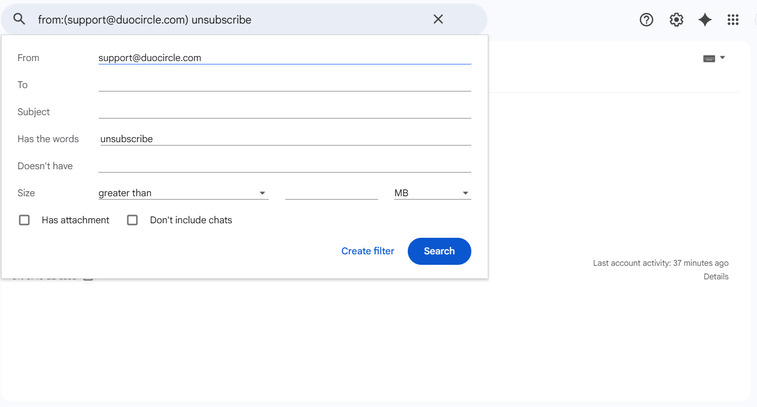
To create a filter, click the search bar’s dropdown arrow, enter criteria like keywords, and select Create filter. Choose actions such as archiving, labeling, or deleting to keep your inbox clutter-free.
Setting Up Filters to Manage Future Subscriptions
Creating Custom Filters for Incoming Emails
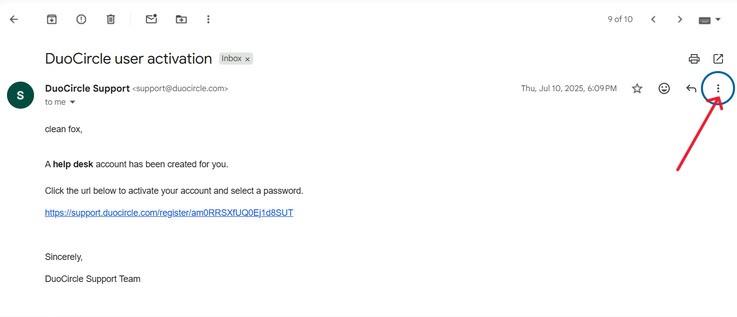
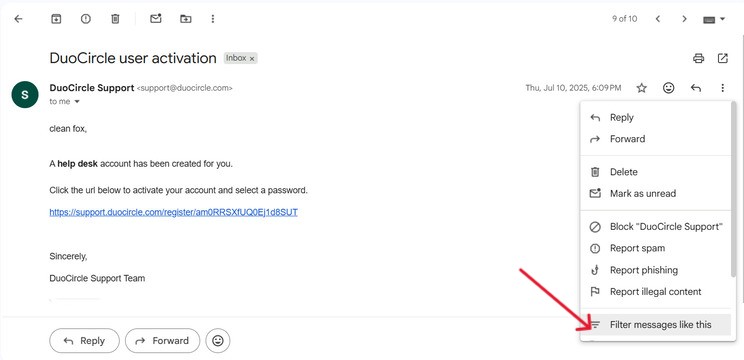
To streamline your inbox, start by clicking the search bar’s dropdown menu. In the “Has the words” field, type keywords like “unsubscribe”. Then, select Skip the Inbox (Archive it), add a label, and click Create filter. If you want to manage emails from specific domains, use from:*@domain.com. This will ensure all emails from that domain are filtered, regardless of the sender’s exact address.
Step. 1⬇️
Step. 2⬇️
Step. 3⬇️
Step. 4⬇️
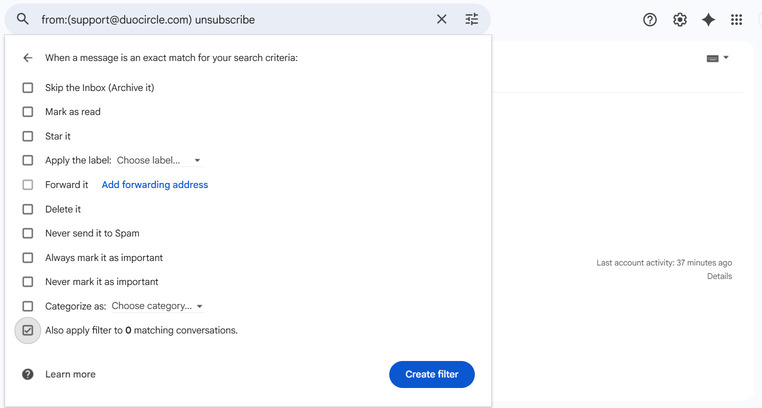
Don’t forget to check the option Also apply filter to matching conversations. This will retroactively organize existing emails, saving you from manually sorting through past messages.
Using Labels to Organize Subscription Emails

Say goodbye to spam, clutter, and chaos.
Our smart email cleaner filters out junk, organizes your inbox, and helps you focus on what really matters.
✅ Block spam automatically
✅ Organize emails by priority
✅ Keep your inbox clean
✅ Clean old emails you don’t read
📱 Available on the App Store and Google Play.


Labels work like folders and are incredibly useful for organizing subscription emails. Create a label named “Subscriptions” by selecting New label during the filter setup process. Apply this label to incoming newsletters to keep them sorted without deleting them. You can easily view these labeled emails in the sidebar, ensuring your inbox stays clean while still retaining content you want.
Conclusion: Gmail Subscription Manager
Gmail’s Manage Subscriptions feature is a powerful tool that lets you view active email subscriptions in a single dashboard. Subscriptions are sorted by sender and email frequency, making it simple to unsubscribe from unwanted ones with just one click. Gmail sends the unsubscribe request on your behalf, saving you time and effort.
By combining this feature with search filters, labels, and custom rules, you can practice proper email hygiene to prevent inbox overload caused by recurring subscription emails. Key takeaways include regularly reviewing your subscription list, archiving or deleting old messages, and using labels for efficient organization.
Take action today—open Gmail, navigate to More > Manage subscriptions, and start reclaiming your inbox for what truly matters. A focused and clutter-free email life begins now.
FAQ about Gmail subscription management
How do I access the Manage Subscriptions feature in Gmail on desktop?
In Gmail on desktop, click More in the left sidebar to expand it, then select Manage Subscriptions.
What should I do if the Manage Subscriptions option doesn’t appear in my Gmail?
If the Manage Subscriptions option doesn’t appear in Gmail, first ensure your Gmail app and browser are updated to the latest version. The feature is being rolled out gradually and may not yet be available in all countries or accounts.
Make sure you’re signed into the correct account, clear the app cache, or try using the web version. If the issue persists, you can use Gmail’s search filters to manually locate your subscriptions.
Can I unsubscribe from multiple senders at once using Gmail’s Subscription Manager?
No, Gmail’s Subscription Manager does not support unsubscribing from multiple senders at once. It processes one sender (and their mailing lists) per action. To access it, go to Gmail’s sidebar > More > Manage Subscriptions, then click Unsubscribe next to each sender.
Does unsubscribing via Gmail’s Manage Subscriptions remove me from all of a sender’s mailing lists?
No, unsubscribing through Gmail’s Manage Subscriptions sends a request to the sender to remove you from their mailing lists. However, it may take a few days to fully process, and you might temporarily receive more emails during this time. This process depends on the sender honoring the List-Unsubscribe header.
And this was my article about Gmail Subscription Manager. If you want to know more about email productivity, check our Cleanfox Blog.
