

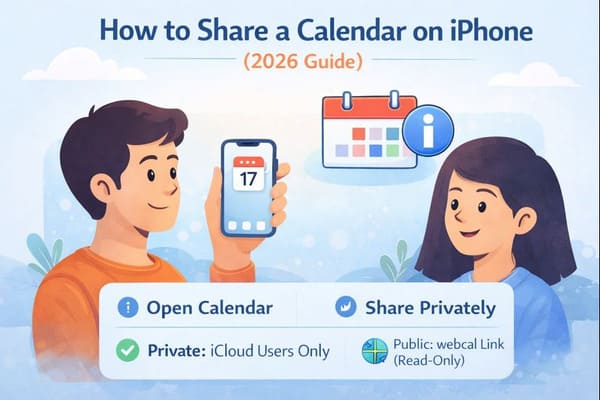
Want to know how to share a calendar on iPhone? It’s simple using the built-in Calendar app—as long as you’re using an iCloud calendar. With just a few taps, you can share your iPhone calendar with family, friends, or coworkers and keep everyone in sync.
Important to know upfront:
- Private calendar sharing (view or edit access) only works with other iCloud users.
- Non-Apple users (Google Calendar or Outlook) can only access your calendar via a public, read-only link.
Whether you’re coordinating work schedules, planning family activities, or organizing team projects, this step-by-step guide will walk you through everything you need to know—without confusion.
If you also want to keep your inbox 100% clean and free of spam, you can use our Cleanfox platform for free.
Step 1: Setting Up Your iPhone Calendar for Sharing
Create or Select the Calendar to Share
Open the Calendar app on your iPhone and tap Calendars at the bottom of the screen.
- To create a new calendar, tap Add Calendar, give it a name, and tap Done.
- Or select an existing iCloud calendar you want to share.
Next, tap the info (i) icon next to the calendar to access sharing options.
⚠️ Calendars listed under “On My iPhone” cannot be shared. Only iCloud calendars support sharing.
Verify iCloud Sync
Before sharing, make sure iCloud is enabled for calendars:
- Go to Settings > [Your Name] > iCloud
- Ensure Calendars is toggled on
This guarantees real-time syncing across devices and prevents sharing errors later.
Step 2: Sharing Your Calendar with Individuals (Private Sharing)
Invite People (iCloud Users Only)
To privately share a calendar:
- Open the Calendar app
- Tap Calendars
- Tap the info (i) icon next to your iCloud calendar
- Under Shared With, tap Add Person
- Enter the person’s iCloud email address
- Tap Add
The invitee will receive a notification and must accept before the calendar appears.
Set Permissions
When sharing with iCloud users, you control access:
- View Only – they can see events but can’t change anything
- View & Edit – they can add, edit, or delete events
You can change these permissions anytime by returning to the calendar’s info screen and toggling Allow Editing.
✅ Editing permissions are only available for iCloud users.
Step 3: Sharing Your Calendar with Non-Apple Users (Public Sharing)

Say goodbye to spam, clutter, and chaos.
Our smart email cleaner filters out junk, organizes your inbox, and helps you focus on what really matters.
✅ Block spam automatically
✅ Organize emails by priority
✅ Keep your inbox clean
✅ Clean old emails you don’t read
📱 Available on the App Store and Google Play.


If you need to share your calendar with Google Calendar or Outlook users, you must use Public Calendar sharing.
Enable Public Calendar
- Tap Calendars
- Tap the info (i) icon next to your iCloud calendar
- Toggle Public Calendar on
- Copy the generated webcal URL
This link provides read-only access. Anyone with the link can view events but cannot edit them.
🔒 Use public sharing carefully—anyone with the link can access the calendar.
Step 4: Managing Shared Calendar Settings
Change or Remove Access
To adjust or remove access for iCloud users:
- Tap the calendar’s info (i) icon
- Tap the person’s name under Shared With
- Change their permission or tap Stop Sharing
Changes take effect immediately.
Turn Off Calendar Notifications
If shared events are triggering too many alerts and contributing to email overload:
- Go to Settings > Notifications > Calendar
- Toggle Allow Notifications off
—or— - Customize alerts, sounds, and banners individually
For synced third-party calendars, you can also check:
Settings > Calendar > Default Alert Times and set alerts to None if needed.
Conclusion
You now know exactly how to share a calendar on iPhone—without the common confusion.
Key takeaways:
- Only iCloud calendars can be shared
- Private sharing (view/edit) works only with iCloud users
- Public sharing creates a read-only webcal link for Google or Outlook users
- “On My iPhone” calendars cannot be shared
With the right setup, sharing your schedule is fast, secure, and easy. Stay organized, stay synced, and stay in control of your calendar.
FAQ
What’s the difference between private and public calendar sharing on iPhone?
Private sharing lets you invite specific iCloud users and choose whether they can view or edit events. Public sharing generates a link that anyone can open, but it’s read-only.
Can I share my iPhone calendar with Google Calendar or Outlook users?
Yes—but only via public sharing. Enable Public Calendar, copy the webcal link, and share it. Non-Apple users can subscribe, but they cannot edit events.
Can non-Apple users edit my shared iPhone calendar?
No. Editing permissions are only available when sharing privately with other iCloud users. Public calendar links are always read-only.
Why can’t I share my “On My iPhone” calendar?
Calendars stored locally on your iPhone don’t support sharing. To share a calendar, you must create or move it to iCloud.
