


If you need to add a shared inbox to Outlook, you’re in the right place. Setting up a shared mailbox enables you and your team to access a common email address, enhancing collaboration and improving efficiency.
Whether you’re using Outlook on Windows, Mac, the web, or mobile, this guide provides clear steps to add a shared mailbox, enter the correct email address, and gain seamless access to your team inbox.
And if you also want to keep your personal inbox clean and free from spam while managing your shared mailbox, you can try Cleanfox — our free tool that helps you declutter emails in one tap.
Adding a Shared Inbox in Outlook for Desktop
Permission Prerequisites
Before adding a shared inbox in Outlook for Windows, you must have the appropriate permissions. Typically, an administrator needs to grant you Full Access. If you plan to send emails from the shared mailbox, you will also require Send As or Send on Behalf permissions.
Without these permissions, the shared mailbox will not load—regardless of the steps you follow.
If you’re unsure about permissions, contact your administrator or IT team.
Steps to Add the Shared Mailbox (Outlook Classic)
Once you’ve secured the necessary permissions, adding a shared mailbox in Outlook Classic is simple:
- Open Outlook.
- In the left navigation pane, right-click your primary mailbox.
- Select Add Shared Folder or Add Shared Mailbox (the label may vary).
- When prompted, enter the shared mailbox email address.
- Click Add.
Outlook will connect to the mailbox, and the shared inbox will appear in your folder list. If it doesn’t show up immediately, try restarting Outlook. After the restart, the shared mailbox should be visible—provided your administrator granted Full Access permissions.
For better organization after adding your shared mailbox, check out our guide on how to organize emails in Outlook.
Need to add multiple shared mailboxes?
Just repeat the same process for each additional address.
Adding a Shared Inbox in Outlook on the Web
Navigating to Outlook on the Web
Open your browser and go to:
- outlook.office.com, or
- Microsoft365.com → Outlook
Sign in with your work or school email. Once logged in, you’ll see your primary mailbox in the left navigation pane.
Method 1 — Open the Shared Mailbox Temporarily
This method lets you open the shared mailbox but does not add it permanently to your sidebar.
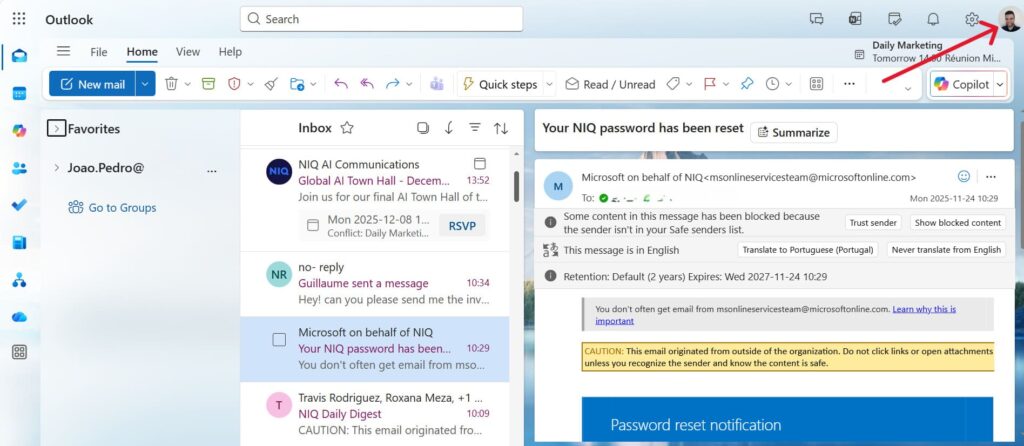
- Click your profile icon in the top-right corner.
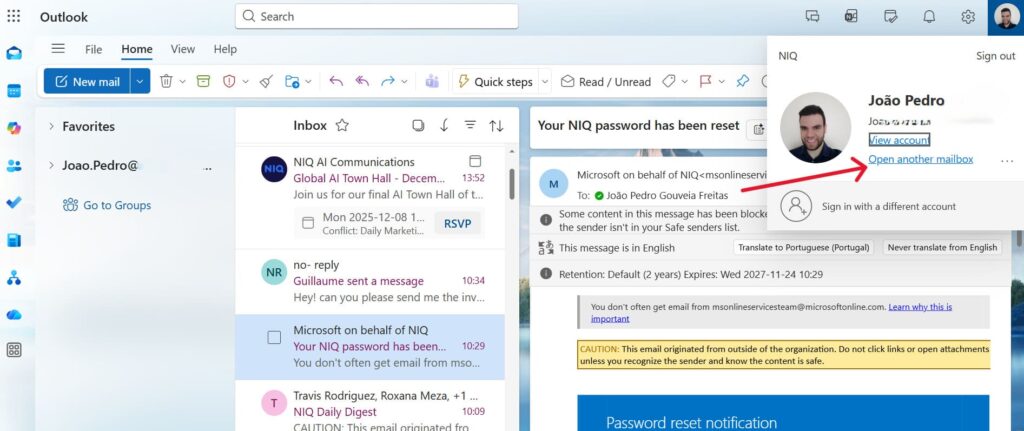
- Select Open another mailbox.
- Enter the shared mailbox email address.
- Click Open.
Step.1 👇
Step. 2 👇
Step. 3 👇
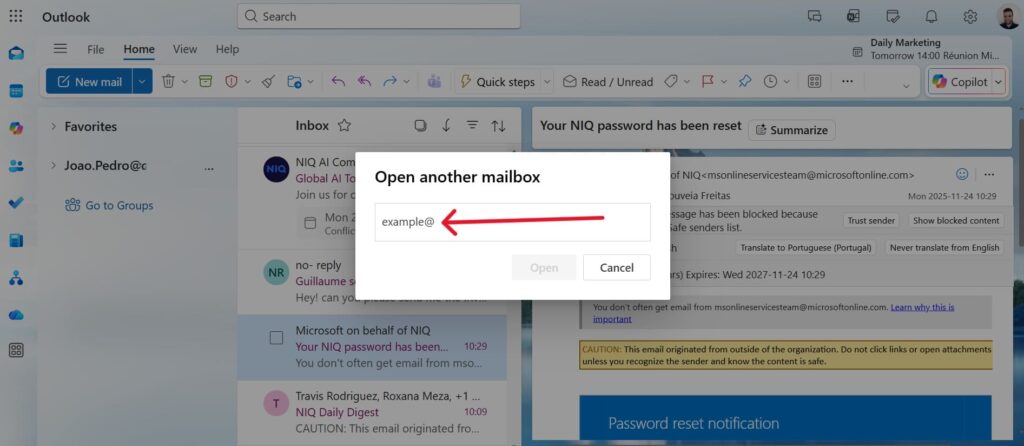
The shared inbox opens in a new window/tab with full access.
For advanced organization after adding it, learn how to filter emails in Outlook.
Accessing a Shared Inbox on Mobile Devices

Say goodbye to spam, clutter, and chaos.
Our smart email cleaner filters out junk, organizes your inbox, and helps you focus on what really matters.
✅ Block spam automatically
✅ Organize emails by priority
✅ Keep your inbox clean
✅ Clean old emails you don’t read
📱 Available on the App Store and Google Play.


Outlook App Requirement
You must have the Outlook app installed on iOS or Android.
Shared mailboxes only work on mobile if:
- Your account is hosted in Exchange Online
- The shared mailbox is also in Exchange Online
- Your admin granted Full Access permissions
- Mobile shared mailbox access is enabled
If any requirement is missing, the “Add Shared Mailbox” option will NOT appear.
Addition Process in the Mobile App
- Open the Outlook app.
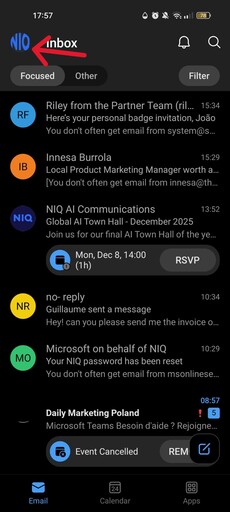
- Tap your profile icon (top-left).
- Tap the gear icon (Settings).
- Under Mail accounts, tap Add Shared Mailbox.
- Enter the shared mailbox email address and confirm.
Step. 1 👇
Step. 2 👇
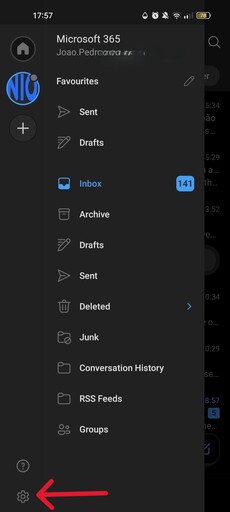
Step. 3 👇
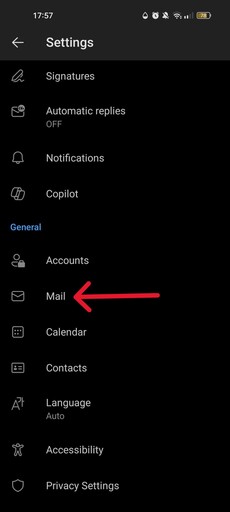
Once added, the shared inbox appears alongside your main account.
To remove it later:
Settings → Mail accounts → [Shared mailbox] → Remove Shared Mailbox
Conclusion
Adding a shared inbox in Outlook is an effective way to improve teamwork and centralize communication. Whether you’re using Outlook on desktop, web, or mobile, the process is straightforward as long as your administrator has granted the correct permissions.
If you also want to improve your organization’s security, read our guide on how to secure an email in Outlook.
With shared mailboxes, calendars, and consistent organization, your team can work smarter and stay fully aligned.
FAQ
How do I add a shared inbox in Outlook Desktop?
- Right-click your primary mailbox.
- Select Add shared folder or mailbox.
- Enter the shared mailbox name or email.
- Click Add.
In Outlook Classic, it appears under your main mailbox.
In the New Outlook, it may appear under Shared with me.
How do I access a shared inbox in Outlook on the web?
- Sign in to Outlook on the web.
- Click your name in the top-right corner.
- Select Open another mailbox.
- Enter the shared email address.
- Click Open.
This opens the shared inbox in a new tab, but does not add it permanently.
How do I add a shared inbox in the Outlook mobile app?
- Open Outlook.
- Tap your profile icon.
- Open Settings (gear icon).
- Under Mail accounts, select Add Shared Mailbox.
- Enter the email and confirm.
If the option doesn’t appear, your account may not be hosted in Exchange Online or permissions may be missing.
Why can’t I see the shared inbox after adding it?
Common causes include:
- Missing permissions
- Automapping not enabled
- Profile corruption
- Hidden mailbox settings
- Not using Exchange Online
Try restarting Outlook, adding the mailbox manually, or enabling Download shared folders in your Outlook settings.
And that wraps up our guide on How to Add a Shared Inbox in Outlook. If you’re looking for more tips to boost your email productivity, explore our blog for practical tutorials and expert advice.