

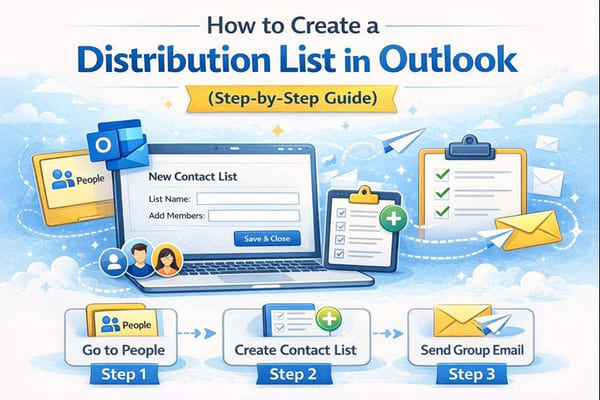
If you’re looking to create a distribution list in Outlook to send a single email to a group of people, you’re in the right place. This guide will show you how to use Outlook on Windows or the web to easily manage your contacts. You’ll learn how to access the Microsoft People area, select contacts, and transform them into an Outlook distribution list—also known as a contact group or contact list. This allows you to email the same group repeatedly without retyping addresses.
Whether you use classic Outlook on Windows or Outlook on the web, you’ll discover how to access the People icon, manage contacts and groups, create lists, and add or edit contacts. Additionally, you’ll learn to quickly select a contact group while composing emails. The guide also covers managing multiple distribution groups, editing contact lists, and ensuring you click Save & Close so your lists are always ready to use.
And if you want to make sure your Outlook inbox stays 100% free of spam and unwanted emails, you can use our Cleanfox platform for free to clean and manage your inbox more efficiently.
Step 1: Access Your Contacts in Outlook
Opening the Contacts Section
To begin building your Outlook distribution list, you first need to access the section where all your contacts and groups are stored. In Outlook on Windows, launch the program and locate the navigation pane on the left. Click the People icon, which switches your view from email to the Microsoft People view. This is where your contact list, contact groups, and distribution groups are stored.
If you’re using Outlook on the web, sign in and select the People icon from the app launcher or the left sidebar. This will open your contacts, allowing you to create a new contact list or manage existing distribution lists.
Once you open Outlook and click the People icon, you’ll find this is the central hub for creating contact lists, managing contact groups, and organizing Outlook distribution lists. Here, you can select contacts to include in a new distribution group, quickly open emails for a selected list, or navigate between different contact folders and address books. These can include personal contacts and organization-wide distribution lists.
Understanding Contacts Interface
After selecting the People icon, Outlook transitions to a dedicated contacts interface designed for easy viewing, creation, and management of contacts, contact lists, and groups. In Outlook on the web, the People page includes sections like Your contacts and folders where you can organize various contact lists. This is where you’ll create and edit contacts, build new distribution lists, and manage members of existing contact groups.
The navigation pane allows you to choose specific contact folders or directories, while the main pane displays a list of contacts and groups. You can open, edit, or add these to a distribution list.
From this interface, you can see list members, update contact groups, and edit contact details before adding them.
The available options let you create contacts, build contact lists, and manage everything in one place across Outlook. Taking a moment to learn this layout now makes the next steps easier.
It also helps keep your distribution lists accurate over time.
Step 2: Creating the Distribution List

Say goodbye to spam, clutter, and chaos.
Our smart email cleaner filters out junk, organizes your inbox, and helps you focus on what really matters.
✅ Block spam automatically
✅ Organize emails by priority
✅ Keep your inbox clean
✅ Clean old emails you don’t read
📱 Available on the App Store and Google Play.


Naming Your Distribution List
Now that you’re in the People section, it’s time to create your distribution list. The first step is choosing a clear name for your contact group.
Click New Contact and then select New Contact List to open the form where you’ll build your Outlook distribution list. When naming your list, pick something easily recognizable that reflects its purpose—for example, “Marketing Team” or “All Employees – APAC”. This ensures that anyone on your team can instantly understand the group’s purpose. Using clear naming conventions also makes it significantly easier to find and manage your distribution lists later, especially if you create multiple groups across your organization.
Additionally, you’ll need to choose an alias, which is the email address people will use to send messages to your entire distribution group, such as marketing-team@company.com. Think of this as the official email address for your contact list. Many organizations use prefixes like “DL-” or department codes to keep their distribution lists organized and easily identifiable in the global address book.
Adding Members to Your List
After naming your distribution list and setting the alias, it’s time to add the contacts you want to include. In the form that opened when you clicked New Contact List, you’ll find a field where you can add email addresses or select contacts from your existing contact list.
Type or paste the email addresses of the people you want to add to this contact group. Alternatively, you can search and click to select contact lists or individual contacts one by one. This is where your existing Outlook contacts come together—you’re essentially grouping them so you can email them all at once with a single message.
As you add members to your distribution list, take your time to ensure accuracy. Double-check email addresses to make sure your messages reach everyone you intend. If you’re building a large group or working with numerous contacts, consider adding members in batches and reviewing each addition carefully before proceeding. This meticulous approach helps prevent delivery issues or confusion later when you use the list to send emails.
Saving and Updating Your List
Once you’ve added all the desired members to your contact group, click Save to finalize your distribution list. Your new list will now be stored in Outlook and ready to use whenever you need to email the entire group. The Save & Close option ensures your distribution list is locked in, making it accessible in your contact folders the next time you compose an email.
Remember, your distribution list isn’t set in stone—you can always go back and edit it as your team or needs evolve. To update your list later, open People, select Your contact lists, click on the distribution list you want to modify, and then select Edit. From here, you can add new email addresses, remove members, or even rename the list entirely. This flexibility ensures that your Outlook distribution lists remain current and relevant over time, whether you’re onboarding new team members, removing former employees, or adjusting the group’s focus based on project requirements.
Step 3: Utilizing Your Distribution List
Sending Emails to Your List
Once your Outlook distribution list is created, using it is straightforward: open Outlook, start a new email, and in the To field simply type the name of your contact list or contact group instead of selecting individual contacts. Outlook will resolve the group name just like a regular email address. When you send the message, it will automatically distribute your email to all members of that list, whether you’re on classic Outlook or Outlook on the web.
This transforms a once time-consuming task into a single, streamlined action—you select contact lists by name, compose your message, and send it to the entire group with just one click.
If you have permission to send as a shared distribution group, you can also send an email so it appears to come from the distribution list address itself rather than your personal mailbox. You can also schedule emails in Outlook to be sent at a specific date and time, which is ideal for announcements, reminders, or team updates.
When creating a new email, click the From field and choose Other email address.
Select the distribution list you want to use, then write your message and send it as usual.
This is especially useful for team mailboxes, such as support or info addresses.
It ensures replies and tracking stay linked to the group instead of an individual contact.
Editing and Managing Your List
Over time, your groups will change, so managing contacts in Outlook is just as important as creating the original distribution list. To update a list, go to the People section, select your contact lists, then click the specific distribution list you want to adjust and choose Edit. From there, you can add new members, remove outdated addresses, or rename the list to better reflect its current purpose. This ensures every Outlook distribution list stays aligned with how your teams and projects evolve.
Because these changes are saved centrally, the next time you select the contact group when composing an email, Outlook will automatically use the updated membership.
You can manage multiple distribution groups by reviewing your lists from time to time.
Removing unused groups and merging overlapping lists helps prevent confusion and duplicate emails.
If you work closely with others, sharing or exporting contact lists keeps everyone on the same page.
This way, emails always go to the right group.
By regularly updating your contact lists, editing individual contacts, and removing members you no longer need, you keep your Outlook lists accurate and easy to manage.
This makes group communication more reliable every time you open Outlook and start a new message.
Conclusion
Creating a distribution list in Outlook is a simple and effective way to save time every day.
By following these steps, you can name your list, add the right members, and use it for group emails.
This gives you a practical communication tool that fits naturally into your workflow.
To maximize efficiency, remember to keep your distribution lists well-organized with clear naming conventions. Regularly review and update the membership to ensure it remains current, and manage your contacts thoughtfully to prevent overwhelming your recipients. Begin creating your first distribution list today, and experience how much more streamlined your team communication can become.
Your Outlook distribution lists are ready to revolutionize how you connect with groups across your organization.
FAQ
What is the difference between an Outlook distribution list, a contact group, and a Microsoft 365 Group in Outlook?
A distribution list or contact list is simply a collection of email addresses used for bulk sending. It does not include a shared mailbox or additional resources. An Outlook contact group is a personal distribution list that is only visible and editable by its owner. On the other hand, a Microsoft 365 Group offers more advanced features such as a shared mailbox, file library, and calendar, making it ideal for team collaboration.
Can I edit, rename, or delete a distribution list in Outlook after I have created it, and will changes update for all future emails?
Yes, you can edit members, rename, or delete a contact list/distribution list in Outlook. Navigate to People or All Contact Lists and use the Edit or Delete options. Any changes you make to the list’s membership or name will apply to all future emails sent to that list. However, these changes will not affect messages that have already been sent.
How can I share a distribution list I created in Outlook with a colleague so they can use the same list?
To share a distribution list in Outlook, go to People or Contacts, open your distribution list, and select Forward Contact > As an Outlook Contact. Alternatively, you can drag the list into a new email. Your colleague can then open the attached .msg file and click Save & Close to add the list to their Contacts for reuse.
Why is my distribution list in Outlook not working for some recipients, and how can I troubleshoot common issues?
If your distribution list is not working for certain recipients, it may be due to issues such as permissions, outdated membership, cached entries, external-sender restrictions, or group type/settings problems. To troubleshoot, you can:
- Clear the Outlook autocomplete cache.
- Ensure the recipients are still valid members of the list.
- Review Delivery Management and external-sender settings.
- Verify that the list is a proper distribution group.
- Contact your IT administrator to check Exchange or Microsoft 365 settings.
And that’s our guide on how to create a distribution list in Outlook. If you’d like to learn more about mastering your email, be sure to check out our blog.
