


If you’re wondering “how to share my Google Calendar,” the easiest method is to open Google Calendar in a web browser. Locate the calendar you want to share under My calendars, then click the three dots or More option. From there, select Settings and sharing. You can either add specific people by entering their email address and choosing an access permission level, or make the calendar public or available to your organization, depending on how broadly you wish to share it.
If you’re using Apple devices instead, here’s our step-by-step guide on how to share a calendar on iPhone.
If you’re also looking for a quick way to clean up your inbox, the Cleanfox platform is available to use for free.
Setting Up Calendar Sharing Permissions
Accessing Sharing Settings
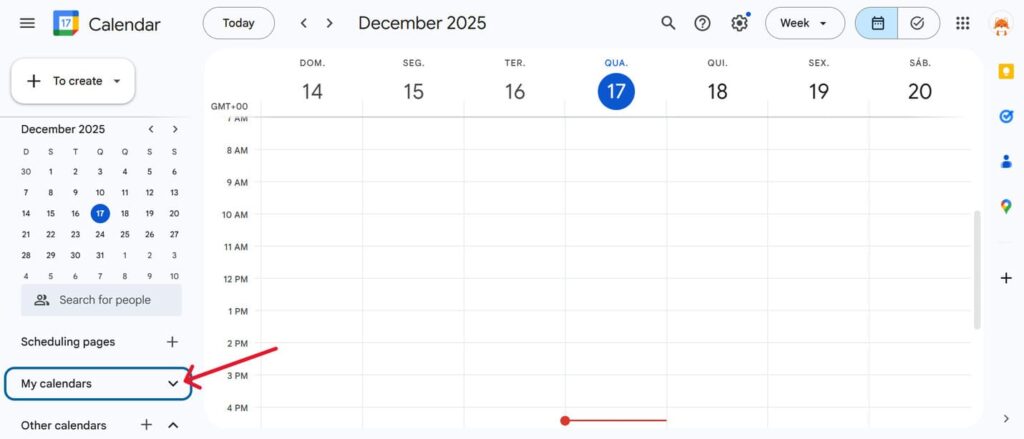
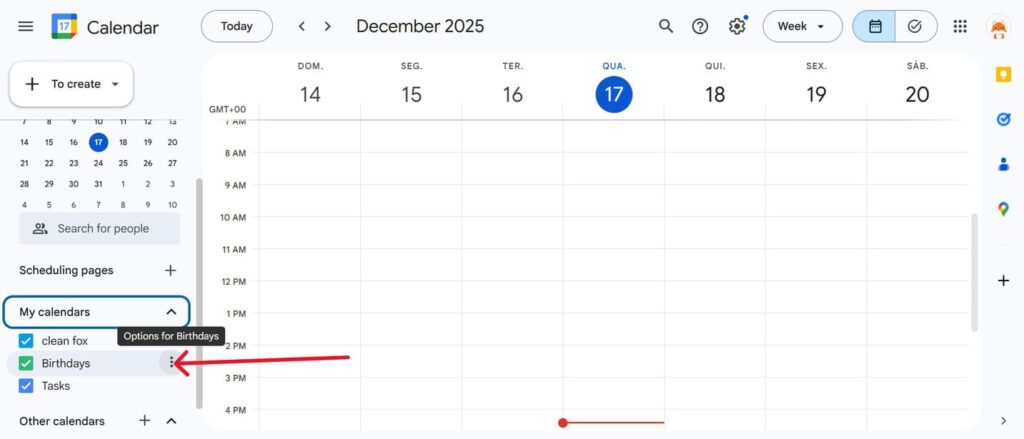
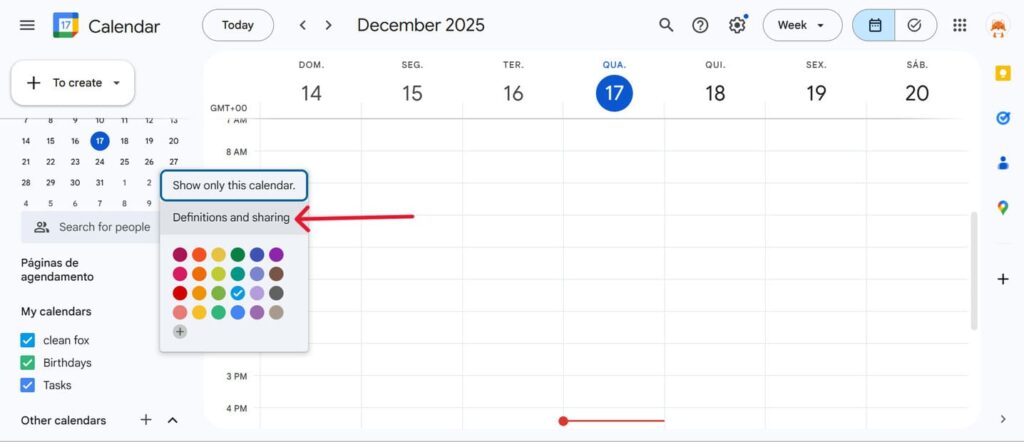
To manage who can see and edit your calendar, open Google Calendar in a web browser. Hover over the calendar you wish to share, located under My calendars (usually in the lower left). Click the three dots next to its name and select Settings and sharing. This will take you to the calendar’s sharing settings page.
Step. 1 👇
Step. 2 👇
Step. 3 👇
Choosing the Right Permissions
Google Calendar provides several tiered access levels, allowing you to decide how much control others have over your calendar. These options include:
- See only free/busy (hide details)
- See all event details
- Make changes to events
- Make changes and manage sharing
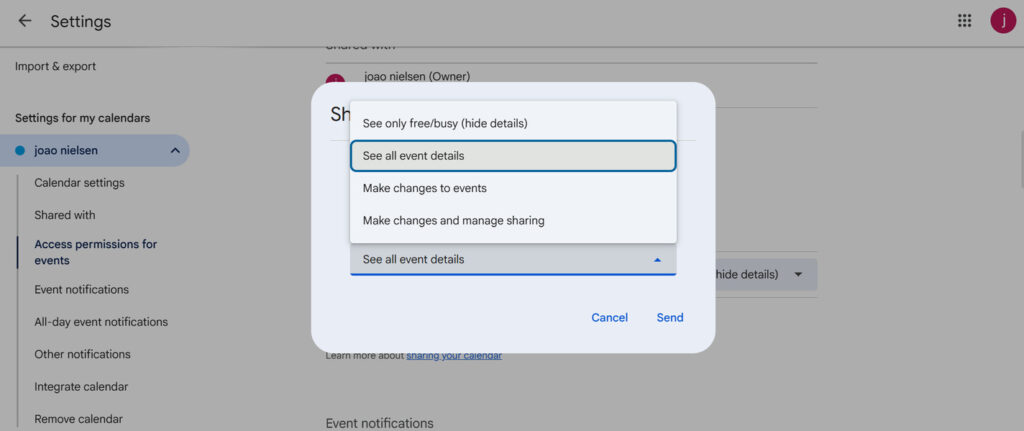
Select the permission level that suits your needs. Remember, higher levels of access allow individuals to edit events or even re-share your calendar, so choose carefully.
Inviting Individuals or Groups
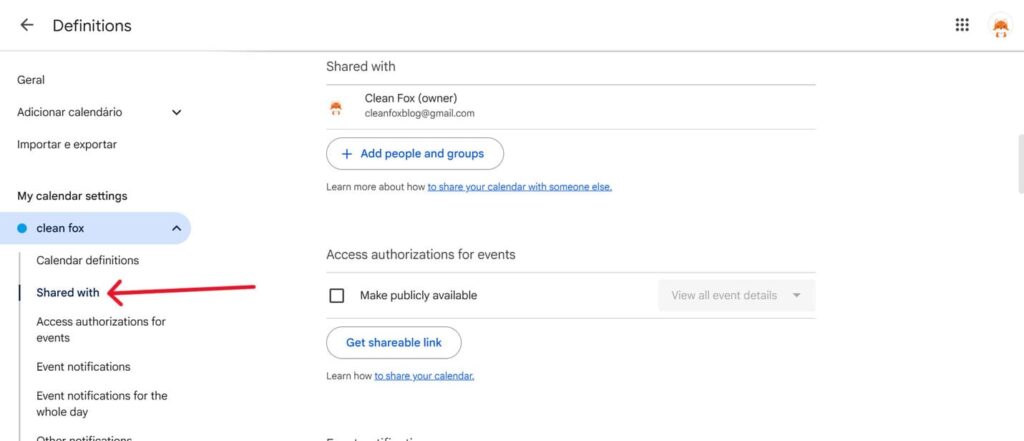
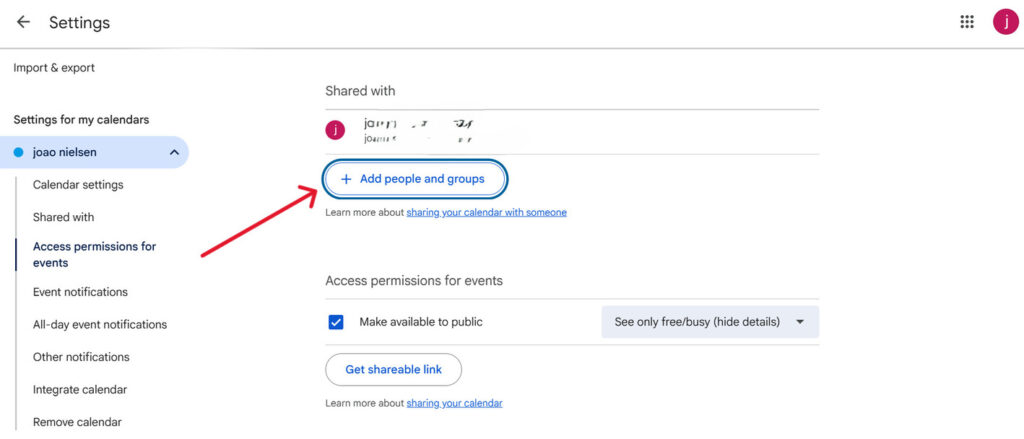
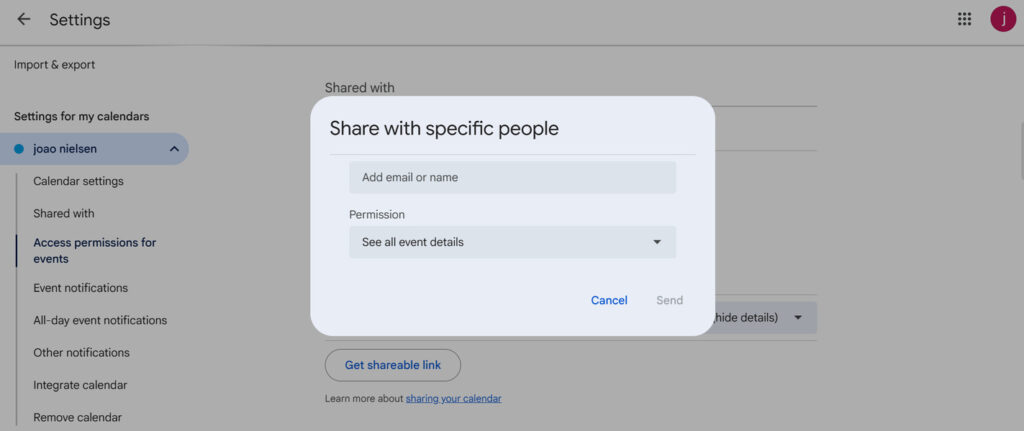
On the Settings and sharing page, use the Share with specific people or Add people and groups option. Enter the email address or Google Group you want to share with, select the desired access permission from the dropdown menu, and click Send. If you frequently collaborate with the same people, you can create a Gmail group to simplify sharing and avoid adding contacts one by one.The recipients will receive an email invitation to add or access your calendar in their Google Calendar account.
Step. 1 👇
Step. 2 👇
Step. 3👇
Sharing with Specific Devices and Operating Systems
Sharing on Android and iOS Devices
Once you’ve set up sharing permissions, recipients using Android can open the Google Calendar app, tap the menu at the top left, go to Settings, select the calendar you shared, and it will sync automatically after they accept the invitation.
For iPhone users, calendar sharing must be configured on the web. After accepting the invitation, they need to sign in to the Google Calendar app with their Google account, and the shared calendar will appear in their list automatically. This ensures real-time event updates across platforms.
Desktop and Web-Based Access
On a desktop, anyone with the invitation or access to a public calendar can simply open Google Calendar in any web browser. They need to locate the calendars section in the left panel, and the shared calendar will appear once added. This guarantees seamless scheduling access from computers, regardless of the operating system.
Advanced Sharing Techniques

Say goodbye to spam, clutter, and chaos.
Our smart email cleaner filters out junk, organizes your inbox, and helps you focus on what really matters.
✅ Block spam automatically
✅ Organize emails by priority
✅ Keep your inbox clean
✅ Clean old emails you don’t read
📱 Available on the App Store and Google Play.


Creating Public Calendars
Want to make your calendar public so anyone with the link can view it without an invitation? In the Settings and sharing page, scroll to Access permissions for events. Check the box labeled Make available to public, then choose See all event details from the dropdown menu. This allows viewers to see important details like the time and location of events.
Once enabled, Google Calendar will provide a public URL and calendar ID that you can copy and share via email or embed on a website. This is ideal for websites or broad audiences. However, keep in mind that only users with the public calendar link can view the calendar.
Integrating with Other Applications
Expand your sharing capabilities with Google Calendar by allowing others to subscribe to the public version of your calendar. They simply need to open Google Calendar, go to Other calendars on the left, click Add other calendars → From URL, paste your public calendar link, and hit Add calendar. This will display your events alongside theirs.
Additionally, for apps like Calendly, you can paste the public calendar link into their integration settings to sync scheduling and avoid double-booking.
Conclusion
Mastering Google Calendar sharing is simple when you focus on the essentials: access sharing settings through the three dots next to your calendar, choose permissions such as “see all event details” or “make changes to events,” and invite others via email addresses or groups. You can even create public links for broader access and integrate with apps to ensure seamless syncing across devices.
To optimize your shared calendar, regularly review access permissions, use color-coding for clarity, and communicate updates to avoid scheduling conflicts. Open Google Calendar today, share it with your colleague or team, and watch your productivity soar as everyone stays aligned on events and schedules.
To further improve your productivity, combining shared calendars with smart communication habits can make a real difference. For example, learning how to schedule an email in Gmail helps ensure your messages are sent at the right time—without disrupting your workflow.
Your shared calendar is ready—start collaborating now!
FAQ
How do I share my Google Calendar with specific people and set different permission levels?
To share your Google Calendar with specific people and set different permissions:
- Open Google Calendar on a computer.
- Hover over the calendar under My calendars.
- Click the three dots → Settings and sharing.
- Scroll to Share with specific people.
- Click Add people, enter their email address, and choose a permission level:
- See only free/busy (hide event details)
- See all event details
- Make changes to events
- Make changes and manage sharing
- Click Send.
Can I share a Google Calendar with someone who doesn’t use Google (non-Google email) and how will they access it?
Yes, you can share your calendar with non-Google users. Here’s how:
- In Google Calendar settings, add their non-Google email under Share with specific people.
- Send the invite. They will receive an email with a link to access the calendar.
Note: They may need to sign in to view it. Full editing permissions require a Google account.
Alternatively, you can make the calendar public and provide the public calendar link for view-only access.
How do I stop sharing my Google Calendar or change sharing settings for an already shared calendar?
To stop sharing or modify sharing settings for a Google Calendar:
- Go to calendar.google.com.
- Under My calendars, hover over the calendar you want to update.
- Click the three dots → Settings and sharing.
Under Access permissions, you can:
- Turn off public or organization sharing.
Under Share with specific people, you can:
- Remove individuals.
- Change permission levels.
Are there any restrictions for sharing a work or school Google Calendar imposed by an administrator?
Yes, administrators of work or school Google accounts can impose restrictions on calendar sharing. These restrictions may include:
- Limiting sharing to free/busy information only.
- Disabling external sharing outside the organization.
- Turning off all sharing permissions entirely via the Admin Console.
And this was our article on how to share the google calendar. If you want to know more about email productivity check our blog.
