

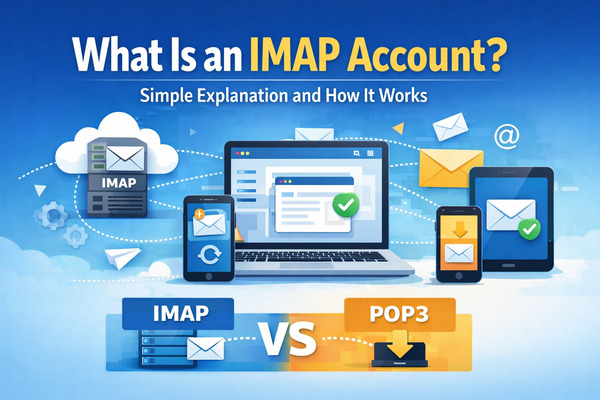
Ever wondered what an IMAP account is?
An IMAP account operates using the Internet Message Access Protocol (IMAP), which is a standard email protocol. This protocol allows email clients such as Outlook or Apple Mail to retrieve and manage emails stored on a mail server via an internet connection. It enables users to access their emails seamlessly across multiple devices like a phone, laptop, or tablet.
Picture this: switching effortlessly between your phone and laptop without losing your place in a message — that’s the power of an IMAP email setup. Unlike older email protocols, IMAP stores your emails on the server. This means any changes, such as marking a message as read or moving it to a folder, are synchronized across all your devices. This is why IMAP is the preferred choice for most modern email accounts provided by internet service providers or email services.
In this guide, we’ll explain what an IMAP account is and show you how to keep your inbox clean using the Cleanfox app.
Understanding IMAP: Basic Concepts
What is IMAP?
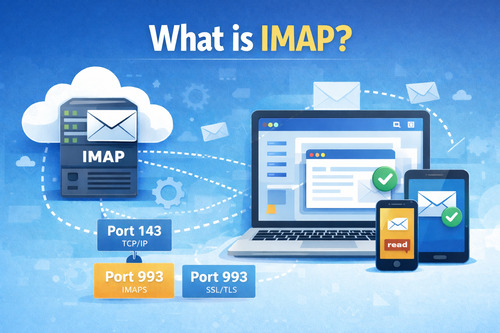
At its core, IMAP — or Internet Message Access Protocol — is an application-layer protocol that allows email clients to connect to a remote mail server. It enables operations such as selecting folders, fetching message headers, or applying message flags like “read” or “deleted.”
This client-server setup operates over TCP/IP, typically using port 143 for standard connections or port 993 for secure IMAPS with SSL/TLS encryption. IMAP supports features like multi-mailbox management and selective email retrieval, where you can download just the headers first to save bandwidth.
How IMAP Functions
When you open your email client, it starts by connecting to the IMAP server, authenticating with your user account credentials, and syncing a list of mailboxes or folders — such as Inbox, Sent, Drafts, or even the Outbox — along with message headers like the sender, subject, and size, without downloading the full content yet.
Need to view an email? The client sends a FETCH command to retrieve the full message, including attachments, on demand. Any actions you take, like moving an email to a folder or deleting it, trigger a two-way synchronization with the server. This ensures all your connected devices are updated instantly, providing a consistent view of your inbox.
Looking for real-time updates? IMAP’s IDLE command allows the server to push notifications about new messages or changes from other user sessions. This keeps your inbox dynamic and up-to-date without requiring constant manual refreshing.
Comparing IMAP with Other Email Protocols

Say goodbye to spam, clutter, and chaos.
Our smart email cleaner filters out junk, organizes your inbox, and helps you focus on what really matters.
✅ Block spam automatically
✅ Organize emails by priority
✅ Keep your inbox clean
✅ Clean old emails you don’t read
📱 Available on the App Store and Google Play.


IMAP vs. POP
While IMAP keeps emails on the server so they can be accessed from any device, POP (specifically POP3) downloads messages to your local email client and often deletes them from the server. This limits access to a single device unless it is configured otherwise.
POP3 offers one-way synchronization, meaning actions like marking an email as read don’t reflect on other devices. Additionally, you can’t organize folders on the server — everything remains local. This makes POP3 useful for offline access but less suitable for multi-device use.
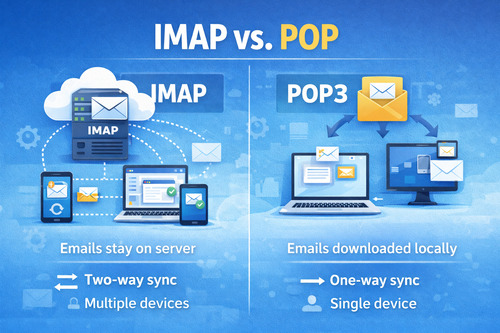
In contrast, IMAP supports two-way synchronization, advanced searching directly on the server, and simultaneous logins from multiple devices. While it requires more server storage and an active internet connection, it offers far greater flexibility for modern email usage.
Benefits of Using IMAP
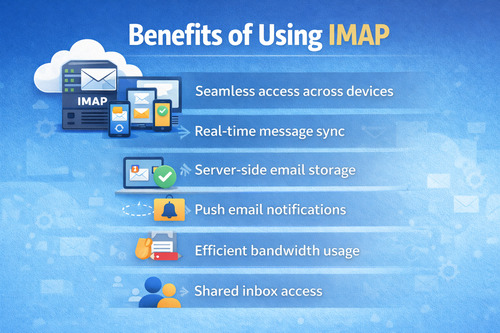
One of the biggest advantages of IMAP is its ability to keep your email experience consistent across devices. Key benefits include:
- Seamless access to the same inbox on phones, laptops, and tablets
- Real-time synchronization of read status, folders, and deletions
- Server-side email storage that protects messages from device loss
- Push notifications for new emails
- Efficient bandwidth usage through selective message downloads
- Shared inbox access for teams or multiple users
These features make IMAP ideal for both individual users and teams who rely heavily on email.
How to Set Up an IMAP Account
Setting Up on Desktop Clients (e.g., Microsoft Outlook, Apple Mail)
To add your email account to Outlook, launch the app and navigate to File > Add Account. Enter your full email address and select Let me set up my account manually. Choose IMAP, then enter the incoming mail server details (for example, imap.yourdomain.com on port 993 with SSL) and the outgoing SMTP server (commonly smtp.yourdomain.com on port 465 or 587 with STARTTLS).
In the More Settings menu, ensure My outgoing server requires authentication is enabled using the same credentials as incoming mail. Test the connection and click Finish — your email folders will populate shortly after.
For Apple Mail on Mac, open Mail > Add Account, select your provider or Other, enter your email details, and choose IMAP. Provide the server names (IMAP on port 993 with SSL and SMTP on port 465 with SSL), authenticate, and click Create to begin syncing.
Setting Up on Mobile Devices
On iPhone, go to Settings > Mail > Accounts > Add Account > Other. Enter your name, email address, password, and description, then specify the incoming mail server (IMAP: port 993 with SSL) and outgoing mail server (SMTP: port 465 with SSL and authentication).
Tap Next to verify the information, review the summary, and select Create. Your emails and folders will begin syncing automatically.
For Android, open the Gmail or Email app, tap Settings > Add Account, choose your provider or Other, and enter your login details. Select IMAP manually and enter the server information (IMAP: port 993 with SSL; SMTP: port 587 with STARTTLS). Confirm to sign in and start managing your inbox.
Conclusion
An IMAP account improves email management by offering server-side storage, real-time synchronization across multiple devices, selective downloads to save bandwidth, and advanced folder management. These features make it a strong alternative to older protocols like POP, especially for users who rely on multiple devices throughout the day.
If you want a more consistent and flexible email experience, switching to IMAP is a practical choice. Simply add your email account to Outlook, Apple Mail, or your mobile device, enter the correct server details, and enjoy a fully synchronized inbox.
FAQ
What is the difference between IMAP and POP3?
IMAP stores emails on the server and synchronizes them across multiple devices using two-way communication. POP3, on the other hand, downloads emails to a single device and usually removes them from the server, offering one-way synchronization.
IMAP is best for users who need multi-device access and better organization, while POP3 is more suitable for offline use and minimal server storage.
How do I set up an IMAP account in my email client?
To set up an IMAP account, open your email client and select Add Account. Enter your email address and password, then choose IMAP as the protocol.
Provide the incoming mail server details (typically imap.domain.com, port 993 with SSL) and the outgoing SMTP server details. Enable authentication for outgoing mail and test the connection to complete the setup.
What are the typical IMAP server settings for Gmail?
For Gmail, use the following IMAP settings:
- Incoming server:
imap.gmail.com - Port: 993
- Encryption: SSL/TLS
- Username: Full Gmail address
- Password: Gmail password or app password
Before setting up, ensure IMAP is enabled in Gmail settings. If two-factor authentication is active, you’ll need to generate an app password.
Can I access the same IMAP account on multiple devices?
Yes. IMAP is designed for multi-device access. It synchronizes emails, folders, and message status across all connected devices in real time, ensuring a consistent inbox everywhere.
This was our article on what an IMAP account is. If you want to master your email, check out our Cleanfox Blog.
