

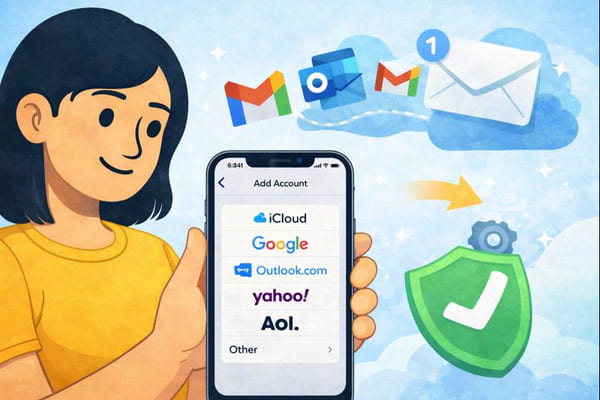
Setting up an email account on your iPhone should be quick and hassle-free—but small configuration issues can easily turn a simple task into a frustrating one. Whether you’re adding a new Gmail, Outlook, or Yahoo account, or connecting a custom email address for work, knowing the right steps makes all the difference.
In this guide, you’ll learn how to add an email account on iPhone step by step, understand when automatic setup works, and know exactly what to do if something doesn’t sync as expected. By the end, you’ll have your inbox running smoothly and fully under control.
And if you want to keep your iPhone email inbox clean and free from spam, you can use our Cleanfox platform for free.
Automatic Setup for Common Email Providers
For popular email providers like Gmail, Outlook, Yahoo, AOL, or iCloud, iPhone offers an automatic configuration feature. This detects and applies the necessary settings without requiring manual input. If you’re syncing Gmail and need to manage storage, learn how to free up space in Gmail fast.
Finding the Settings App
To start, locate the Settings app on your iPhone’s home screen. It’s represented by a gray gear icon.
Adding the Email Account
Follow these steps to add your email account:
Tap Mail (or search for it).
Go to Accounts > Add Account.
Select your email provider from the list (e.g., Google for Gmail or Outlook.com).
Enter your email address and password, then tap Next. The device automatically verifies and configures IMAP and SMTP settings.
Finalizing the Setup
If verification is successful, tap Save. Open the Mail app to ensure your emails are syncing properly. If you’re setting up a new device or switching accounts, it’s also important to sign out of your Google account on old devices to protect your personal data and prevent unauthorized access.
This process works seamlessly for addresses like @gmail.com, @outlook.com, or @yahoo.com.
For less common providers, such as Hostinger or other custom domain email services, you may need to enter the email settings manually. Some providers offer configuration profiles, but this is less common.
Do More with Mail
Now that you’ve got your email account set up on your iPhone, let’s explore some powerful features in the Mail app that simplify managing your inbox. These tools are designed to help you stay organized and productive without feeling overwhelmed.
Organize Your Inbox
Starting with iOS 18.2 (availability may vary by region and language), Mail automatically categorizes your emails into smart categories such as Primary (personal and urgent messages), Transactions (receipts and orders), Updates (newsletters and social), and Promotions (deals and ads). You can swipe between categories or tap “All Mail” for a comprehensive view. To further control unwanted messages, check out our step-by-step guide to stop spam mail on iPhone.
Want to customize further? Create your own mailboxes. Here’s how: Open Mail, tap Edit, then New Mailbox. Name it and select a location. To move emails into these folders, simply tap Edit, select messages, and choose Move. For bulk removal of unwanted messages, see our step-by-step guide on deleting emails on iPhone.
Using Mail Efficiently

Say goodbye to spam, clutter, and chaos.
Our smart email cleaner filters out junk, organizes your inbox, and helps you focus on what really matters.
✅ Block spam automatically
✅ Organize emails by priority
✅ Keep your inbox clean
✅ Clean old emails you don’t read
📱 Available on the App Store and Google Play.


Make email management even smoother by marking key senders as VIP. This creates a dedicated mailbox highlighting their emails with a star icon. Additionally, use flags, Remind Me, or Follow Up features to prioritize tasks directly within the Mail app.
Customize your view further by adjusting visible mailboxes. Tap Edit to reorder, hide, or delete them, and enable categories for automatic sorting that adapts to your preferences.
Pro tip: If your iPhone supports it, priority sorting will automatically surface time-sensitive items, like boarding passes, when you need them most.
FAQ
What should I do if I get a “Cannot Get Mail” error when adding my email account on iPhone?
To resolve the “Cannot Get Mail” error or if you face emails not downloading on iPhone, follow these steps. For a detailed fix, visit our guide to fix emails not downloading on iPhone.
- Delete and re-add the email account by navigating to Settings > Mail > Accounts.
- Ensure your internet connection is stable.
- Force-quit the Mail app and restart your iPhone.
- Verify the server settings and ports.
- Update your email account password if necessary.
- Send a test email to check functionality.
How do I fix incorrect SMTP or IMAP settings during iPhone email setup?
If you encounter issues with SMTP or IMAP settings during setup:
- Go to Settings > Mail > Accounts > select your account.
- Verify or edit the IMAP incoming server (e.g., imap.provider.com, port 993 with SSL enabled) and SMTP outgoing server (e.g., smtp.provider.com, port 465 or 587 with SSL/TLS).
- Ensure the username and password are correct.
- Tap Next to save your changes.
Use the exact settings provided by your email provider and disable auto-configuration if necessary.
Why can’t I add my email account on iPhone and it keeps asking about SSL?
If your iPhone repeatedly prompts about SSL when adding an email account, it may be due to:
- Incorrect server settings or ports.
- Expired or invalid SSL certificates.
To fix this:
- Go to Settings > Mail > Accounts > [Account] > Advanced.
- Verify or toggle SSL settings and confirm the correct ports (e.g., 993 for IMAP and 465 for SMTP).
- If the issue persists, delete and re-add the email account.
What if my iPhone email account password is wrong or needs resetting?
If your email password is incorrect or requires resetting:
- Navigate to Settings > Mail > Accounts, select the email account, and enter the new password.
- Toggle Mail off and on if prompted.
For Apple ID password resets, go to Settings > [your name] > Sign-In & Security > Change Password.