

If you’ve ever hit the “Send” button in Gmail only to realize immediately that your email contained an error, was sent to the wrong recipients, or was missing key information, you’re not alone. Fortunately, Gmail provides a helpful feature called “Undo Send” that lets you cancel or unsend an email shortly after it has been sent.
By clicking the undo button within a set cancellation period, you can stop your message from reaching the recipient, giving you a valuable opportunity to double-check and correct your email. This built-in safety net is particularly useful when you spot mistakes or need to add recipients or important details right after sending. In this article, you’ll learn how to enable and use the undo send feature, check your cancellation period, and ensure you never regret sending an email again. If you’d like a deeper explanation of how Gmail’s recall system actually works — and what really happens when you click “Undo” — check our full guide on How to Recall an Email in Gmail (Undo Send Explained).
And if you want to remove all the spammy emails and unwanted messages from your inbox with just one click, you can use our free tool, Cleanfox.
Setting Up Undo Send in Gmail
Accessing Gmail Settings
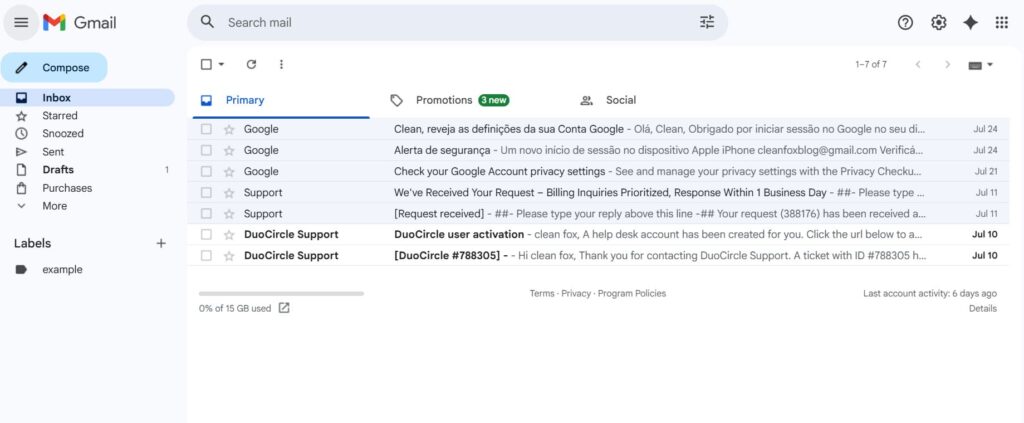
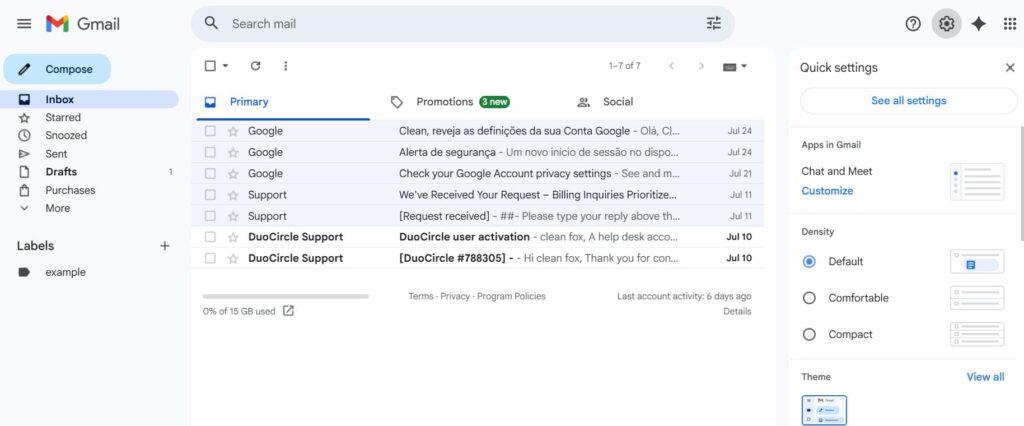
To get started with the Undo Send feature, you’ll first need to access your Gmail settings. Open your Gmail account on your computer and look for the gear icon in the top right corner of the screen.
Click on it, then select “See all settings” from the dropdown menu. This will open the main settings page, where you can customize various aspects of your Gmail experience.
If you’re using the Gmail app on your mobile device, tap the menu icon (three horizontal lines) in the top left, then scroll down and tap “Settings” to access your account preferences.
Step. 1 👇
Adjusting the Cancellation Period
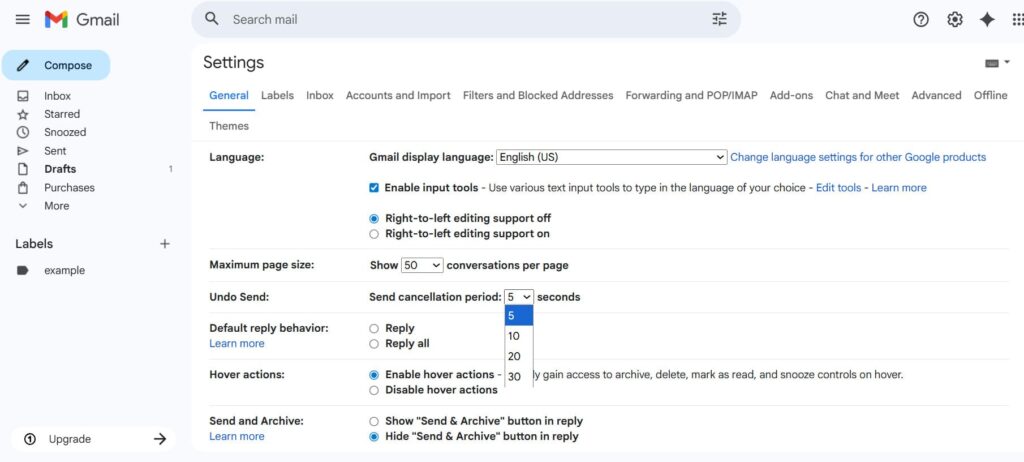
Once you’re in the settings, navigate to the “General” tab. Scroll down until you find the “Undo Send” section. Here, you can enable the feature by checking the box next to “Enable Undo Send.”
After enabling it, you’ll see a dropdown menu labeled “Cancellation period.” This lets you choose how long Gmail will wait before actually sending your emails. This gives a window of time to cancel or unsend them.
You can select a period from 5 to 30 seconds. The longer the period, the more time you’ll have to catch mistakes, but keep in mind that your emails won’t be sent until this time has passed.
After making your selection, don’t forget to click “Save Changes” at the bottom of the page to apply your settings. Now, every time you send an email, you’ll have a chance to click “Undo” if you need to cancel it before it reaches your recipients.
Step. 2 👇
Step. 3 👇
How to Cancel a Sent Email in Gmail

Say goodbye to spam, clutter, and chaos.
Our smart email cleaner filters out junk, organizes your inbox, and helps you focus on what really matters.
✅ Block spam automatically
✅ Organize emails by priority
✅ Keep your inbox clean
✅ Clean old emails you don’t read
📱 Available on the App Store and Google Play.


Using Undo Send on Desktop
After you click the “Send” button in Gmail on your desktop browser, a small notification will appear in the bottom left corner of your screen that says “Message sent.” Right next to this message, you’ll see the “Undo” button. To cancel the email, simply click this “Undo” option within the cancellation period you’ve set in your settings. Clicking it will immediately stop your email from being sent and reopen it in the compose window. This allows you to edit the email, add recipients, or delete the message entirely if you realize you’ve sent it to the wrong email address or included incorrect content.
It’s important to note that this cancellation period is limited, so you must act quickly before the option disappears and the email is sent permanently. If you ever notice that messages seem to disappear from your mailbox, check out our Gmail messages are missing guide for more troubleshooting tips.
Using Undo Send on Mobile
If you send an email using the Gmail app on your mobile device, the process is very similar. After tapping “Send,” look at the bottom of your screen for a small prompt that says “Sent” with an “Undo” button beside it. Tap “Undo” within the brief cancellation period to pause the sending process.
Just like on desktop, this action will reopen your email, allowing you to make changes or remove recipients as needed. This functionality is available on both Android and iOS devices, making it simple to quickly correct any mistakes, verify your recipients, or add missing details before the email officially leaves your outbox. If your message doesn’t reach its destination, see our guide on finding lost emails in Gmail and Outlook.
Extending Your Undo Send Window for Increased Flexibility
Want a little more breathing room after hitting send? Gmail lets you extend your undo send window for greater peace of mind.
By default, the cancellation period is set to just 5 seconds, but you can increase it up to 30 seconds—the maximum allowed by Gmail. This means you’ll have a full half-minute to catch mistakes, double-check your recipients, or add something important to your message before it’s actually sent.
To make this change, head to your Gmail settings, find the “Undo Send” section, and select your preferred cancellation period from the dropdown menu. Once you click save changes, your new window will apply to all future emails, whether you’re sending from your desktop or mobile device.
This quick tweak can make a big difference if you often wish for a few extra seconds before sending.
Conclusion
Remember, the Gmail Undo Send feature is your powerful ally for correcting mistakes and ensuring your emails reach the right recipients with accurate content. Set up your cancellation period wisely—up to 30 seconds—to maximize your chance to cancel sending if you spot an error.
Always check your recipient list and message before clicking send, as the undo window is limited. Don’t hesitate to click the “Undo” button immediately when it appears after sending an email. Taking these simple steps will give you greater control, reduce stress, and maintain professionalism in your email communications.
FAQ
How do I enable the Undo Send feature in Gmail?
To enable Undo Send in Gmail, open Gmail, click the gear icon, then “See all settings.” Under the General tab, locate “Undo Send” and select a cancellation period (5, 10, 20, or 30 seconds). Scroll down and click “Save changes.” This feature allows you to retract emails within the set timeframe.
How long do I have to unsend an email after clicking Send?
You have between 5 to 30 seconds to unsend an email after clicking Send in Gmail, depending on your settings. This duration can be adjusted in Gmail’s settings under “Undo Send.” Once this time window expires, the email cannot be recalled.
Can I adjust the Undo Send cancellation period, and how?
Yes, you can adjust the Undo Send cancellation period. In Gmail, go to Settings, select “See all settings,” find “Undo Send,” and choose your preferred delay (5, 10, 20, or 30 seconds) from the dropdown menu. Don’t forget to click “Save changes.” In Outlook, open Settings → Mail → Compose and reply, and set your preferred “Undo send” delay.
Will the recipient see any notification if I unsend a message?
If you unsend a message on Instagram, the recipient does not receive a direct notification about it. If their notifications were on or they were in the chat, they might briefly see the message disappear. Instagram itself does not send alerts regarding unsent messages.
That wraps up our guide on how to cancel an email in Gmail! Want to take your email skills even further? Check out more practical guides on our blog.
