


Have you ever found yourself frantically searching for an email that seems to have vanished into thin air? Whether it’s a important work message or a personal email, losing emails can be frustrating and stressful. If you’re struggling to locate a missing email, you’re not alone.
Both Gmail and Outlook offer ways to recover deleted emails, but knowing where to start can be daunting. This guide will walk you through the process of finding lost emails in your inbox and provide valuable tips on how to prevent such incidents in the future. You’ll learn how to navigate the trash folder, check for any unauthorized access, and utilize forwarding settings to ensure your emails are safe and easily accessible.
And the best way to keep your inbox completely free of unwanted spam emails is by using our Cleanfox platform — a simple tool that helps you declutter and stay organized effortlessly.
Recovering Lost Emails in Gmail
Check the Trash Folder
When trying to recover lost emails in Gmail, the first step is to check the Trash folder. Gmail keeps deleted emails in this folder for a limited time, typically 30 days, before they are permanently removed. Different email providers apply different retention periods. For example, if you’re using AOL Mail, it’s important to know how far back AOL Trash saves emails and what the recovery window looks like, as the timeframe is shorter than Gmail’s.
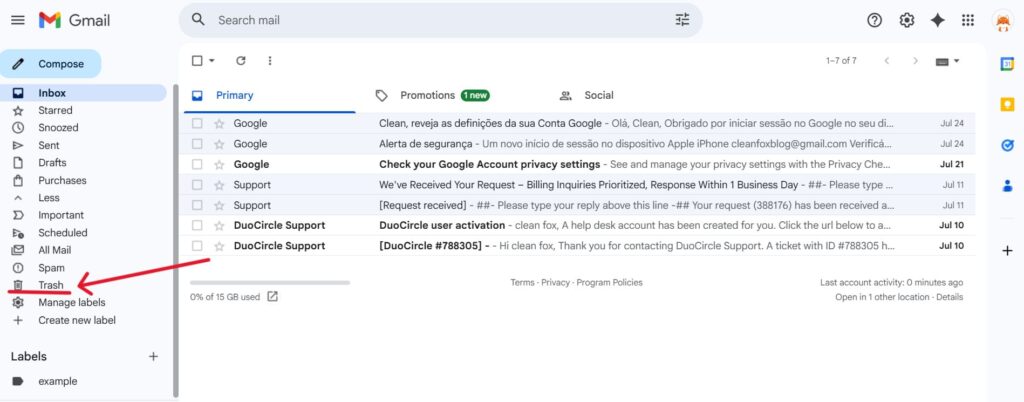
To access the Trash folder, log into your Gmail account and locate the “Trash” label on the left-hand side of your screen. If the label isn’t visible, click on “More” to expand the list of labels and find it. Once inside the Trash folder, you can either scroll through the messages or use Gmail’s search function to locate the email you’re looking for.
Using Gmail’s Search Function
Gmail’s search function is an efficient tool for locating lost emails. You can enter specific keywords or use search operators to refine your search. For instance, if you want to search only within the Trash folder, type in:trash followed by relevant keywords in the search bar.
This approach ensures that Gmail searches exclusively within the Trash folder for emails containing your specified keywords. To further narrow down your search, click the arrow at the end of the search bar to access advanced search options, allowing you to set detailed criteria.

Championing the ‘All Mail’ Label
The All Mail label in Gmail acts as a master folder that houses all your emails, except those in Spam or Trash. If you’ve archived or deleted an email, it might still be found here, provided it hasn’t been permanently removed from the Trash.
To search within the All Mail folder, use the in:anywhere operator. This will display all emails across your Gmail account, including those in Spam and Trash. This method is particularly helpful when you’re uncertain about an email’s exact location.
Retrieving Lost Emails in Outlook

Say goodbye to spam, clutter, and chaos.
Our smart email cleaner filters out junk, organizes your inbox, and helps you focus on what really matters.
✅ Block spam automatically
✅ Organize emails by priority
✅ Keep your inbox clean
✅ Clean old emails you don’t read
📱 Available on the App Store and Google Play.


Exploring the Deleted Items Folder
If you’re missing an email in Outlook, the Deleted Items folder—sometimes labeled Trash depending on your account type—is your first stop. When you delete an email, it typically lands here and remains until you manually empty the folder or until Outlook automatically does so after a set period.
You can easily scroll through your Deleted Items folder to find the missing email. To restore it, simply move the message back to your Inbox. If you accidentally deleted entire folders, you can also restore them. However, keep in mind that once you empty this folder, recovering emails becomes much more challenging. Act quickly if you notice that your email is missing from your main content.
Utilizing Outlook’s Search Tools
Outlook’s built-in search tools are powerful allies when you need to find missing emails. You can enter keywords, sender names, or even specific dates in the search bar at the top of your mailbox.
If you’re unsure where the email went—perhaps it was moved to an unexpected folder or accidentally archived—use the advanced search options. Outlook also lets you filter your search by folder, date, or attachment status, making it easier to locate elusive messages. Don’t overlook the “Recover Deleted Items” feature available for Exchange accounts, which allows you to restore messages even after they vanish from your Deleted Items folder.
This feature is especially valuable if you realize the email is missing too late for the standard recovery process.
Recovering from the Server
If your email account is connected to an Exchange server or Office 365, you may have access to a second layer of recovery. Some organizations provide a “Recoverable Items” or “Dumpster” folder, which temporarily stores emails deleted from the Deleted Items folder—almost like a trash folder within a trash folder. Here, administrators or users with the right permissions can recover deleted emails beyond the usual window.
However, recovering emails from the server generally requires IT support, as this area isn’t accessible to most users by default. If you suspect your missing emails might have been permanently deleted, check with your IT department or review your account’s recovery options as soon as possible.
By regularly checking your Deleted Items folder, mastering Outlook’s search features, and understanding the server-side recovery options available, you can significantly reduce the risk of losing important emails in Outlook. This proactive approach ensures your mail stays organized and accessible, even if accidents happen.
Preventive Measures to Avoid Losing Emails
Creating Regular Backups
Backing up your emails is one of the most effective ways to prevent losing them. For Gmail users, options like Google Takeout allow you to export your emails to a local file, which can be stored on your computer or in cloud storage.
Alternatively, you can use third-party tools to automate this process, ensuring that your emails are backed up regularly without manual intervention. For Outlook, creating regular backups involves exporting your emails to a PST file, which can be stored securely.
This not only helps protect your emails from accidental deletion but also ensures that you have access to them even if your account is compromised or if there is a technical issue with your email service.
Setting Up Email Organization Rules
Set clear rules to organize your emails and keep important messages easy to find. Both Gmail and Outlook allow you to set up filters or rules that automatically sort incoming emails into specific folders based on criteria like sender, keywords, or subject. This helps to keep your inbox uncluttered and makes it easier to find specific emails.
For example, you can set up a rule in Gmail to automatically move emails from certain senders directly to a designated folder, ensuring they don’t get buried in your inbox. Similarly, Outlook allows you to create rules that can automatically move emails to specific folders, reducing the likelihood of misplacing important messages.
By using these rules effectively, you can maintain a tidy and well-organized email system.
Conclusion
Recovering lost emails in Gmail and Outlook is entirely manageable. By checking folders like Trash and Deleted Items, utilizing powerful search tools, and understanding recovery options provided by the server, you can locate your missing messages effectively.
To avoid losing important emails in the future, it’s essential to create regular backups and organize your inbox with clear rules. This ensures your emails remain accessible and secure. Additionally, these steps contribute to safeguarding your account from unauthorized access and minimizing storage issues.
Start implementing these strategies today to regain control over your inbox. Doing so will help reduce email-related stress and ensure you never lose track of important messages again.
FAQ
How can I recover lost emails in Gmail if they are not in the Trash or Spam folders?
If your lost emails are not in the Trash or Spam folders, you can try using Gmail’s Message Recovery Tool. Sign in to your account and follow the prompts to attempt recovery. For administrators, use the Google Workspace Admin Console’s Restore Data tool within 55 days of deletion. Beyond this period, recovery is generally impossible unless the emails were retained by Google Vault.
Additionally, consider using the advanced search feature in “All Mail” to locate misfiled emails.
What steps should I take to recover my Outlook account if I no longer have access to my recovery phone number or alternate email?
To recover your Outlook account without access to your recovery phone or email, click the “Forgot password?” link and provide as much accurate information as possible. If this option is unavailable, complete the Microsoft account recovery form with details only you would know. Ensure you have a working email address for communication during this process.
If you previously generated a recovery code, use it to regain access. Keep in mind that Microsoft cannot assist if two-step verification is enabled and no accessible recovery methods are available.
How do I complete the Microsoft account recovery form to retrieve my lost Outlook emails?
When completing the Microsoft account recovery form, use a device and location you are familiar with. Provide accurate and detailed information, such as previous passwords, contacts, and email subjects. Make sure to include a working email for Microsoft to contact you.
After submitting the form, wait for the recovery results, which are usually sent within 24 hours. If unsuccessful, you can retry the process up to twice daily.
Are there any special tips for verifying my identity when recovering an email account on Gmail or Outlook?
To verify your identity for Gmail or Outlook account recovery, use linked recovery options such as an email or phone number to receive verification codes. Enable and utilize two-step verification, authenticator apps, or backup codes for added security. Be prepared to answer account-related questions and ensure your recovery details are up-to-date to securely confirm your identity.
And this was our article on How to Find Lost Emails. If you want to learn more check our blog.
