

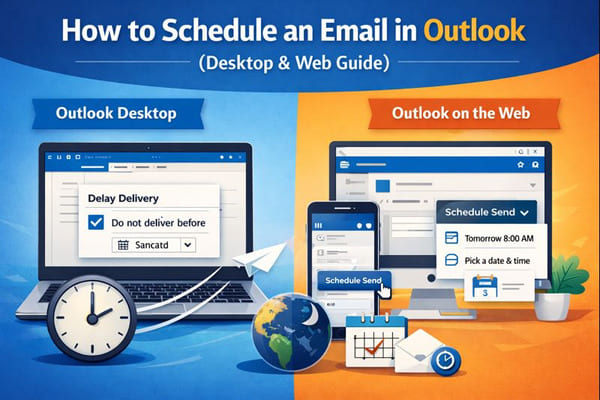
Want to schedule an email in Outlook but can’t find the option right away? You’re not alone. Unlike Gmail, Outlook doesn’t use a single, universal scheduling feature—and the steps depend on which version you’re using.
Outlook offers two different ways to schedule emails: Delay Delivery in the desktop app and Schedule Send in Outlook on the web (and newer versions). Both let you write emails in advance and choose when they’re sent, but they work slightly differently behind the scenes.
In this guide, you’ll learn how to schedule an email in Outlook on desktop and on the web, where scheduled emails are stored, how to edit or cancel them, and which option works best for your workflow—so you can stay productive without sending messages at the wrong time.
And if you also want to keep your inbox 100% clean and free of spam, you can use the Cleanfox platform for free.
Before You Start: Outlook Has Two Scheduling Methods
Outlook’s biggest source of confusion is that email scheduling works differently depending on the version you’re using:
- Outlook Desktop (Classic) uses Delay Delivery
- Outlook on the Web (and New Outlook) uses Schedule Send
The end result is the same—your email is sent later—but the steps, folders, and requirements are not identical. Below, we’ll walk through both methods step by step.
Video Tutorial ⬇️
How to Schedule an Email in Outlook Desktop (Delay Delivery)
If you’re using the classic Outlook desktop app, scheduling an email is done through a feature called Delay Delivery. Instead of selecting a send time directly from the Send button, you set delivery conditions before sending the message.
Compose Your Email
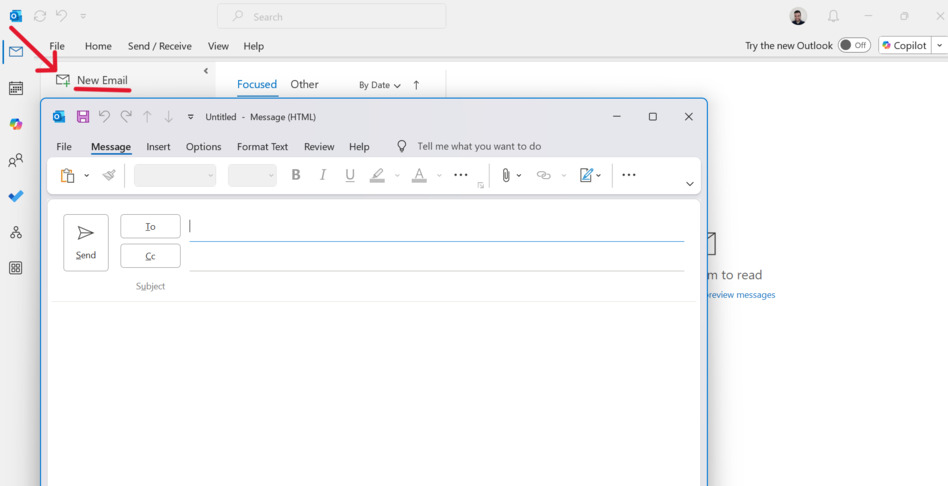
Open the Outlook desktop app and click New Email.
Add your recipients, write a clear subject line, and compose your message as usual.
Access the Delay Delivery Option
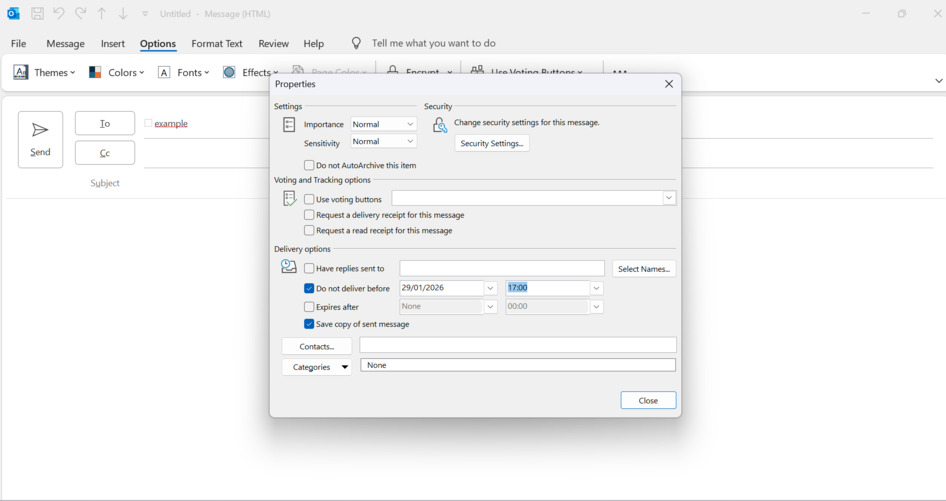
In the email compose window, go to the Options tab in the top menu.
Click Delay Delivery to open the scheduling settings.

Set the Delivery Time
In the Delay Delivery window, check the box next to Do not deliver before.
Choose the exact date and time you want the email to be sent, then click Close.
When you click Send, the email will be placed in your Outbox and automatically sent at the scheduled time.
How to Schedule an Email in Outlook on the Web (Schedule Send)
Outlook on the web uses a more modern and cloud-based feature called Schedule Send. This option is built directly into the Send button and doesn’t require your device to stay online.
Start a New Email
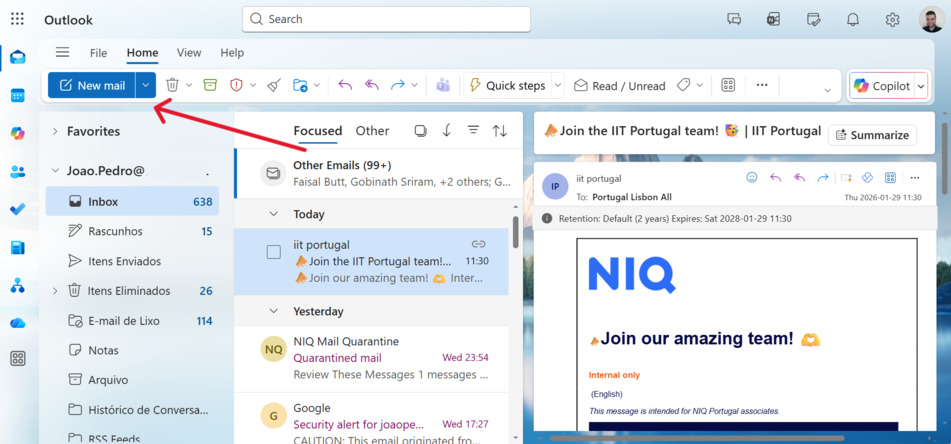
Go to Outlook on the web and click New Mail.
Fill in the recipients, subject line, and message body.
Use the Schedule Send Feature
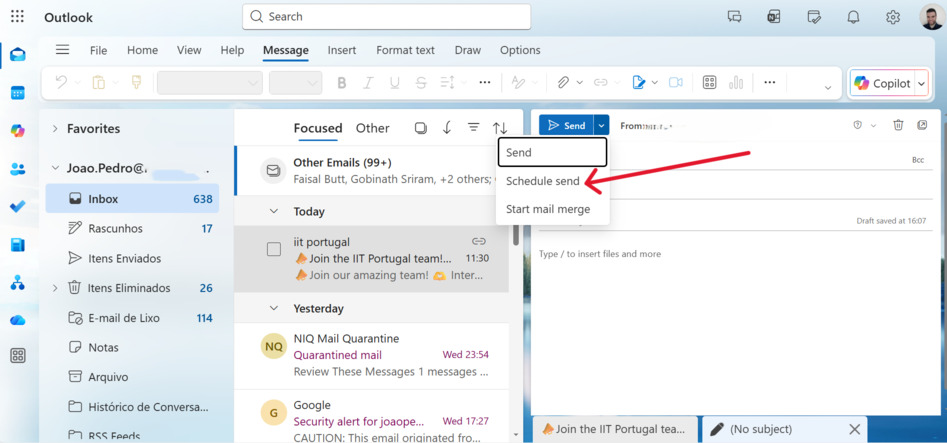
Instead of clicking Send, select the small dropdown arrow next to it.
Click Schedule send.
Choose the Send Time
You can pick from preset options like Tomorrow morning or select Custom time to choose an exact date and hour.
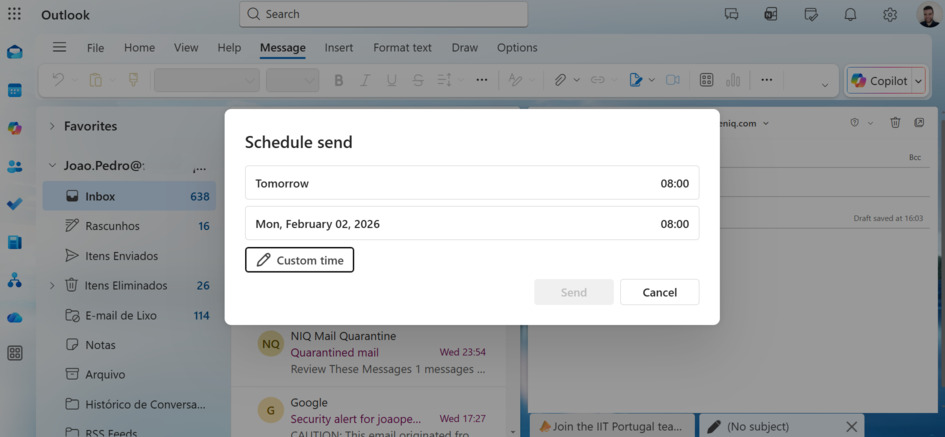
Once confirmed, the email will remain in your Drafts folder and will be sent automatically at the scheduled time—even if your computer is turned off.
Where Do Scheduled Emails Go in Outlook?

Say goodbye to spam, clutter, and chaos.
Our smart email cleaner filters out junk, organizes your inbox, and helps you focus on what really matters.
✅ Block spam automatically
✅ Organize emails by priority
✅ Keep your inbox clean
✅ Clean old emails you don’t read
📱 Available on the App Store and Google Play.


Where your scheduled email appears depends on the version you’re using:
- Outlook Desktop (Delay Delivery): Outbox
- Outlook on the Web / New Outlook: Drafts
Once the email is sent, it will move to your Sent Items folder.
How to Edit or Cancel a Scheduled Email in Outlook
Outlook Desktop
Open the Outbox and locate the scheduled email.
Double-click to open it, then go to Options → Delay Delivery.
From here, you can:
- Change the delivery date or time
- Remove the “Do not deliver before” option to send immediately
- Delete the email to cancel it entirely
Outlook on the Web
Go to your Drafts folder and open the scheduled email.
Click Edit, make your changes, and use the Schedule send option again to set a new time—or delete the email to cancel it.
Can Outlook Send Scheduled Emails If the App Is Closed?
This depends on your account type:
- Microsoft 365 / Exchange accounts: Outlook does not need to stay open
- POP or IMAP accounts: Outlook must remain open for the email to send
If you’re unsure which account type you’re using, Outlook on the web is the safest option since scheduled emails are sent from the cloud.
Why Schedule Emails in Outlook?
Avoid Sending Emails at the Wrong Time
Scheduling lets you write emails whenever it’s convenient—without sending messages late at night or outside business hours.
Work Better Across Time Zones
If you collaborate with international teams or clients, scheduled emails help ensure messages arrive during local working hours.
Stay Consistent With Follow-Ups
Plan reminders and follow-ups in advance so nothing slips through the cracks, even during busy periods.
FAQ
How do I view, edit, or cancel a scheduled email in Outlook?
- Desktop: Check the Outbox, open the email, and adjust Delay Delivery settings.
- Web/New Outlook: Open the email from Drafts and reschedule or delete it.
Can I schedule emails in the Outlook mobile app?
Yes. On both iOS and Android, tap the arrow next to Send, choose Schedule send, and select your preferred date and time. Scheduled emails remain in Drafts until sent.
Does Outlook adjust send times based on the recipient’s time zone?
No. Outlook schedules emails based on the sender’s time zone. If you need recipient-based time zone sending, this requires third-party email marketing tools—not Outlook itself.
Why didn’t my scheduled email send?
Common reasons include:
- Outlook desktop wasn’t open (POP/IMAP accounts)
- Incorrect date or time settings
- Temporary sync issues
Restarting Outlook or using Outlook on the web usually resolves the issue.
Conclusion
Email scheduling in Outlook isn’t difficult—but it is version-dependent. Once you understand whether you’re using Delay Delivery or Schedule Send, you can confidently write emails on your own time and let Outlook handle the timing.
Whether you’re coordinating across time zones, avoiding late-night sends, or planning follow-ups in advance, scheduling emails helps you stay in control of your inbox—and your workday.
Start using Outlook’s scheduling features today and send smarter, not harder.
