

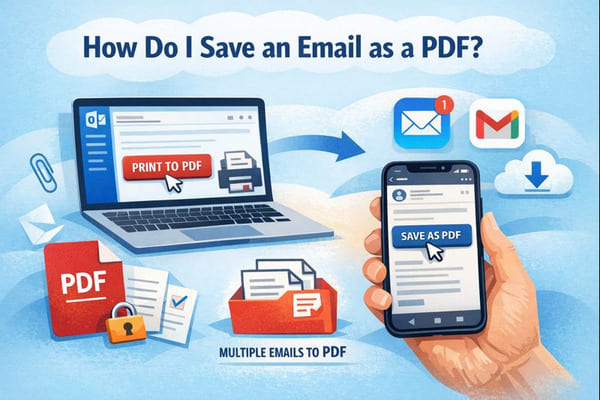
Want to save an email as a PDF? It’s a simple process, whether you’re using Outlook, Gmail, or another email service. This method is ideal for archiving important messages, sharing them securely, or keeping an offline record. You’ve come to the right place for a step-by-step guide covering desktop, mobile, and tips for handling attachments and multiple emails.
We all have emails we never want to lose—like a key work contract, a heartfelt note from a friend, or a receipt needed for taxes. But what happens if your inbox gets cluttered or you switch email providers?
That’s why learning how to save an email as a PDF is so useful. Whether you’re using classic Outlook, the new Outlook, or saving emails as PDFs on your iPhone, this guide has you covered. No more worrying about attachments—we’ll show you how to save your email correctly every time.
And if you want to keep your inbox 100% clean and free from spam, you can use our Cleanfox platform for free.
Methods for Saving Emails as PDFs on Desktop
Video Tutorial ⬇️
Using Outlook on Windows and Mac
Let’s explore how to save emails as PDFs in Outlook. Whether you’re on Windows or Mac, the Print to PDF feature is the most reliable way to save an email.
Start by opening the email you want to save, then go to File > Print. In the printer dropdown menu, select Microsoft Print to PDF. This option works in both the classic and new versions of Outlook on Windows.
Once you click Print, a save dialog box will appear. Choose your desired folder, enter a file name like important-contract.pdf, and click Save. Your PDF will be saved exactly where you need it.
On Mac, the process is very similar: open the email, go to File > Print, select Save as PDF from the dropdown menu, and choose a save location. Keep in mind that attachments are usually saved separately, so you may need to download them manually via File > Save Attachments.
To save multiple emails as a single PDF, select them in your folder first, then print the selection. This allows you to combine several emails into one file.
Step. 1 ⬇️
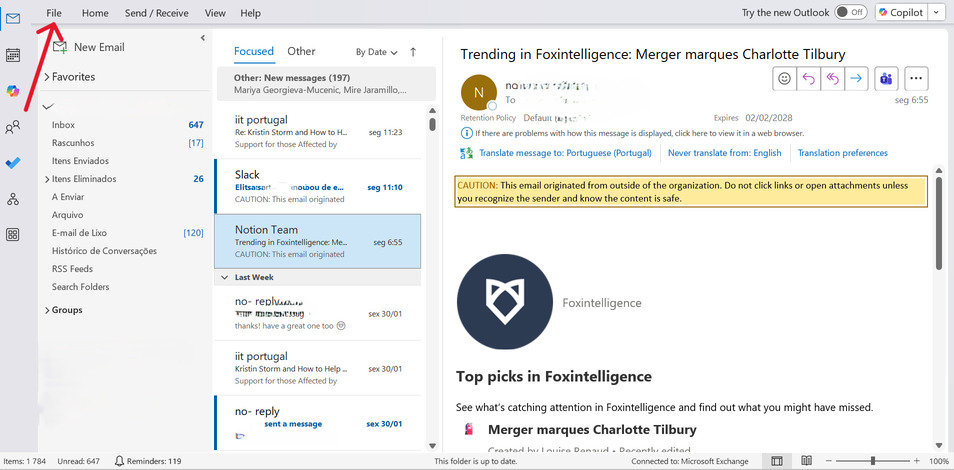
Step. 2 ⬇️
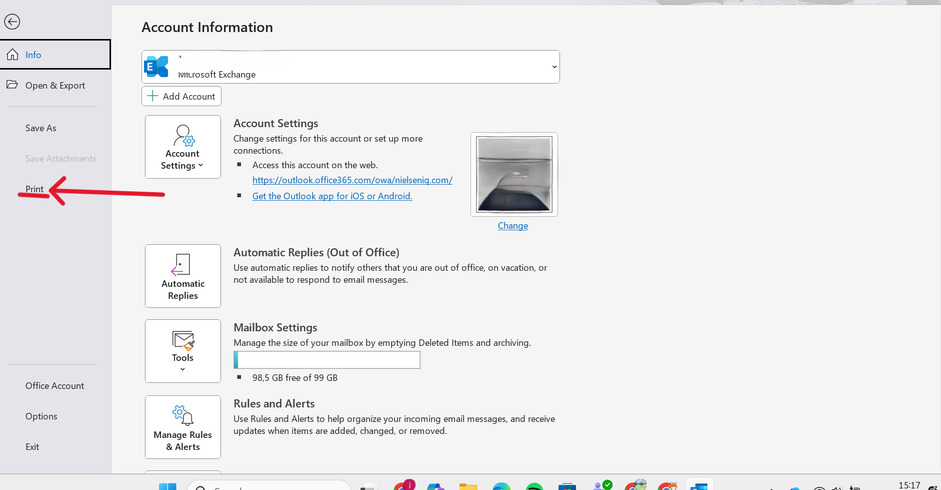
Step. 3 ⬇️
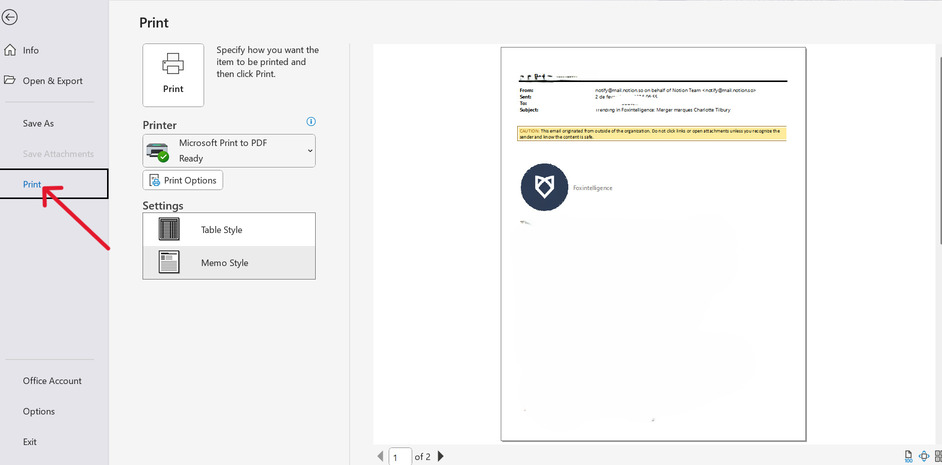
Pro tip: If Microsoft Print to PDF isn’t available on older Windows versions, you can enable it in system settings or use a workaround by saving the email as an HTML file, opening it in Word, and then exporting it as a PDF.
Using Gmail in a Web Browser
If you’re using Gmail, no additional software is required. Open the email you want to save and click the Print icon, or select Print from the three-dot menu.
In the print preview screen, choose Save as PDF as the destination. If the email is part of a thread, you can adjust which pages to include before saving. Select a folder, name the file, and your Gmail email will be saved as a PDF.
This method works well for individual emails. If you need to save multiple emails, you can print selected messages and combine them into a single PDF.
The same approach applies to Outlook on the web. Open the message, click the three-dot menu, select Print, choose Save as PDF, and save the file. Attachments may need to be saved separately, but the email body will print correctly.
Step. 1⬇️
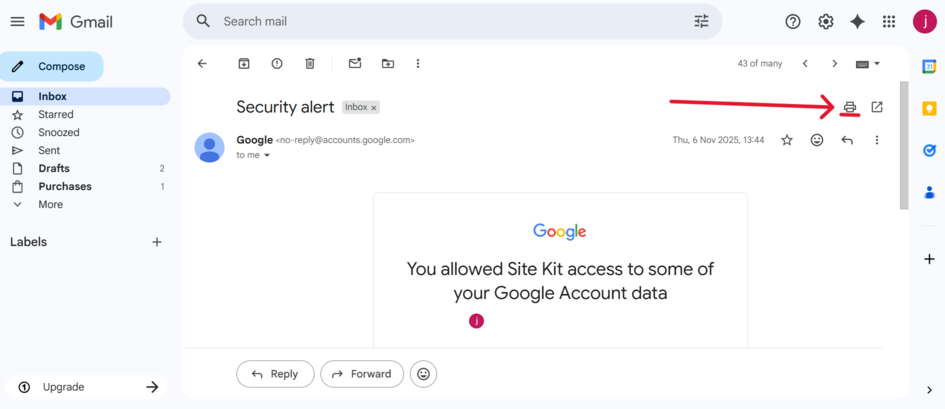
Step. 2⬇️
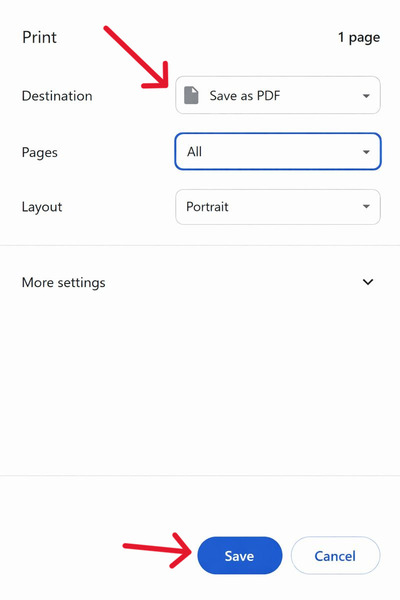
These desktop methods are efficient and reliable for saving emails as PDFs without installing extra tools.
Converting Emails to PDFs on Mobile Devices

Say goodbye to spam, clutter, and chaos.
Our smart email cleaner filters out junk, organizes your inbox, and helps you focus on what really matters.
✅ Block spam automatically
✅ Organize emails by priority
✅ Keep your inbox clean
✅ Clean old emails you don’t read
📱 Available on the App Store and Google Play.


For iPhone Users
On iPhone, converting an email to a PDF is straightforward using the built-in Mail app. Open the email, tap the Reply icon, and select Print.
In the print preview, use two fingers to pinch out on the preview image to open it as a full PDF. Tap the Share icon, choose Save to Files, select a folder (such as iCloud Drive or On My iPhone), and tap Save.
This method also works in apps like Outlook and Gmail. In Outlook, tap More > Print Conversation, then follow the same steps. If the preview doesn’t capture the full email, try opening the reply window (without sending) and printing again.
Attachments can be saved separately by tapping the Share option directly on each file.
For Android Users Using the Gmail App
On Android, the Gmail app includes a built-in option to save emails as PDFs. Open the email, tap the three-dot menu, and select Print.
From there, choose Save as PDF from the printer dropdown, select a folder, name the file, and tap Save. Your PDF will be created instantly.
Some devices may also show a Download as PDF option directly in the menu, allowing you to skip the print step.
Additional Tips for Managing PDFs
Once you’ve mastered the basics, a few extra tips can help you manage your PDFs more effectively—especially when dealing with attachments or multiple emails.
For sensitive documents, consider password-protecting your PDFs. In Adobe Acrobat, go to Tools > Protect, set a strong password, and save the file. Share the password separately for better security.
When working with multiple emails, tools like Adobe Acrobat can merge them into a single PDF. If you’re printing instead, select all emails at once and always check the preview to avoid formatting issues.
Use clear file names like Project-Update-2026.pdf and organize files into folders such as Emails/Archive/Clients. If a PDF is too large to email, compress it or share it via secure cloud services like Google Drive or Dropbox.
Conclusion
You now have all the tools you need to save emails as PDFs across desktop and mobile devices. Whether you’re using Outlook, Gmail, iPhone, or Android, the process is simple and reliable.
Remember to:
- Use Print to PDF on desktop for the best results
- Save attachments separately when needed
- Choose clear file names and folders
- Protect sensitive PDFs with a password
Now you can confidently archive, share, and store important emails as PDFs whenever you need them.
FAQ
How do I save an email as a PDF on my mobile phone?
On Android (Gmail): Open the email, tap More (⋮), select Print, choose Save as PDF, and pick the location where you want to save it.
On iOS (Mail): Open the email, tap Share, select Print, pinch to expand the preview, then go to Share > Save to Files.
Can I save multiple emails as a single PDF file?
Yes, you can save multiple emails as a single PDF file. Use Outlook tools (select the emails and print them to PDF), Gmail extensions, or PDF tools like Adobe Acrobat to merge multiple emails into one document.
Will email attachments be included when saving as a PDF?
It depends on the method you use. Some tools save attachments separately, while others embed or merge them into the PDF. Always check your tool’s settings and preview the file after saving.
How do I add emails to an existing PDF file?
You can use Adobe Acrobat for Outlook by opening the email, selecting More options > Adobe Acrobat > Append email to PDF, and choosing an existing file. Alternatively, use PDF tools or add-ins that allow you to merge emails into an existing document.
