

Want to know how to send a folder by email?
Most email services, including Gmail and Outlook, don’t allow you to attach folders directly and limit email attachments to around 25 MB. This often causes errors when trying to send large folders or multiple files at once.
The good news is that there are simple and reliable solutions. You can compress folders into a ZIP file or use cloud storage services like Google Drive or OneDrive to share them securely. These methods let you send entire folders—photos, documents, or even large video files—without running into attachment size limits.
Below, we’ll walk through the easiest ways to send a folder by email on desktop and mobile devices.
And if you want to keep your inbox free of spam and unwanted emails, Cleanfox can help you do it for free.
Method 1: Compressing Files into a ZIP Folder
The easiest way to send a folder by email is by creating a ZIP file (also called a zipped folder). This method combines files and subfolders into a single compressed file, making it easier to stay within email attachment limits. It works well for Gmail, Outlook, and most other email clients.
Creating a ZIP File on Windows and macOS
On Windows:
- Right-click the folder (or selected files).
- Choose Send to > Compressed (zipped) folder.
- A new ZIP file will be created in the same location.
On macOS:
- Control-click (or right-click) the folder.
- Select Compress.
- A
.zipfile named after the original folder will appear.
Pro tip:
To include multiple files or folders, hold Ctrl (Windows) or Command (Mac) while selecting them before compressing.
Attaching and Sending the ZIP File
To send the ZIP file:
- Open your email client (Gmail or Microsoft Outlook).
- Click the Attach button (paperclip icon).
- Select the ZIP file and add it to your message.
- Write your email and click Send.
Your recipient can download the ZIP file and extract its contents with a double-click. This method works well for folders under the 25 MB attachment limit.
If the ZIP file is still too large, cloud-based sharing is the better option.
Method 2: Using Cloud Storage Services
Gmail and Google Drive Integration
If your folder is too large to attach, Google Drive is an easy and efficient alternative. If you also need to include email messages as part of your files, you can learn how to attach an email in Gmail before sending the folder. Gmail lets you insert Drive files directly from the compose window using the Insert files using Drive button. When files exceed Gmail’s attachment limit, Gmail automatically inserts a Drive link instead of attaching the files.
If you’re sharing sensitive or confidential files, it’s important to follow best practices to securely send documents via email and protect your data.
When sharing a Drive folder, Gmail checks whether recipients already have access. If not, you’ll be prompted to adjust permissions such as Viewer, Commenter, or Editor, or allow access to Anyone with the link.
If you often send folders to the same people, creating a Gmail group can save time and avoid mistakes — here’s a step-by-step guide on how to create a Gmail group.
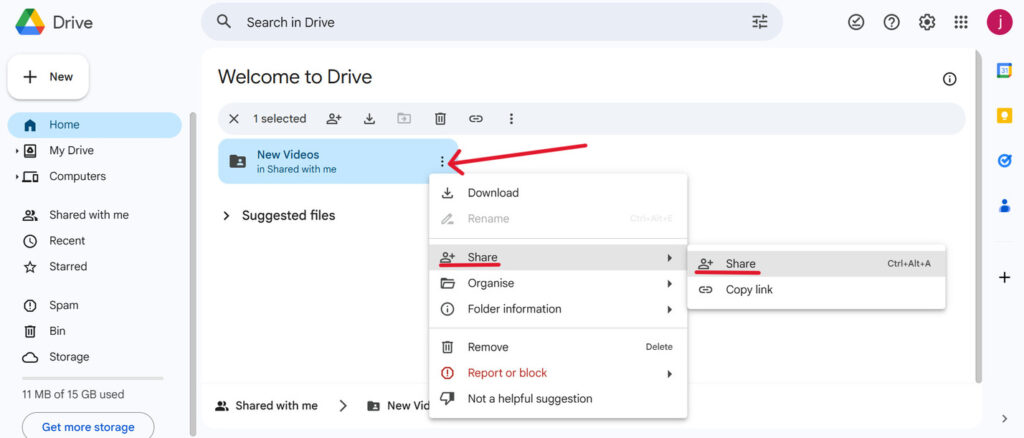
To share a folder from Google Drive:
- Open Google Drive.
- Right-click the folder and select Share.
- Adjust the General access settings.
- Copy the link and paste it into your email.
This allows recipients to preview or download all files without large attachments.
If Gmail won’t let you attach or share files due to storage limits, you may need to free up space in Gmail before sending large folders.
Outlook and OneDrive Integration
Outlook offers similar functionality through OneDrive. Instead of attaching large files, you can share a OneDrive link to a folder.
In the compose window:
- Click Attach.
- Select Browse cloud locations or Attach as OneDrive link.
- Choose the folder or files you want to share.
Outlook will prompt you to manage permissions if recipients don’t already have access. You can allow view-only or editing access depending on your needs.
Both Google Drive and OneDrive support access controls and version history, which are useful when sharing folders with teams or collaborators.
Method 3: Sending Folders on Mobile Devices

Say goodbye to spam, clutter, and chaos.
Our smart email cleaner filters out junk, organizes your inbox, and helps you focus on what really matters.
✅ Block spam automatically
✅ Organize emails by priority
✅ Keep your inbox clean
✅ Clean old emails you don’t read
📱 Available on the App Store and Google Play.


Sending Folders via Email on iPhone
On iPhone, you can’t attach a folder directly in the Mail app. However, you can either compress files using the Files app or share a cloud link.
To compress files on iPhone:
- Open the Files app.
- Navigate to the folder.
- Tap Select and choose the files.
- Tap the three-dot menu and select Compress.
- Attach the resulting ZIP file in Mail or Gmail.
To share via cloud storage:
- Open the Files app and locate the folder in iCloud Drive or another cloud provider.
- Long-press the folder and tap Share.
- Copy the link or send it directly via email.
Mail and Gmail will insert a link instead of attaching a large file.
Note:
If folders don’t appear as expected, check folder visibility settings or use the Outlook app, which often syncs Exchange folders more reliably on iOS.
Sending Folders via Email on Android
On Android, folders can’t be attached directly either. You can compress files or share a folder link using a cloud app.
To create a ZIP file:
- Open the Files or My Files app.
- Select the files or subfolders.
- Choose Compress or Create archive.
- Attach the ZIP file in Gmail or Outlook.
To share via cloud storage:
- Open Google Drive, OneDrive, or another cloud app.
- Locate the folder and tap Share or Get link.
- Paste the link into your email.
Android email apps may prompt you to adjust access permissions so recipients can download the entire folder.
Conclusion
To send a folder by email, remember these essentials:
- ZIP files are the fastest way to attach multiple files.
- Cloud storage services like Google Drive and OneDrive solve size and permission limits by sharing links.
- On mobile devices, use the Files app or cloud apps to compress files or share links.
Always label attachments clearly, set appropriate access permissions, and confirm recipients can open the format you send. Choose the method that fits your file size and security needs, then send your message with confidence.
FAQ
Can I attach a folder directly to an email in Gmail or Outlook?
No. Email clients don’t allow attaching folders as a single object. You must compress the folder into a ZIP file or upload it to a cloud service and share a link.
What should I do if my folder is too large on iPhone or Android?
Try compressing the folder first. If it’s still too large, upload it to iCloud Drive, Google Drive, OneDrive, or another cloud service and share the link. iPhone users can also use Mail Drop (up to 5 GB).
How do I zip a folder on Windows or Mac?
On Windows, right-click the folder and select Send to > Compressed (zipped) folder. On Mac, Control-click the folder and select Compress.
Are there alternatives to Gmail or Outlook for sending folders?
Yes. You can use cloud services like Google Drive, OneDrive, Dropbox, Box, or Sync.com, or file-transfer services such as WeTransfer, MASV, or enterprise tools like ShareFile.
And this was our guide on how to send a folder by email. If you want to master your email skills, check out our blog for more related content.
And this was our guide on how to send a folder by email. If you want to master your email skills, check out our blog for more related content.