


If you’re struggling to manage a flood of messages in your Gmail inbox, spotting those unread emails that demand your immediate attention can be a challenge. Luckily, Gmail provides effective tools to display only unread emails, allowing you to quickly locate and handle them without wasting time scrolling through messages you’ve already read or archived. If you’re searching for “gmail show only unread”, this guide is for you.
Whether you choose to use the Gmail search bar, apply filters, or customize your inbox type, these features make it simple to filter unread emails and keep your Gmail inbox organized and efficient. In this guide, you’ll discover step-by-step instructions to view only unread emails—whether you’re using Gmail on the web or through the app—so you can manage your inbox like a true professional.
If spam and unwanted emails are cluttering your inbox, try Cleanfox — our free tool that helps you keep your Gmail clean, organized, and free of junk.
Understanding the Gmail Interface
Overview of Gmail Layout
When you open Gmail, you’ll immediately notice a clean and intuitive layout designed to enhance your email management experience. On the left-hand side, there is a collapsible menu featuring essential options such as your Inbox, Sent, Drafts, and Trash folders, along with any custom labels you may have created.
Above this menu, a button lets you easily compose new emails. The central portion displays your email messages with a clear separation between read and unread emails, often using color or bold text to highlight unread ones.
At the top, you’ll find the search bar—your primary tool to find emails by keywords, senders, or even messages that are unread. Gmail also separates other Google services like Chat and Meet in a panel, allowing you to switch seamlessly between communication modes within the same interface. This structured yet flexible layout makes it easier to navigate your inbox and helps you locate specific emails quickly and efficiently.
Customizing Your Inbox Settings
Gmail offers several ways to customize your inbox to suit your workflow and preferences, especially when it comes to handling unread messages. Through Settings > Inbox, you can choose different inbox types that automatically organize your emails—such as Default, Important first, Unread first, Starred first, and Priority Inbox. Selecting the “Unread first” inbox type is a straightforward way to show only unread emails right at the top of your inbox, which can help you focus on messages that need your attention before anything else.
Additionally, you can tailor the tabs visible in your inbox (Primary, Social, Promotions, etc.) and create filters or labels that automatically categorize incoming mail. These customization options let you control how unread emails appear. They also keep your Gmail inbox tidy, making it easier to find and manage messages.
Utilizing Gmail’s Native Features to Filter Unread Emails
Using the Search Function
The Gmail search bar is a powerful tool that lets you quickly find only unread emails by typing simple commands. To filter your inbox for unread messages, enter is:unread in the search bar at the top of your Gmail app or browser and press Enter. Once you’ve reviewed them, you can also mark all your unread emails as read in Gmail to quickly clear your inbox view.
This command will display all the unread emails across your account. You can narrow down the results further by combining this with additional keywords, labels, or sender information—for example, is:unread in:inbox to show only unread emails in your inbox, or is:unread from:john@example.com to find unread messages from a specific sender. For more precise filtering, click the slider icon on the right side of the search bar. This opens Gmail’s Advanced Search options, where you can choose details like date range or whether the email has attachments.
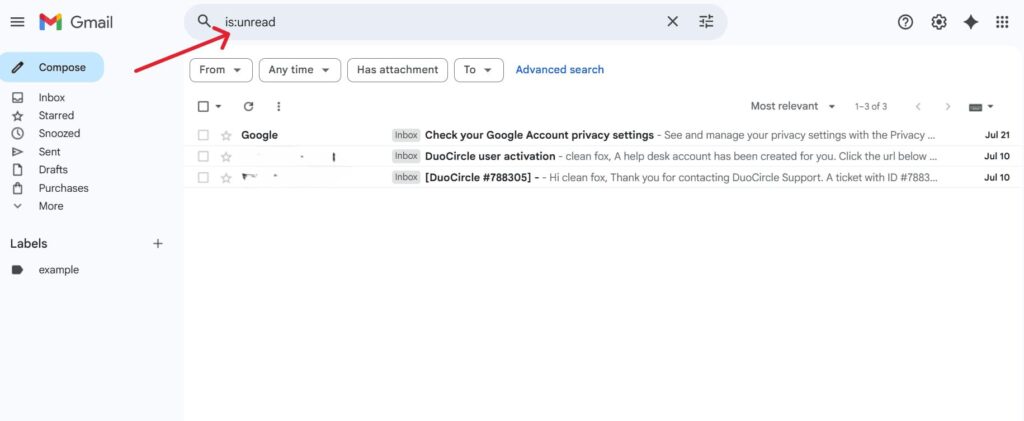
This search method is highly flexible and ideal for managing unread messages with ease.
Setting Up the “Unread First” Inbox
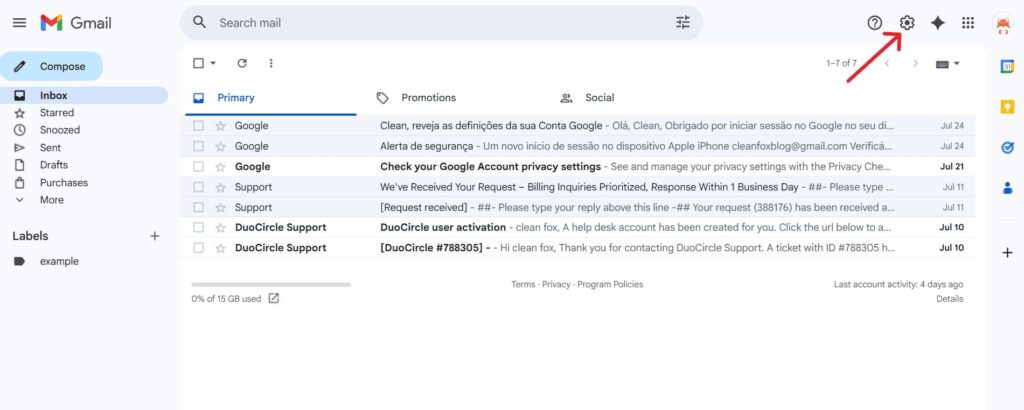
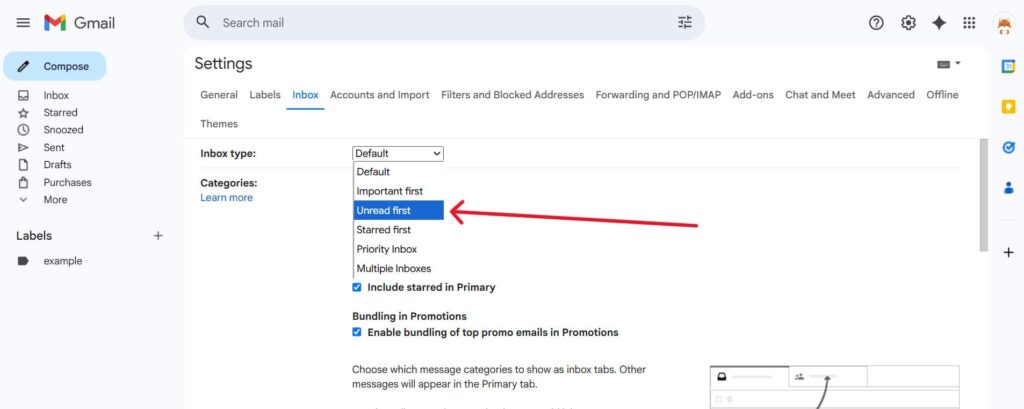
For an instant view that prioritizes unread emails, Gmail offers an “Unread first” inbox type. Activating this feature organizes your inbox so that all unread messages appear at the very top, separated from read emails.
To enable this, go to the gear icon for Settings in the top right corner, select See all settings, then navigate to the Inbox tab. Under the “Inbox type” section, choose “Unread first” and save your changes.
This setup keeps unread emails clearly visible whenever you open Gmail. It helps you avoid missing new or important messages.
1-Step. ⬇️
2-Step. ⬇️

3-Step. ⬇️

4-Step. ⬇️
5-Step. ⬇️

Creating Custom Filters and Labels
Beyond search and inbox layout adjustments, Gmail’s filtering system enables you to automatically manage unread emails with custom labels and filters. By creating a filter, you can instruct Gmail to detect unread messages based on criteria you choose—such as sender, subject keywords, or even the absence of the “read” status—and apply a special label like “Unread Emails.”
To set this up, use the search bar with the is:unread query, open the drop-down search options, and click “Create filter.” After setting your conditions, choose “Apply the label.” Then create or select a label for unread messages. This helps group or highlight those emails separately, making your inbox easier to manage every day.
Advanced Gmail Management Tips

Say goodbye to spam, clutter, and chaos.
Our smart email cleaner filters out junk, organizes your inbox, and helps you focus on what really matters.
✅ Block spam automatically
✅ Organize emails by priority
✅ Keep your inbox clean
✅ Clean old emails you don’t read
📱 Available on the App Store and Google Play.


Cleaning Up Your Inbox
Keeping your Gmail inbox clean is essential for maintaining productivity and a clear overview of your unread messages. Start by using the Gmail search bar to identify and delete emails that no longer serve you, such as outdated newsletters, promotional messages, or large attachments taking up space. If your Promotions tab is overflowing, here’s how to delete all promotional emails in Gmail at once to quickly regain control.
You can search by sender, attachment size, keywords, or date using search operators like from:, has:attachment, or older_than: to quickly locate emails to remove in bulk. Additionally, regularly unsubscribing from unwanted mailing lists and organizing emails into labels can reduce clutter. If you want to revisit certain emails later, use the Archive option. It clears your inbox without deleting important messages.
Over time, these cleaning steps can turn a cluttered inbox into an organized space. It will highlight unread emails that need your attention.
Integrating Third-Party Tools
Beyond Gmail’s native features, third-party apps can enhance how you organize and filter unread emails. Tools like Cleanfox or BlockSender offer bulk management capabilities, such as mass unsubscribing from newsletters, auto-labeling, or blocking unwanted senders in one go.
These apps usually have simple, user-friendly interfaces. They help you spot unread messages or spam that Gmail might miss. For instance, BlockSender lets you block entire domains or several addresses at once. It sends those emails straight to the Trash, keeping your inbox clean. Integrating these tools with Gmail can save you time, maintain your inbox’s neatness, and ensure unread emails stay prioritized without getting lost in the noise. You can also explore the best email management tools to organize your inbox in 2025 for even more smart ways to manage unread messages efficiently.
Conclusion
Displaying only unread emails in Gmail is a smart strategy to stay organized and quickly respond to important messages. Learn to use Gmail’s search bar commands and the “Unread first” layout to manage unread emails more easily. Add filters and labels to stay organized. For an even smoother workflow, clean your inbox regularly and try third-party tools that simplify email management.
Don’t wait—start applying these practical tips today to transform your Gmail inbox into a focused, manageable space where unread emails are simple to locate and address. Taking action now will boost your email productivity and reduce unnecessary stress.
FAQ
How can I filter and display only unread emails in a specific Gmail category like Primary or Promotions?
To filter and display only unread emails in a specific Gmail category like Primary or Promotions, use the search bar with the query “is:unread category:primary” or “is:unread category:promotions”. This will filter unread emails within that category. Alternatively, you can set your inbox to “Unread first” to prioritize unread emails across categories, but keep in mind that this will mix emails from all categories together.
For more control, you can use labels and advanced filters to further refine your email organization.
What search command do I use in Gmail to find all my unread emails across all folders?
To find all unread emails across all folders in Gmail, use the search command is:unread in the Gmail search bar. This will filter your entire mailbox to display every unread message, regardless of its folder. You can also refine your search with additional operators if needed for more specific results.
How do I configure Gmail settings to always show unread emails at the top of my inbox?
To always show unread emails at the top of your Gmail inbox, follow these steps:
- Open Gmail in a web browser.
- Click the gear icon to access Settings.
- Navigate to Inbox settings.
- Under “Inbox type,” select “Unread first.”
This setting organizes your inbox so that unread emails appear at the top, while read emails are displayed below.
Why might some of my unread emails not appear when I search for them in Gmail?
Some unread emails may not appear in Gmail search for several reasons:
- They might have been marked as read accidentally.
- Filters may have redirected them to skip the inbox.
- They could be located in other folders or under specific labels.
Additionally, caching issues or using improper search terms can also prevent unread emails from showing up. In such cases, you can follow this guide on how to fix missing Gmail messages to recover them easily.
To locate them, try using the search term “is:unread” or configure your inbox to “Unread first.”
And this was our article on How to Show Only Unread Emails in Gmail, if you want to know more about emails check our blog.
